
Sync OneDrive and SharePoint files to your computer
Updated For Microsoft 365

The OneDrive app keeps your work files on your computer and in the cloud at the same time. Sign in to OneDrive with your work account, and your files appear in File Explorer or Finder in a folder called OneDrive - YourCompanyName.
Set up OneDrive on Windows
Section titled “Set up OneDrive on Windows”On Windows 11, OneDrive is already installed. On older computers, download it from Microsoft’s OneDrive download page first.
-
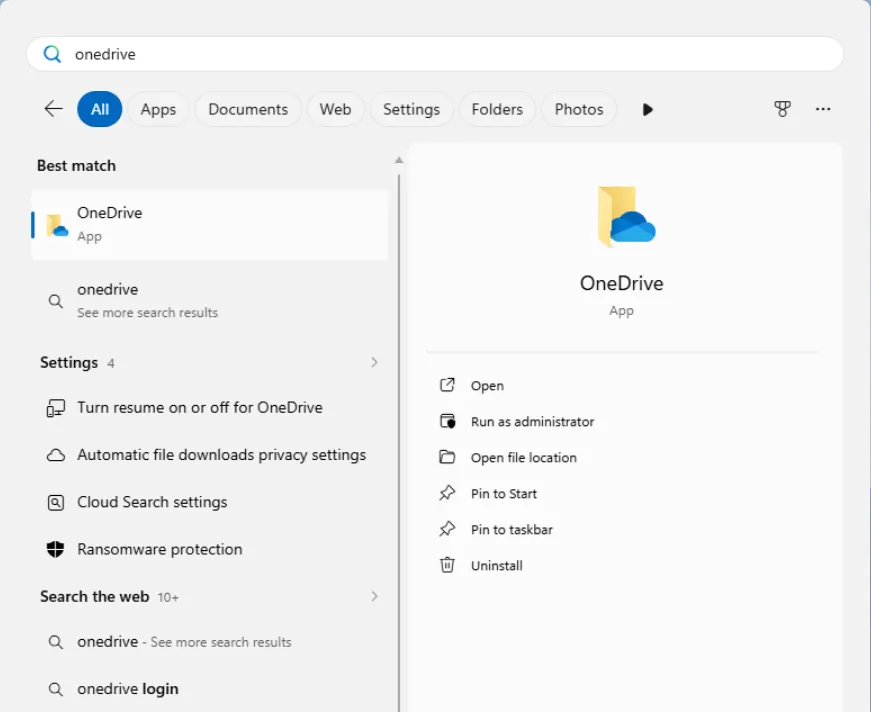
Select the Start button, search for OneDrive and open it.
-
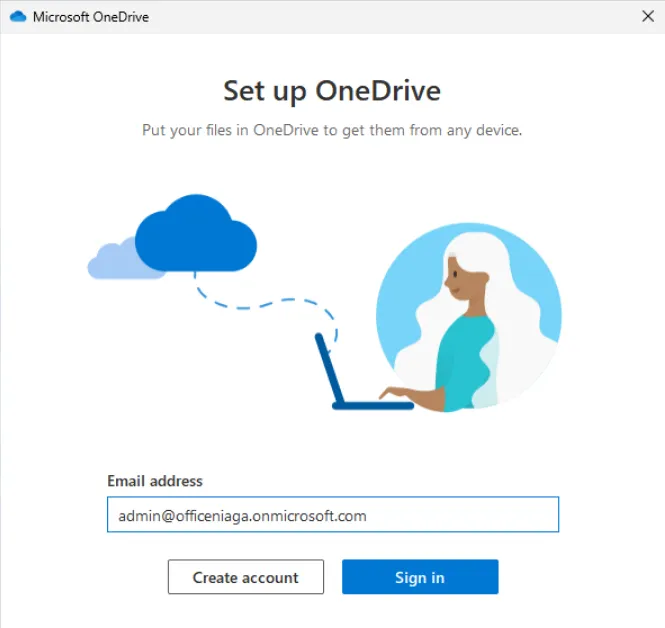
On Set up OneDrive, type your work email address and select Sign in, then enter your password.
-
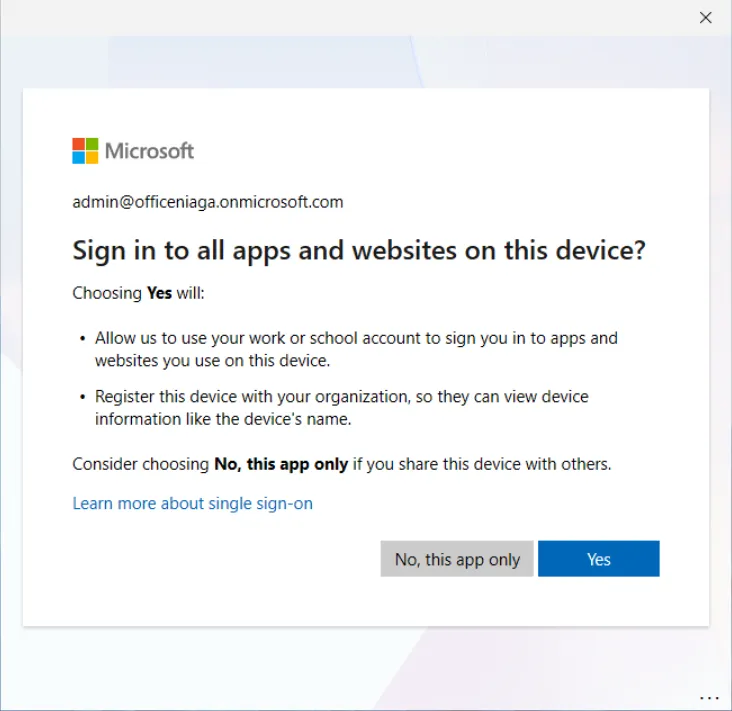
Microsoft asks Sign in to all apps and websites on this device?. On a shared or personal PC, select No, this app only. On a company PC, select Yes.
-
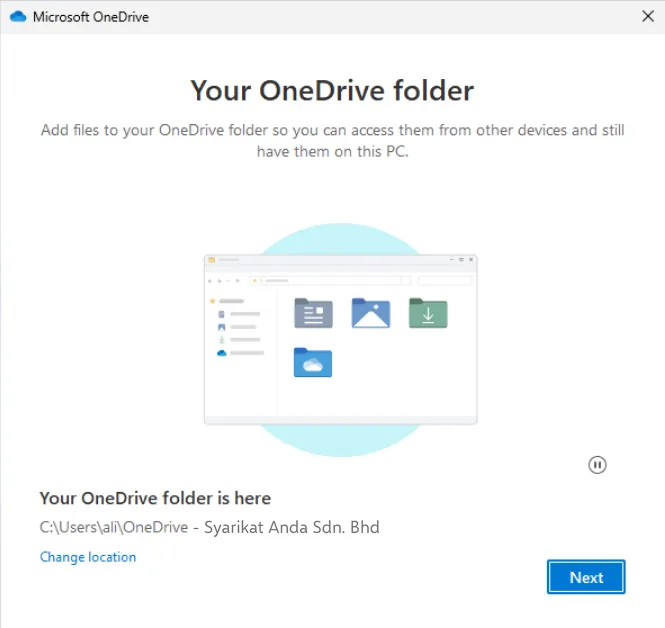
On Your OneDrive folder, check the location under Your OneDrive folder is here and select Next. To keep it on another drive, select Change location first.
-
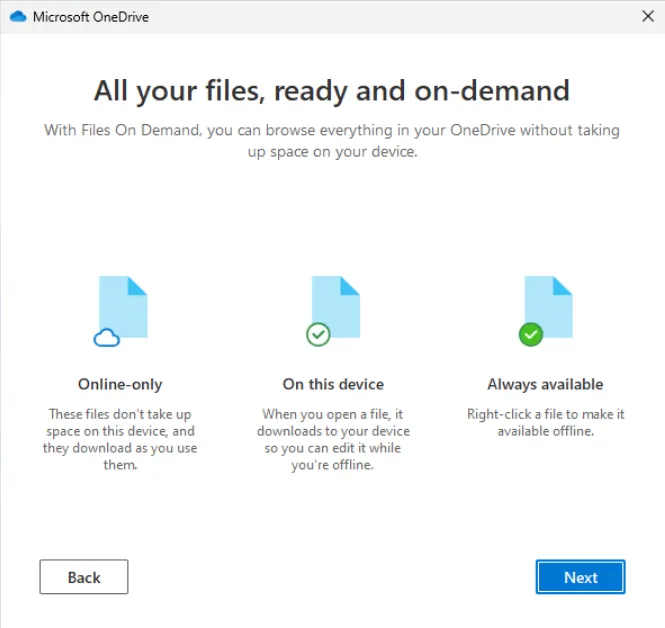
Select Next on Get to know your OneDrive, Share files and folders and All your files, ready and on-demand.
-
On Get the mobile app, select Later. You can install the phone app at any time.
-
On Your OneDrive is ready for you, select Open my OneDrive folder.
When you finish, a cloud icon appears near the clock, and the OneDrive - YourCompanyName folder opens in File Explorer.
Set up OneDrive on a Mac
Section titled “Set up OneDrive on a Mac”The Mac app works in the same way.
- Open OneDrive from Applications, or press Command + Space and search for it.
- Sign in with your work account.
- Choose where to keep the OneDrive folder, then choose which folders to sync and select Next.
- When asked, turn on OneDrive Finder Integration in your Mac’s settings so the status icons show in Finder.
OneDrive on your phone
Section titled “OneDrive on your phone”The OneDrive phone app does not sync a whole folder like the computer app. It shows your files from the cloud and downloads each one when you open it. Follow these steps to use it:
-
Install Microsoft OneDrive from Google Play or the App Store and sign in with your work account. See install the apps.
-
Tap My files to see the same files as on your computer.
-
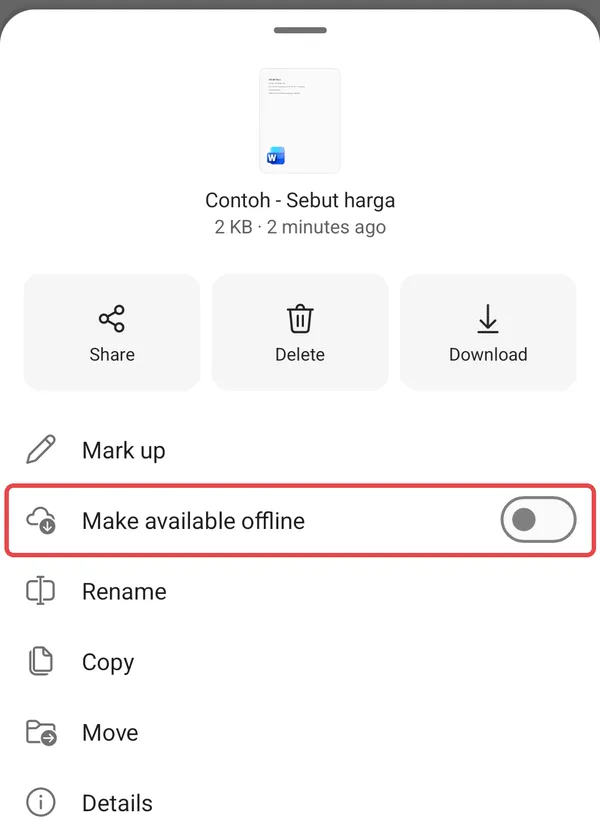
To keep a file on the phone for use without internet, tap … next to it and turn on Make available offline. It then appears under Offline files on the Home tab.
To add a photo or document from the phone, tap + at the bottom right and choose Upload.
What the icons mean
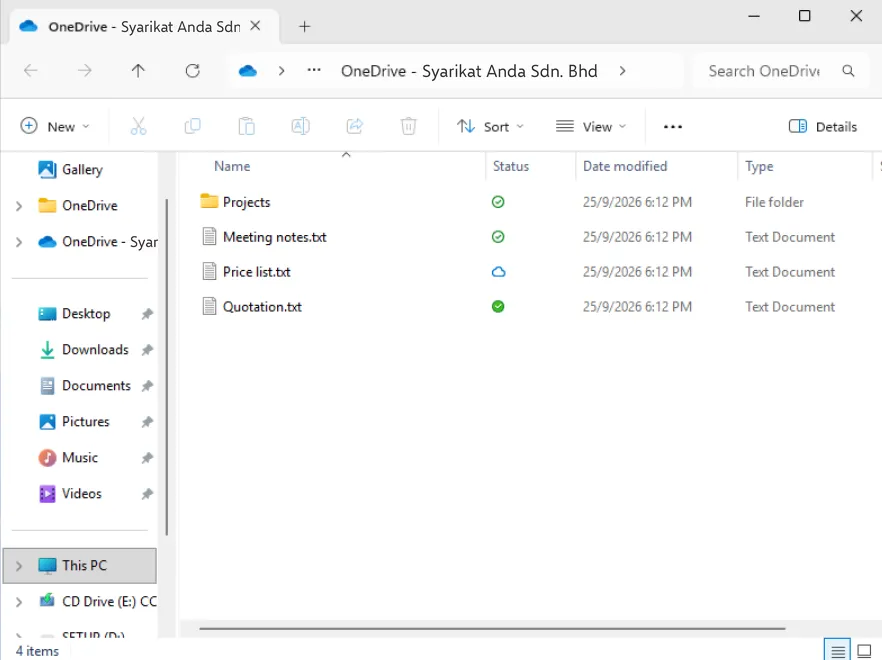
Section titled “What the icons mean”OneDrive saves space by keeping some files only in the cloud until you open them. The icon next to each file tells you where it is:
- Blue cloud: online only. It opens when you are connected to the internet.
- Green tick in a white circle: downloaded because you opened it. It works offline.
- White tick in a green circle: you chose Always keep on this device.
- Two arrows: syncing now.
- Red cross: cannot sync. See the common issues below.
You see the icons in the Status column in File Explorer.
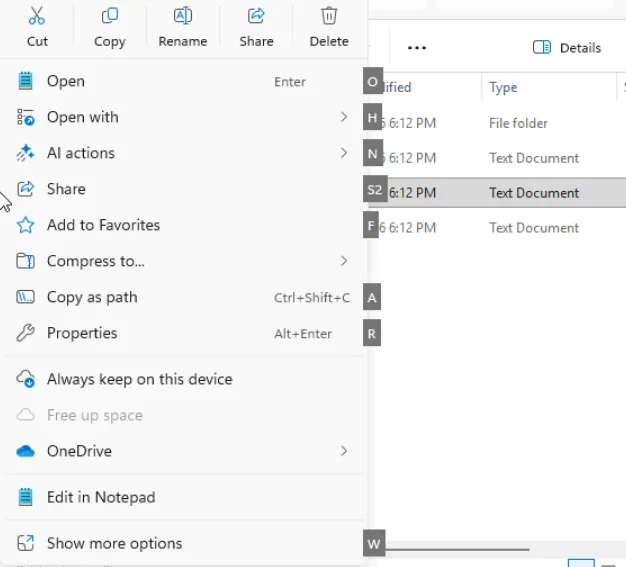
Right-click a file or folder and choose Always keep on this device before you travel, or Free up space to send it back to the cloud.
Back up your Desktop and Documents
Section titled “Back up your Desktop and Documents”OneDrive can back up your Desktop, Documents and Pictures folders, so they are safe if your laptop is lost.
-
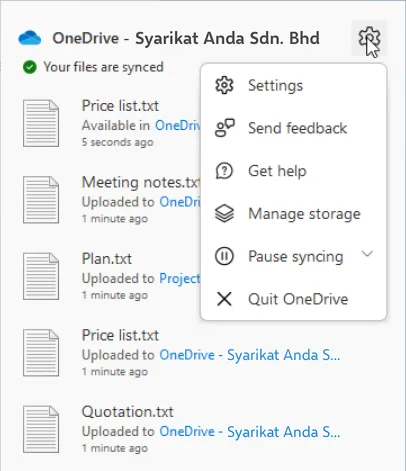
Select the OneDrive cloud icon near the clock, then the gear, then Settings.
-
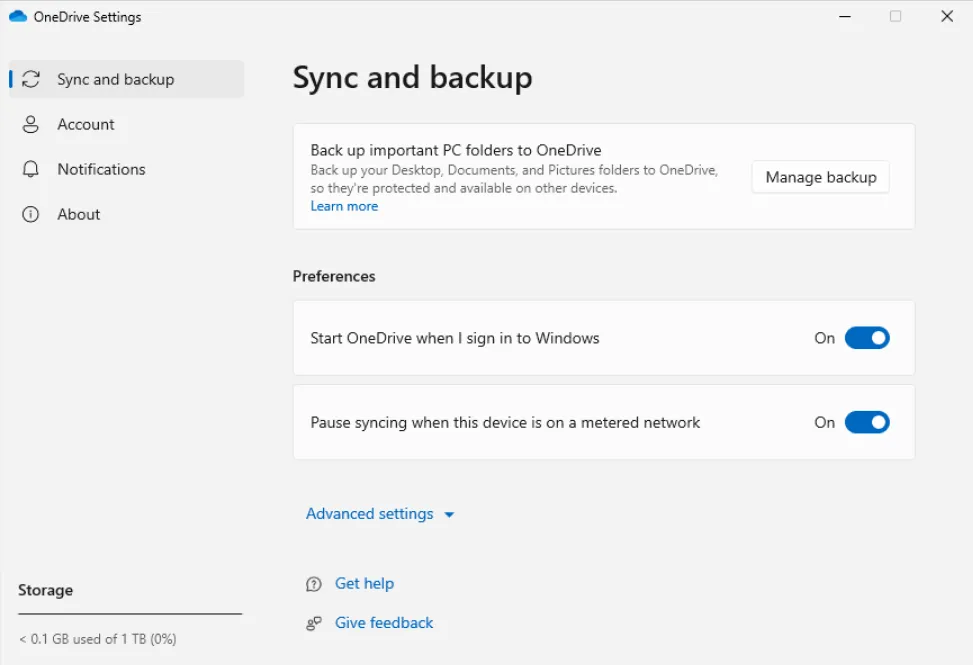
Open the Sync and backup tab and select Manage backup.
-
In Back up folders on this device in OneDrive, turn on the folders you want to back up and select Save changes.
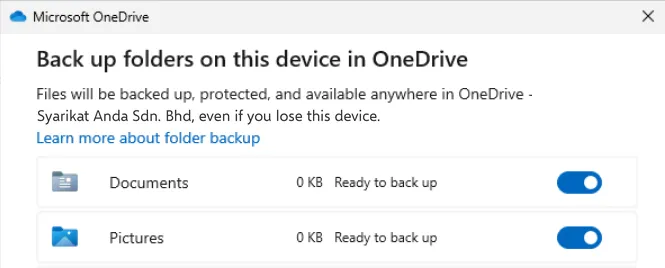
Your admin may have turned this on for everyone, or turned it off.
Stop syncing on an old computer
Section titled “Stop syncing on an old computer”Before you give away or reset a computer, unlink OneDrive from it. Your files stay safe in the cloud.
-
Select the OneDrive cloud icon near the clock, then the gear, then Settings.
-
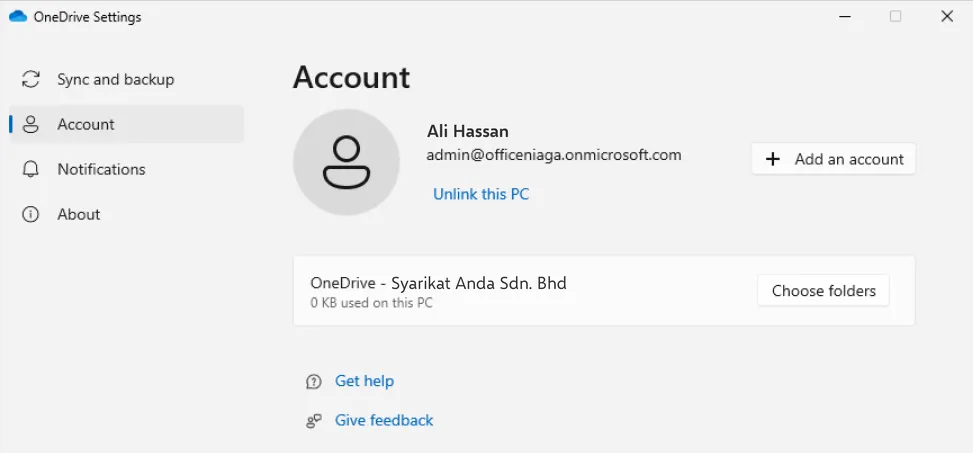
Open the Account tab and select Unlink this PC.
-
Select Unlink account to confirm.
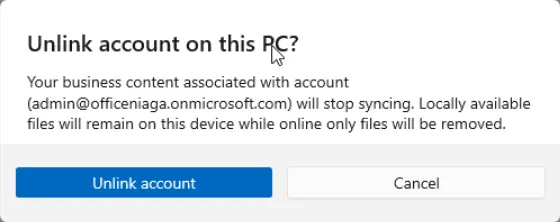
Files that were downloaded to the computer stay in the folder there, and online-only files are removed from it.
Get back a file you deleted
Section titled “Get back a file you deleted”Deleting a synced file on your computer also deletes it from OneDrive, but you can get it back for a while.
-
Open OneDrive on the web and select Recycle bin on the left.
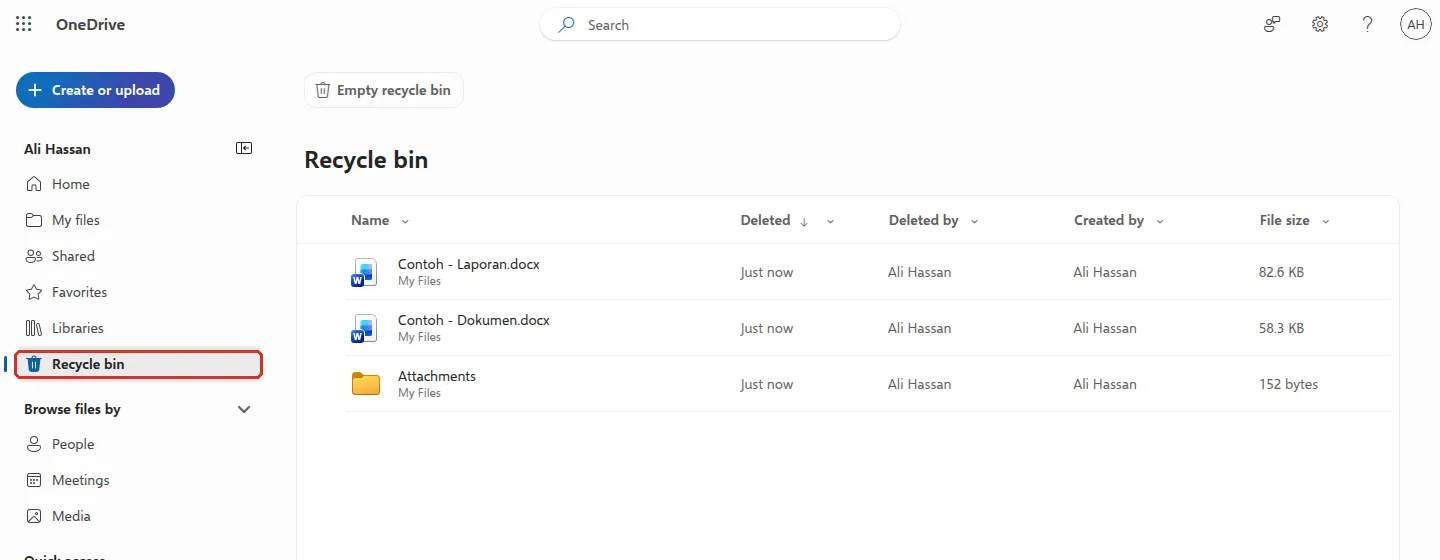
-
Select the circle next to the file, then select Restore at the top. The file goes back to its old folder and syncs to your computer again.
If the file is not there, check the Second-stage recycle bin link at the bottom of the page.
Team files from SharePoint and Teams
Section titled “Team files from SharePoint and Teams”To see a team’s files in File Explorer, open the team’s SharePoint site or the files in Teams, go to the folder or library, and select Add shortcut to My files. The folder then appears in your OneDrive folder. Microsoft recommends shortcuts over the older Sync button. See SharePoint basics.
Still stuck
Section titled “Still stuck”WhatsApp our support team at +60 16-916 3324.
Common issues
A file shows a red circle with a white cross.
OneDrive cannot sync that file. Close the file if it is open, check the name has no unusual characters and the full path is not too long, then try again. You can also move it out of OneDrive and back in.
OneDrive is stuck on Processing changes.
This happens when a file is open, very large, or many files are waiting. Close open files and give it time. If it stays stuck, right-click the OneDrive cloud icon, pause sync for 2 hours, then resume.
I deleted a file on my computer. Is it gone?
Deleting a synced file also deletes it from OneDrive. Open OneDrive on the web and look in the Recycle bin. Microsoft keeps deleted work files there for 93 days unless your admin changed it.
Was this article helpful?
Thanks for your feedback.
Sorry this didn't help. WhatsApp us and we'll sort it out with you.