
Find & restore files in OneDrive
Updated For Microsoft 365

Most “missing” files are only misplaced. In OneDrive on the web, search first, then check Home for recent files, then look in the Recycle bin.
Search for a file
Section titled “Search for a file”The Search box at the top of OneDrive looks at file names and at the words inside Word, Excel and PowerPoint files.
-
Select Search at the top of OneDrive and type a word from the file name or its content.
-
Press Enter to see all results.
-
Use the filters under Search results to narrow them down. All files and My files switch between everything you can open and only your own files. All dates and Person filter by when a file changed and who changed it. The round buttons show only folders, or only Word, Excel, PowerPoint or PDF files.
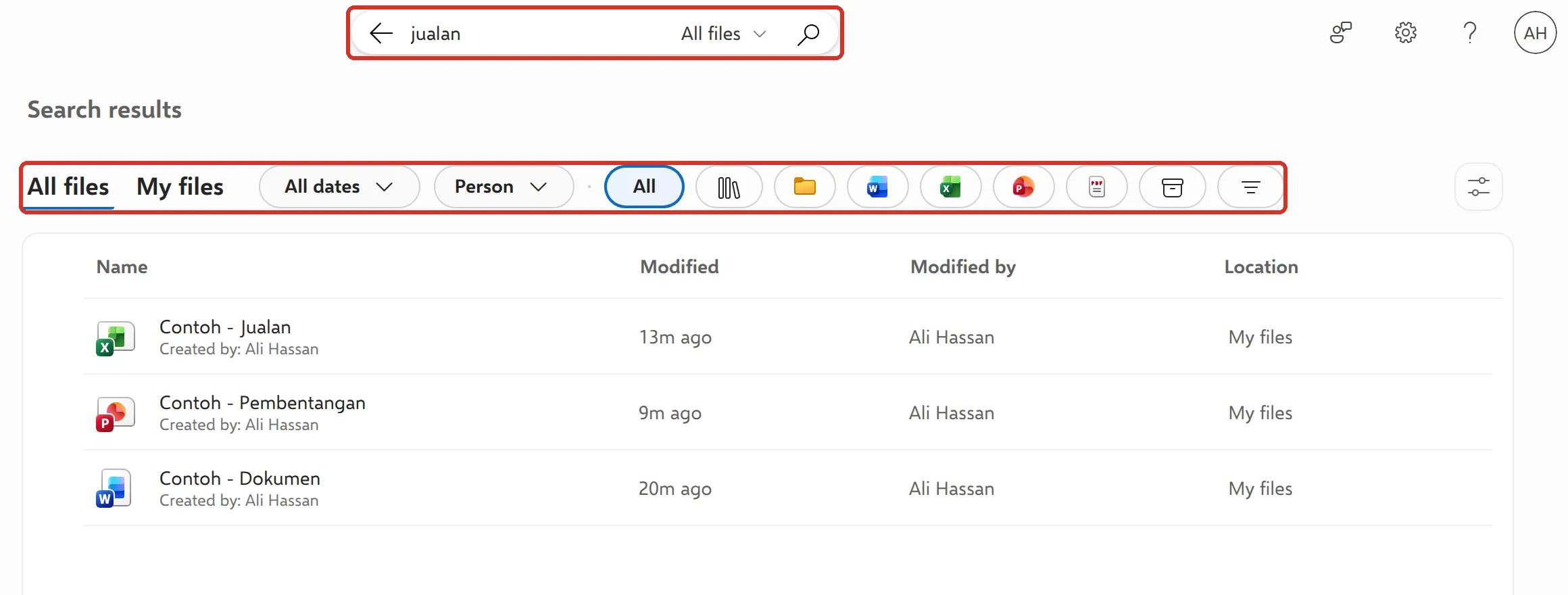
In our test, a search for “jualan” also found a Word document and a presentation that only had the word inside them.
You can also search from the Microsoft 365 home page. See the Microsoft 365 web home.
Check Recent on the Home page
Section titled “Check Recent on the Home page”Home in the left menu shows For you, files Microsoft thinks you need next, and a Recent list of files you opened lately. Recent can also include files other people shared with you that you opened, so it often finds a file faster than search.
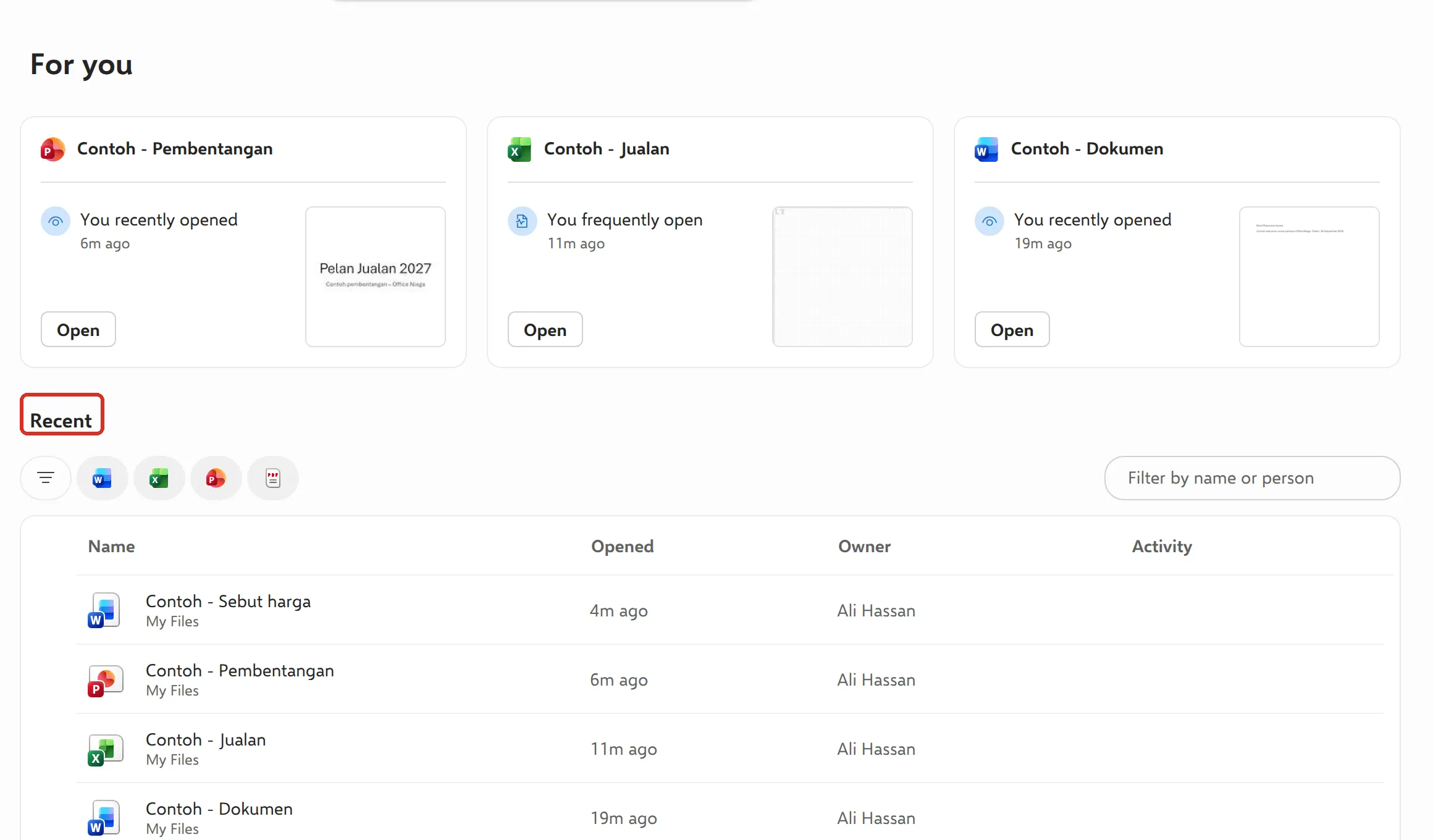
If you still cannot find it, check you signed in with your work account, not a personal Microsoft account, and look in Shared. See upload and organise files in OneDrive.
Restore a deleted file
Section titled “Restore a deleted file”Deleted files and folders go to the Recycle bin. Microsoft keeps work files there for 93 days, unless your admin changed it.
-
Select Recycle bin in the left menu.
-
Select the circle next to the file or folder you want back. You can pick several.
-
Select Restore at the top.
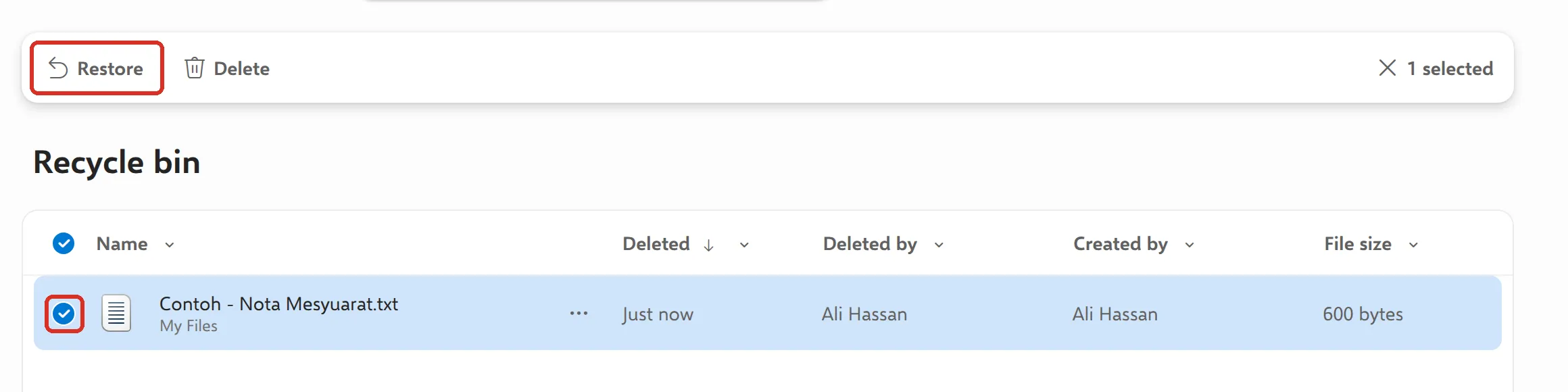
The file goes back to the folder it came from. Restoring a folder brings back everything that was in it.
The second-stage recycle bin
Section titled “The second-stage recycle bin”If you empty the Recycle bin or delete something from it, the item moves to the second-stage recycle bin. It stays there until 93 days after you first deleted it, then Microsoft deletes it for good.
-
At the bottom of the Recycle bin page, select Second-stage recycle bin.

-
Select the circle next to the item and select Restore.
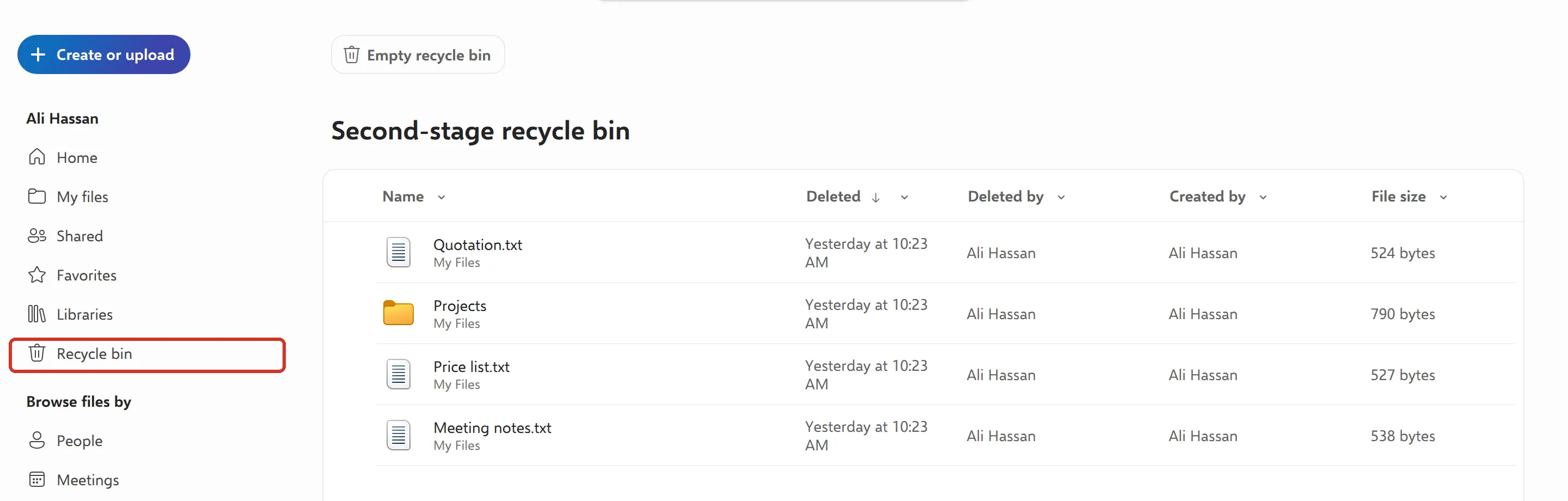
Each OneDrive has its own recycle bins, and you only see yours. If the file was in a colleague’s OneDrive, they must restore it. When staff leave, your Microsoft 365 admin can give someone access to the old OneDrive. See what to do when staff leave.
After 93 days, or once an item is deleted from the second-stage recycle bin, you cannot restore it yourself.
Restore an earlier version
Section titled “Restore an earlier version”If a file is still there but someone changed or overwrote it, you do not need the Recycle bin. OneDrive keeps earlier versions of Word, Excel and PowerPoint files, and you can restore one from the file or from OneDrive. See AutoSave and version history for the steps.
Still stuck
Section titled “Still stuck”WhatsApp our support team at +60 16-916 3324.
Common issues
A file someone shared with me has disappeared.
The owner may have deleted it, moved it or stopped sharing it. Only the owner can restore it from their own Recycle bin. Ask them to check, and to share it again.
The Recycle bin is empty, but I deleted the file last week.
Check the Second-stage recycle bin link at the bottom of the Recycle bin page. Items stay there until 93 days after you first deleted them, unless your admin changed the setting.
I overwrote a file by mistake. Is it in the Recycle bin?
No. The file was not deleted, so restore an earlier version instead. See AutoSave and version history.
Was this article helpful?
Thanks for your feedback.
Sorry this didn't help. WhatsApp us and we'll sort it out with you.