
AutoSave and version history in Word, Excel & PowerPoint
Updated For Microsoft 365

When a Word, Excel or PowerPoint file is saved in OneDrive or SharePoint, AutoSave saves your changes every few seconds. If something goes wrong, Version History lets you open and restore an earlier version of the file.
How AutoSave works
Section titled “How AutoSave works”Look for the AutoSave switch at the top left of Word, Excel or PowerPoint. Microsoft turns it on by default for files stored in OneDrive or SharePoint.
AutoSave is off or greyed out in these cases:
- The file is on your computer, a USB drive or a company file server, not in OneDrive or SharePoint.
- The file is in an old format, such as
.doc,.xlsor.ppt. - OneDrive sync is paused. See sync OneDrive.
To turn AutoSave on for a file saved on your computer, select the switch and choose your OneDrive to move the file there.
Before you change a template
Section titled “Before you change a template”AutoSave saves your changes straight into the file you opened. To reuse an old quotation or template without changing it, first select File > Save a Copy, give the copy a new name, and edit the copy. In the web apps, the same option is File > Create a Copy > Create a copy online.
Restore an earlier version
Section titled “Restore an earlier version”Microsoft keeps earlier versions of files stored in OneDrive and SharePoint. Use the desktop app, the web or OneDrive to get one back.
In the desktop apps on Windows, follow these steps:
- Open the file in Word, Excel or PowerPoint.
- Select the file name in the title bar at the top, then Version History.
- Select a version from the list and choose Open version. It opens separately, so you can compare it with the current file.
- To go back to that version, select Restore.
On a Mac, select the file name in the title bar, then Browse Version History.
In Word, Excel or PowerPoint for the web, the steps are a little different:
-
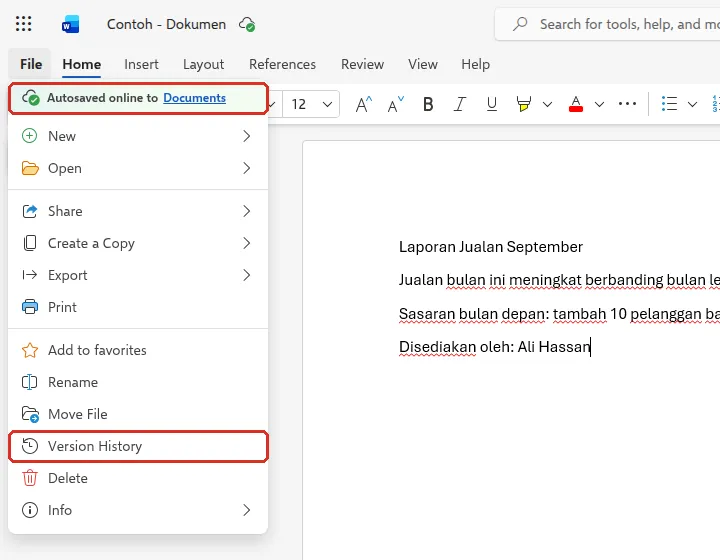
Select File. The top of the menu shows where the file is being autosaved. Select Version History.
-
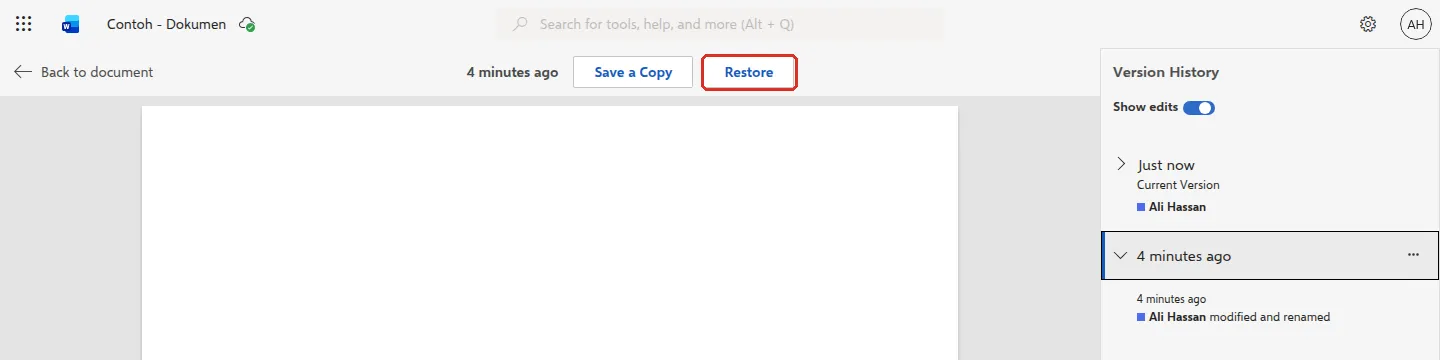
The Version History pane opens on the right. Select an older version to preview it.
-
Select Restore at the top to make that version the current one, or Save a Copy to keep it as a separate file. Select Back to document to leave without changing anything.
If colleagues are working in the same Excel file, wait until they have finished before you restore.
Restore from OneDrive on the web
Section titled “Restore from OneDrive on the web”You can also restore a version without opening the file.
-
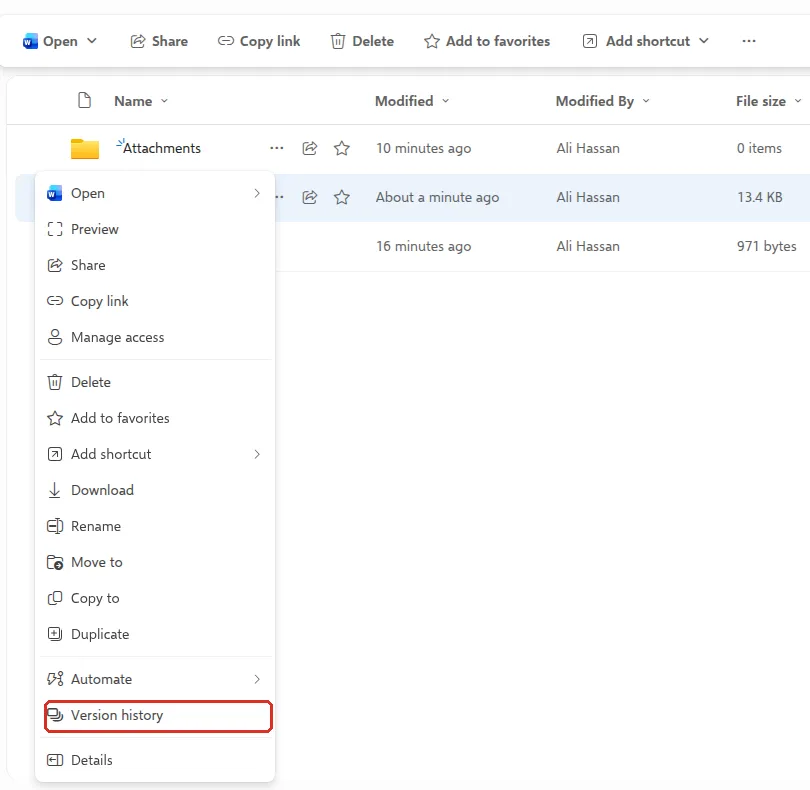
In OneDrive or the SharePoint document library, right-click the file and choose Version history.
-
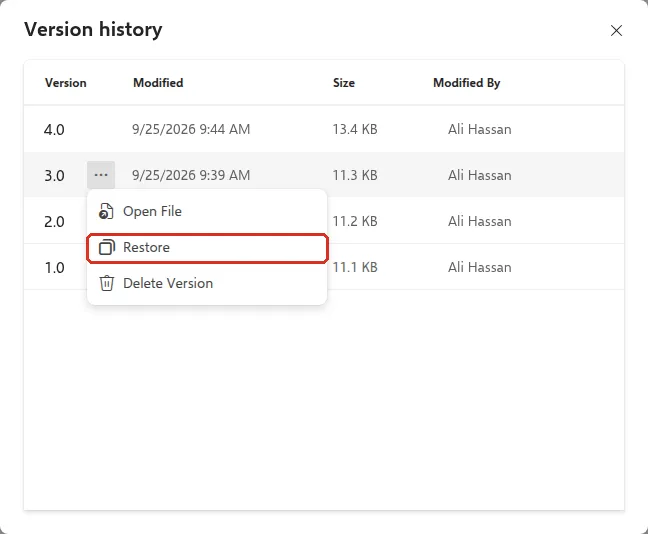
In the Version history list, point to the version you want and select … (more options) next to its number.
-
Select Restore. Open File lets you check the version first.
How long versions are kept
Section titled “How long versions are kept”Your admin controls how many versions SharePoint and OneDrive keep, so the number varies by company. Deleted files go to the Recycle bin, where Microsoft keeps work files for 93 days unless your admin changed it.
Still stuck
Section titled “Still stuck”WhatsApp our support team at +60 16-916 3324.
Common issues
The AutoSave switch is greyed out.
AutoSave only works for files in OneDrive or SharePoint, in modern formats (.docx, .xlsx, .pptx). It is also off if OneDrive sync is paused, or if an Excel file uses an older shared workbook or a password. Move or save the file to OneDrive first.
Where is Save As?
When AutoSave is on, Save As becomes Save a Copy. Use it before you change a template or an old quotation, so you do not overwrite the original.
I deleted a whole file, not just some text.
Open OneDrive or the SharePoint site on the web and look in the Recycle bin. Microsoft keeps deleted work files there for 93 days unless your admin changed it.
Was this article helpful?
Thanks for your feedback.
Sorry this didn't help. WhatsApp us and we'll sort it out with you.