
Reset a staff member's Microsoft 365 password
Updated For Microsoft 365

To reset a staff member’s password, go to Users > Active users in the Microsoft 365 admin centre, select the person and choose Reset password. You can also turn on self-service reset so staff can do it themselves next time.
Reset one person’s password
Section titled “Reset one person’s password”You need an admin role that can reset passwords, such as Password Administrator or User Administrator.
-
Sign in to admin.microsoft.com with your admin account.
-
Go to Users > Active users.
-
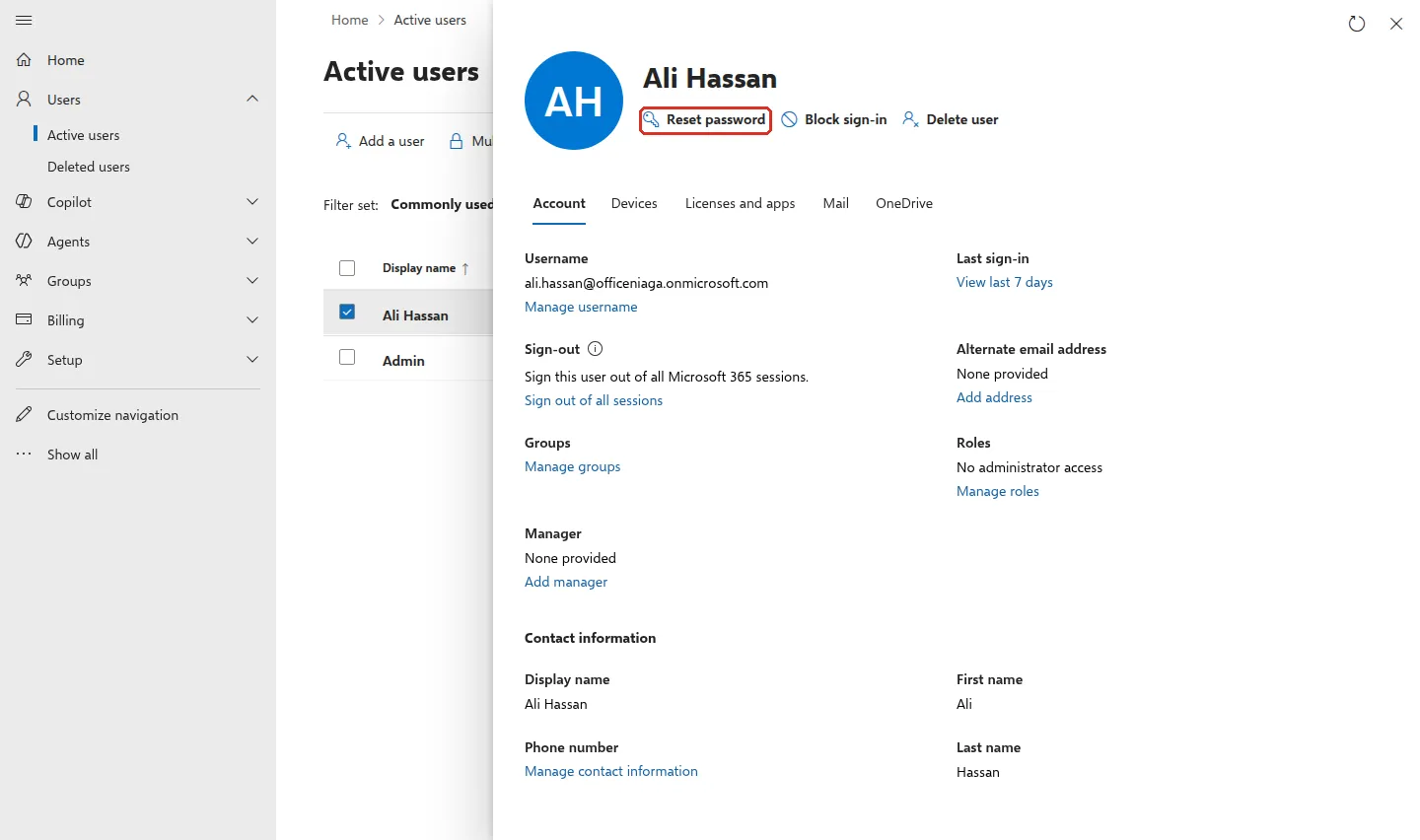
Select the person’s name. Their details open on the right. Select Reset password under their name.
-
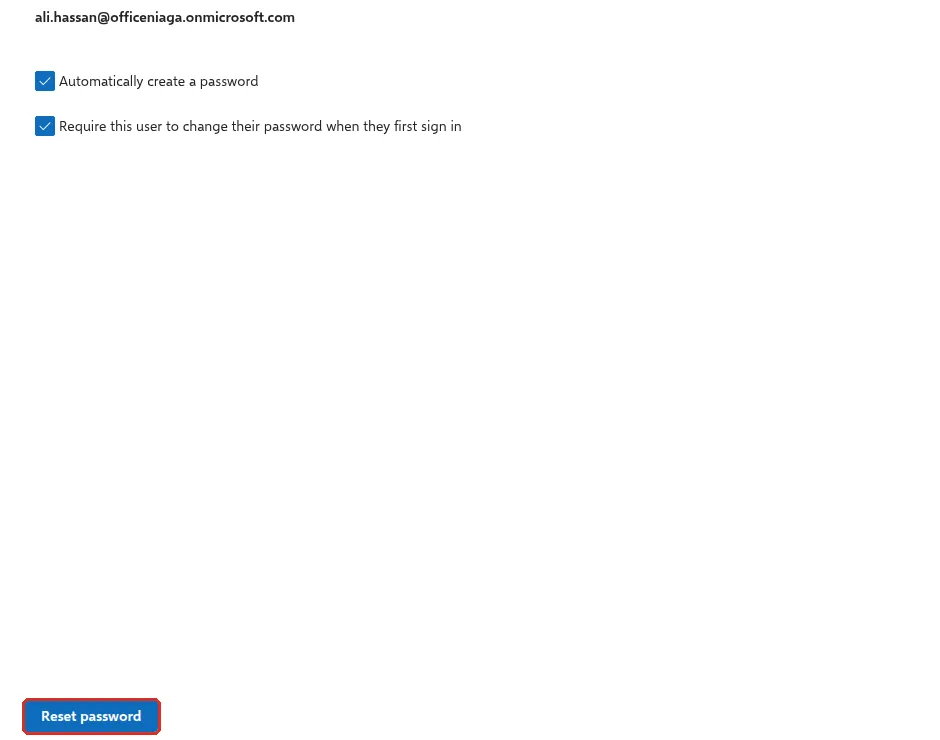
Leave Automatically create a password ticked, or untick it and type a strong password yourself.
-
Keep Require this user to change their password when they first sign in ticked, so only the staff member knows the final password.
-
Select Reset password at the bottom.
-
When you see Password has been reset, select Print to save the new temporary password as a PDF, then Close. The password stays hidden until you select Show.
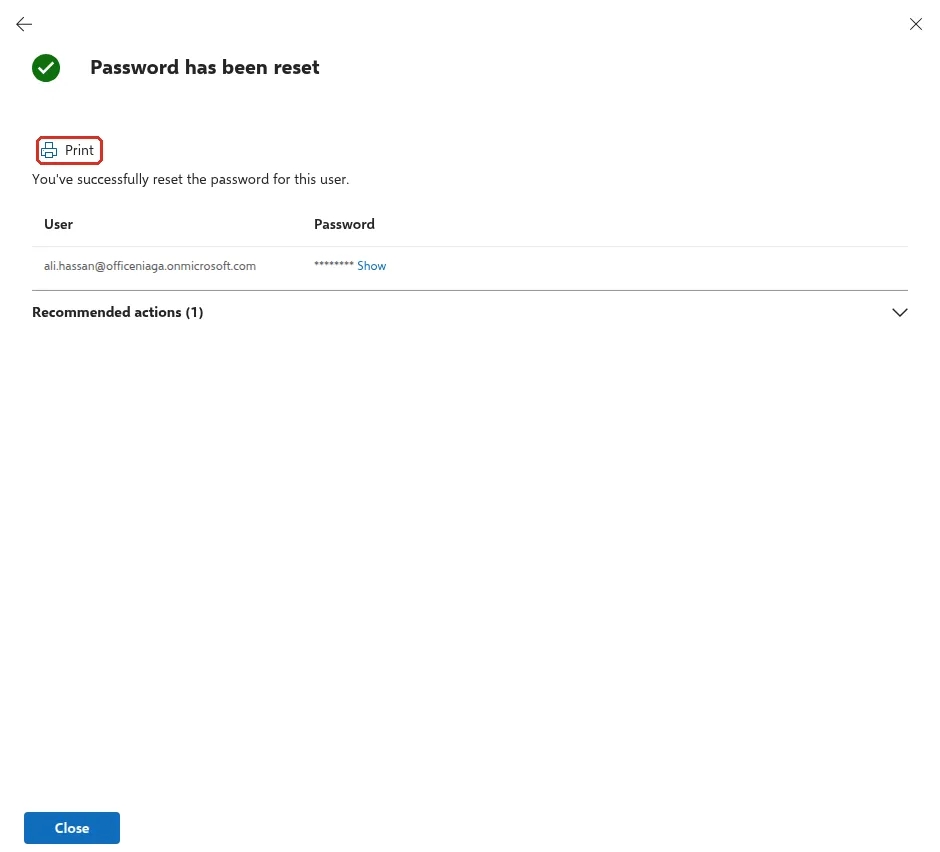
Microsoft no longer lets the admin centre email passwords, so pass the temporary password on in person or through a secure channel. The staff member then signs in as described in first sign-in.
Reset several passwords at once
Section titled “Reset several passwords at once”You can reset up to 40 users together. In Active users, tick the people, make sure your own name is not ticked, and select Reset password in the row of options above the list.
Let staff reset their own password
Section titled “Let staff reset their own password”Self-service password reset saves you a call each time someone forgets. Microsoft includes it in paid Microsoft 365 business plans; it does not work on a trial.
-
In the admin centre, go to Settings > Org settings.
-
Open the Security & privacy tab and select Self-service password reset.
-
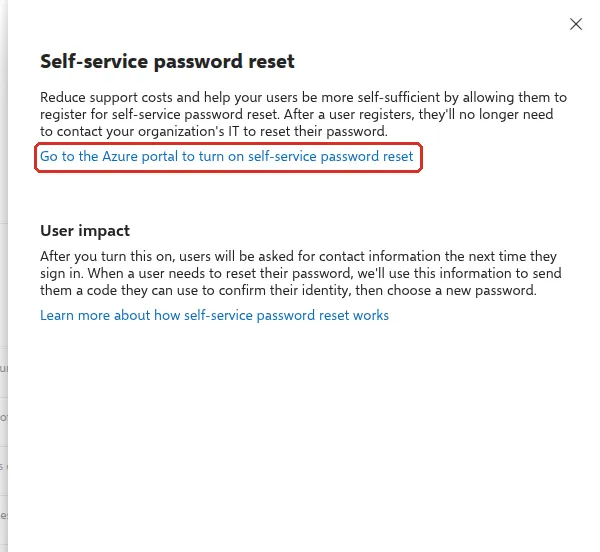
Select Go to the Azure portal to turn on self-service password reset. This opens the Microsoft Entra admin centre.
-
On Password reset | Properties, choose All (or Selected to start with one group), then Save.
Staff are then asked to register a phone number or the Authenticator app, and can reset from the sign-in page. See forgot your password.
Password expiry
Section titled “Password expiry”By default, Microsoft 365 passwords never expire, and Microsoft recommends keeping it that way with multifactor authentication turned on. If your company policy needs expiry, the setting is in Settings > Org settings > Security & privacy > Password expiration policy.
Still stuck
Section titled “Still stuck”WhatsApp our support team at +60 16-916 3324.
Common issues
I reset the password but the staff member's Outlook still works with the old one.
Apps that stay signed in, like the Outlook phone app, can keep working until their saved sign-in runs out, which can take some time. To force them out straight away, open the user, go to the Account tab and select Sign out of all sessions.
Can I reset my own admin password here?
No. You cannot reset your own password in the same step as other users. Use Forgot password on the sign-in page, which works if your admin account has an alternate email and mobile number set. Another admin can also reset it for you.
Should we make passwords expire every 90 days?
Microsoft recommends leaving passwords set to never expire and turning on multifactor authentication instead. By default, Microsoft 365 passwords never expire.
Was this article helpful?
Thanks for your feedback.
Sorry this didn't help. WhatsApp us and we'll sort it out with you.