
Ask an AI about this page
 ChatGPT
 Claude
 Perplexity
 Google AI Mode
 Microsoft Copilot
 Grok
Grok Mistral Le Chat
Get a Teams message when an important email arrives
To get a Teams message when an important email arrives, build an automated cloud flow in Power Automate. The trigger When a new email arrives (V3) watches your inbox for a sender or a word in the subject, and the action Post message in a chat or channel sends you a Teams message with the email’s subject. Both are standard connectors, included in your Microsoft 365 plan.
We tested these steps on 27 September 2026: Siti Aminah sent Ali Hassan an email with Segera in the subject, and the alert arrived in Ali’s Teams within a minute.
Create the flow and pick the trigger
Section titled “Create the flow and pick the trigger”The trigger decides which emails count as important. You set the filters in the next section.
-
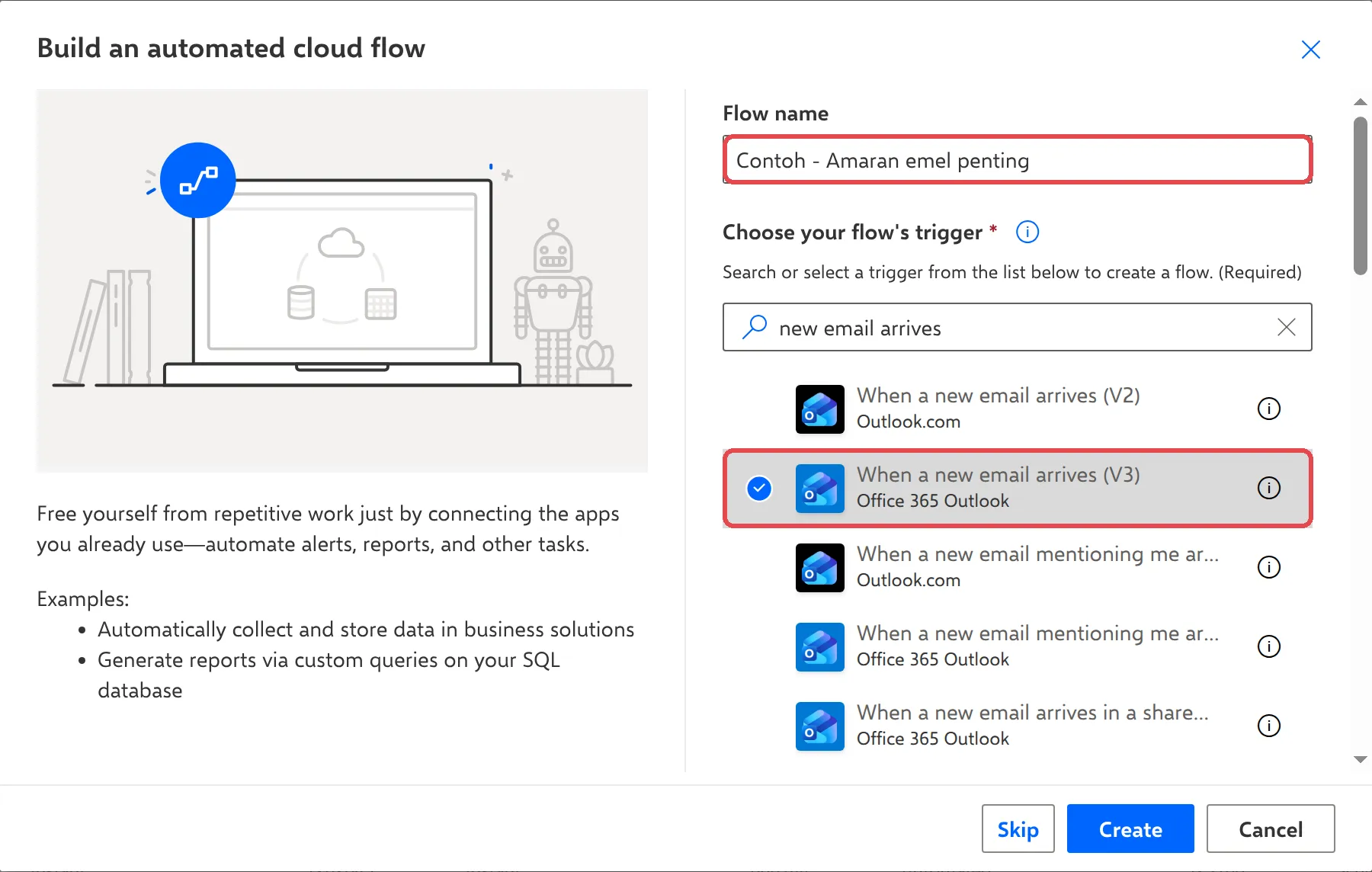
In Power Automate, select Create → Automated cloud flow.
-
In Flow name, type a name such as
Contoh - Amaran emel penting. -
In Choose your flow’s trigger, type
new email arrivesand select When a new email arrives (V3) (Office 365 Outlook). The (V2) one marked Outlook.com is for personal accounts. -
Select Create.
Choose which emails count
Section titled “Choose which emails count”The trigger’s filters are hidden under Advanced parameters. Select the trigger to open it, then select Show all to see them all.
-
In From, type the sender’s email address, for example your manager’s or a key customer’s. Leave it empty to accept any sender.
-
In Subject Filter, type a word that must appear in the subject, such as
SegeraorUrgent. Leave it empty to accept any subject.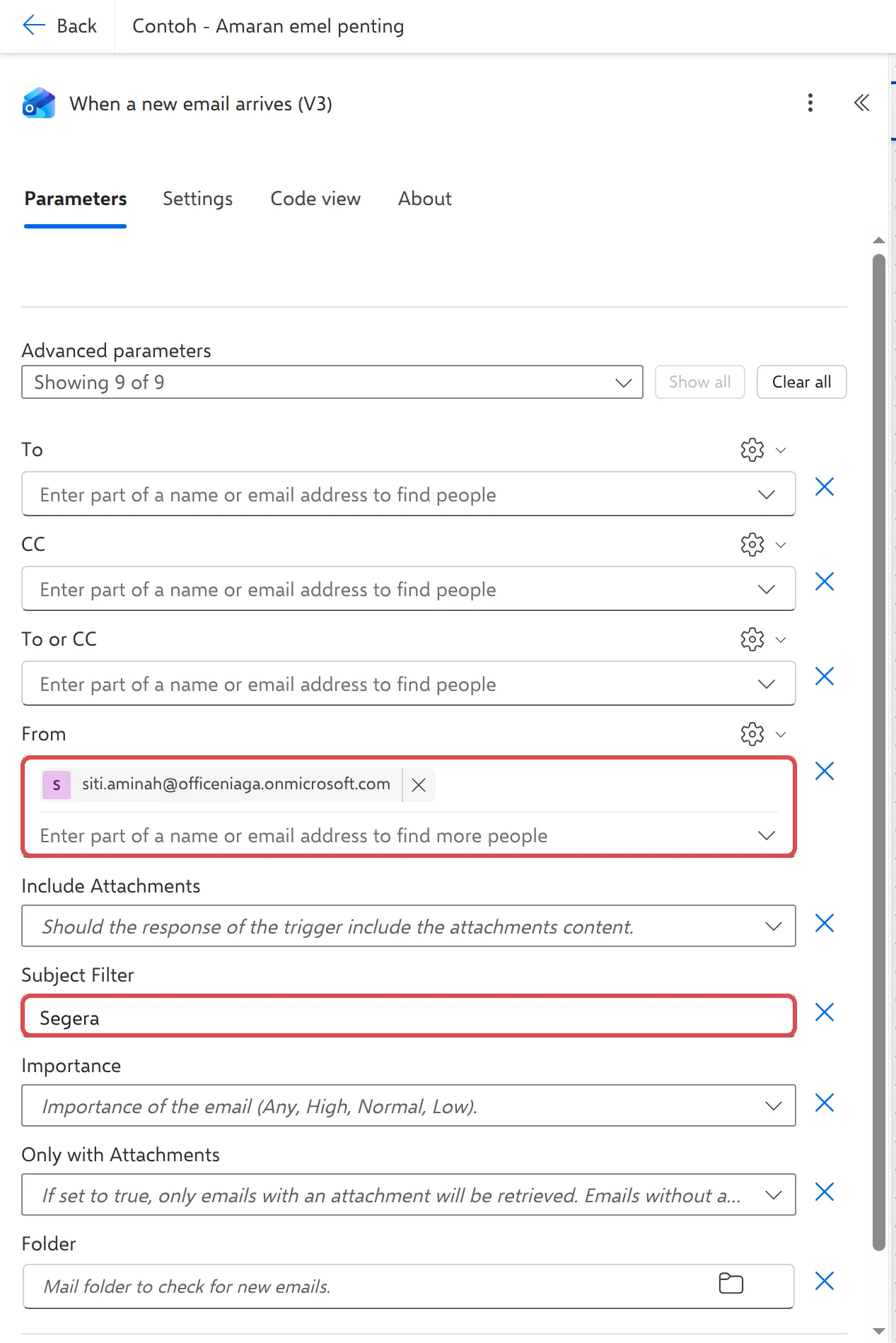
If you fill in both, the email must match both.
Add the Teams message
Section titled “Add the Teams message”The action sends the alert to you in Teams.
-
Under the trigger, select + → Add an action.
-
Search for
Post message in a chat or channeland select it under Microsoft Teams. If Power Automate asks you to sign in to Teams, select Sign in and choose your work account.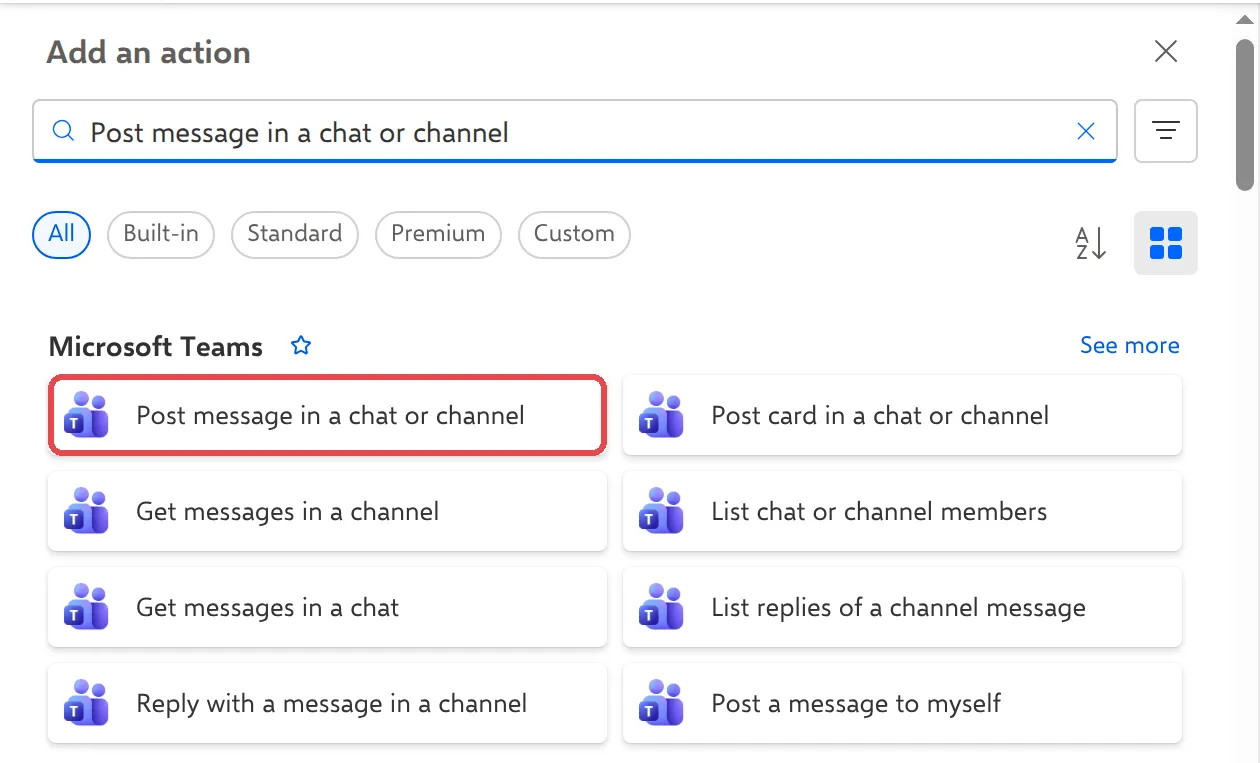
-
Set Post as to Flow bot and Post in to Chat with Flow bot.
-
In Recipient, type your own name or email and select yourself.
-
In Message, type a line such as
Emel penting daripada Siti Aminah:. Then select the lightning icon next to the box (or type/and choose Insert dynamic content) and pick Subject. The flow fills in each email’s subject.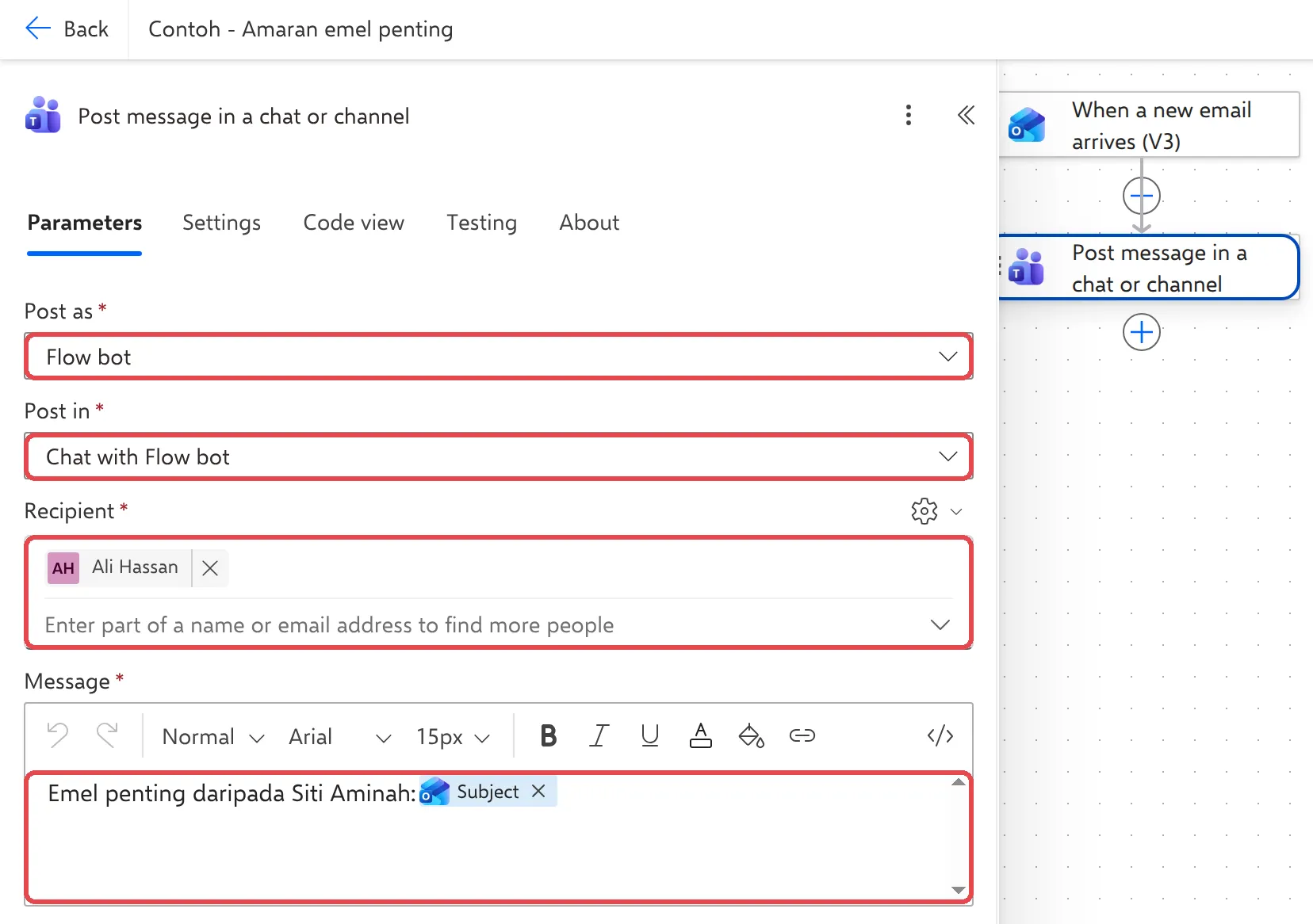
-
Select Save.
What you see in Teams
Section titled “What you see in Teams”When a matching email arrives, Workflows posts the message in a chat of its own. Open Teams, select Chat, and look for Workflows. You also get a Teams notification like any other message.
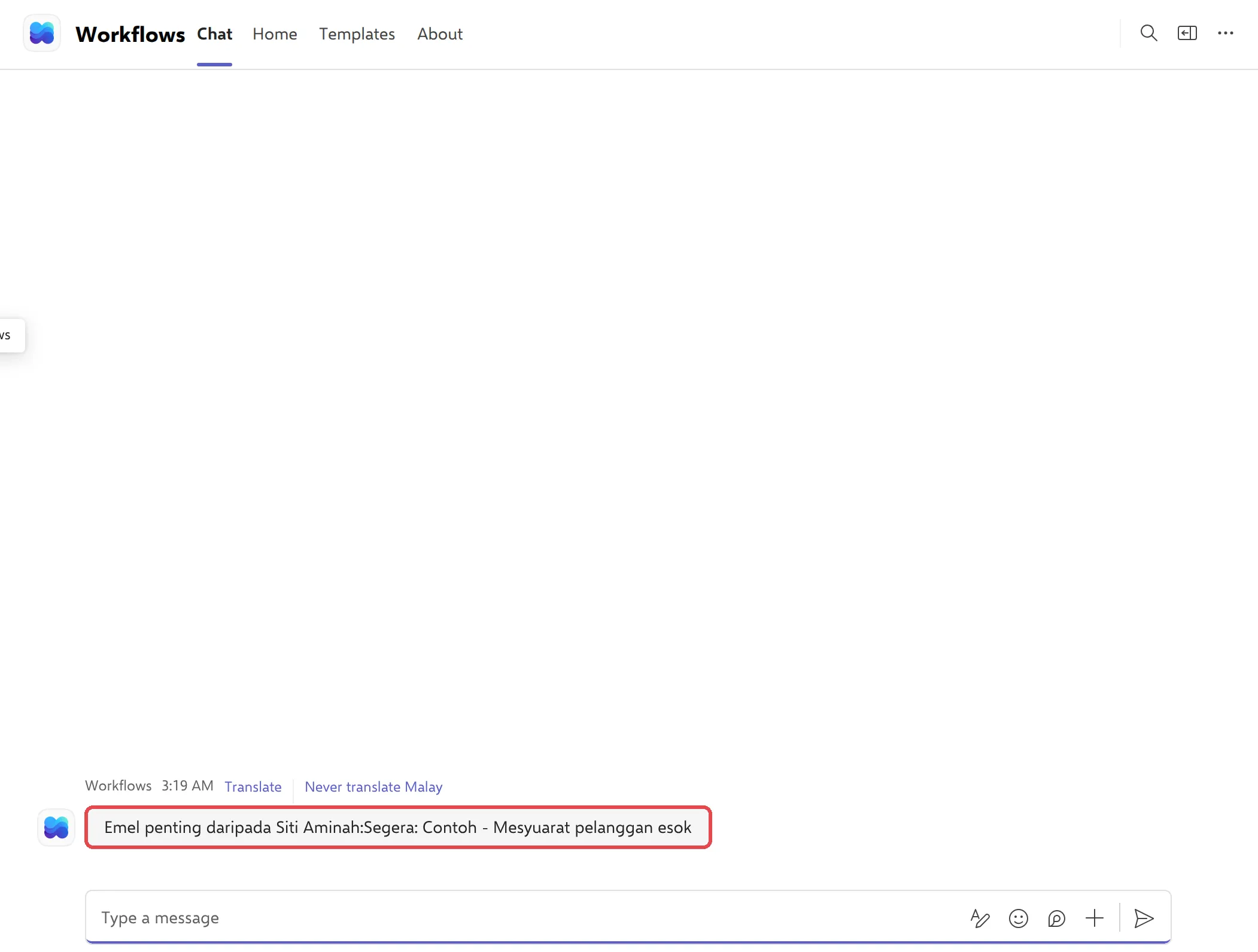
Microsoft describes the trigger in Office 365 Outlook connector and the Teams action in Microsoft Teams connector.
Still stuck
Section titled “Still stuck”WhatsApp our support team at +60 16-916 3324.
Common issues
I don't see the message in Teams.
Messages from Flow bot appear in a chat called Workflows in Teams. Look under Chats on the left. If it's not there, open the flow's run history: a run that failed at Post message in a chat or channel usually means the Teams connection needs signing in again.
The flow runs for every email, not just the important ones.
Check the trigger. From and Subject Filter are under Advanced parameters, and they only work if you filled them in and saved the flow. The subject filter matches any subject that contains the word, in any position.
Can I watch for more than one sender?
Yes. In From, add more people, separated by semicolons. The flow runs when an email comes from any of them.
Can I send the alert to a Teams channel instead of my chat?
Yes. In Post in, choose Channel, then pick the team and channel. Everyone in the channel will see the alert.
Was this article helpful?
Thanks for your feedback.
Sorry this didn't help. WhatsApp us and we'll sort it out with you.