
Sign in to Microsoft 365 for the first time
Updated For Microsoft 365

To sign in for the first time, go to m365.cloud.microsoft, enter your work email address (such as aina@yourcompany.com) and the temporary password your admin gave you, then choose your own password when Microsoft asks.
What you need
Section titled “What you need”Your company admin gives you two things when they create your account:
- Your work email address, which is also your Microsoft 365 username.
- A temporary password. Microsoft no longer lets admins email passwords from the admin centre, so you may get it as a printout or PDF.
Sign in
Section titled “Sign in”Use a computer for your first sign-in if you can; it is easier to follow the prompts on a bigger screen.
-
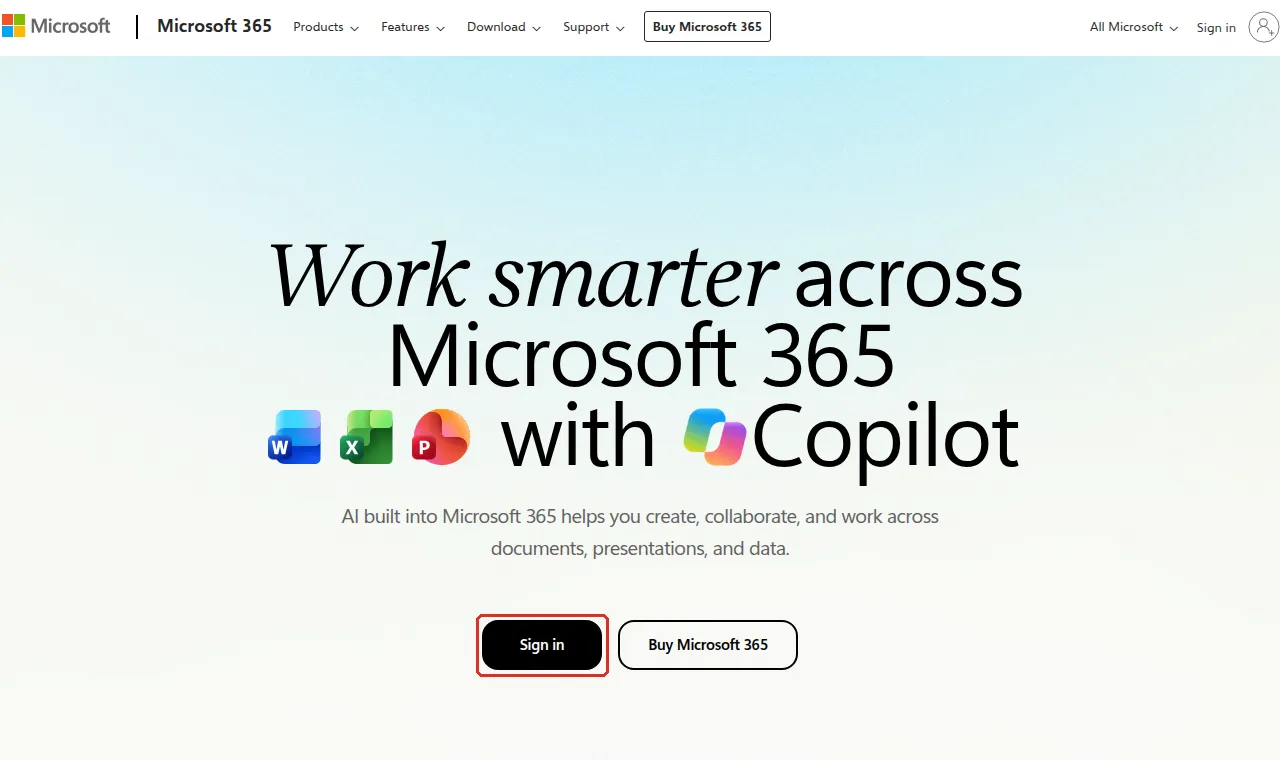
Open m365.cloud.microsoft in your browser and select Sign in. Microsoft’s own guides also send you to www.microsoft365.com, which works too.
-
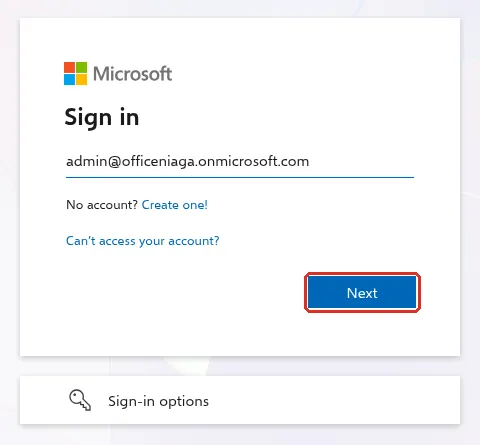
Type your full work email address and select Next.
-
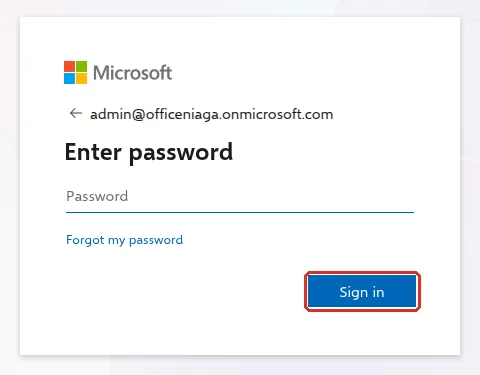
On Enter password, type the temporary password and select Sign in.
-
Microsoft asks you to change your password. Type the temporary password once more, then choose a new password that only you know and type it twice. Select Sign in.
-
If Microsoft shows Let’s keep your account secure or asks for more information, follow the steps to set up the Microsoft Authenticator app. See set up Microsoft Authenticator for the full steps.
-
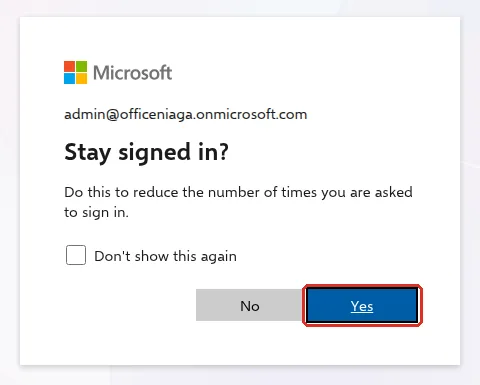
When asked Stay signed in?, choose Yes on your own computer, or No on a shared one.
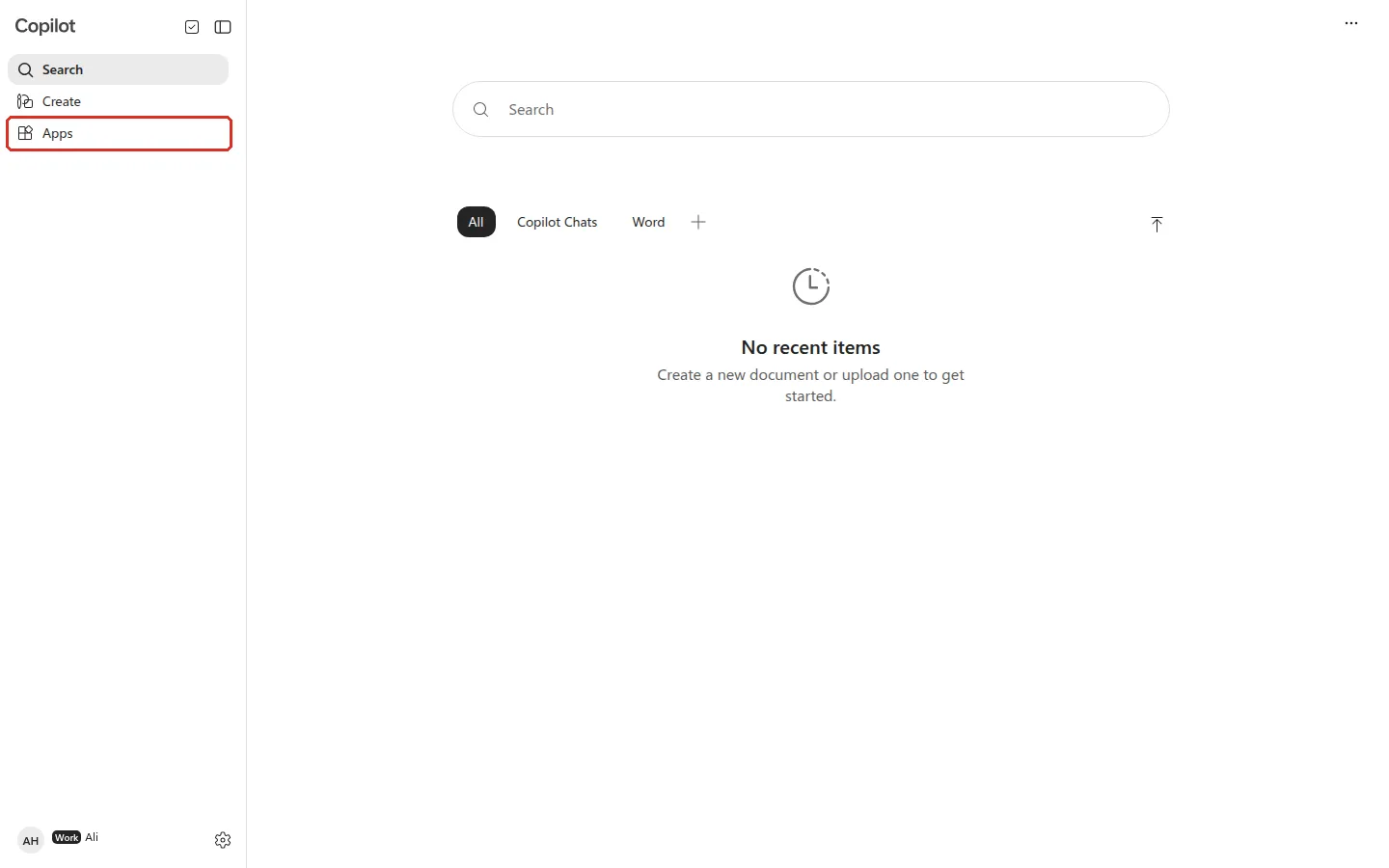
You now see the Microsoft Copilot home page (formerly the Microsoft 365 Copilot app, see The Microsoft 365 web home). Select Apps on the left to open Outlook, Word, Excel and the other apps in your plan.
Choose a good password
Section titled “Choose a good password”Microsoft asks for at least 8 characters using three of these four: lowercase letters, capital letters, numbers and symbols. A short phrase you can remember, such as Nasi-Lemak-Pagi-2026, is stronger than a single word with a number on the end. Do not reuse a password from a personal account.
Check you are on a real Microsoft page
Section titled “Check you are on a real Microsoft page”Scam emails often copy the Microsoft sign-in page. Microsoft says any website ending in cloud.microsoft is an official Microsoft product. If a link in an email asks you to sign in, type the address yourself instead.
What next
Section titled “What next”After your first sign-in, most staff do these three things:
- Install the Microsoft 365 apps on your computer, if your plan includes them.
- Set up Outlook on your phone and Teams.
- Add your email signature.
If you forget your password later, see forgot your password.
Still stuck
Section titled “Still stuck”WhatsApp our support team at +60 16-916 3324.
Common issues
Microsoft says my account or password is wrong. What do I do?
Check you typed your full work address, such as aina@yourcompany.com, not a personal Outlook.com or Hotmail address. Then ask your company admin to confirm the account and reset your password. After 10 wrong attempts Microsoft locks the account briefly, so wait a minute before trying again.
Who is my admin?
Microsoft's answer for small businesses: the person who gave you your username and password, or the business owner. If nobody knows, contact Office Niaga with your company domain name.
My new password is not accepted.
Use at least 8 characters with three of these four: lowercase letters, capital letters, numbers and symbols. You cannot reuse the temporary password or your last password.
Was this article helpful?
Thanks for your feedback.
Sorry this didn't help. WhatsApp us and we'll sort it out with you.