
Set up Microsoft Authenticator for your Microsoft 365 account
Updated For Microsoft 365

Microsoft Authenticator is a free phone app that confirms it is really you when you sign in to Microsoft 365. You set it up once by scanning a QR code, then approve each new sign-in by typing the number shown on your screen into the app.
Why your company uses it
Section titled “Why your company uses it”With the app, a stolen password alone is not enough to get into your email. Many Microsoft 365 accounts have Microsoft’s security defaults turned on, which make every user register the Authenticator app. Admins are asked to confirm at every sign-in; staff are asked when Microsoft thinks it is needed, for example on a new device.
Set it up when Microsoft asks at sign-in
Section titled “Set it up when Microsoft asks at sign-in”Most people set it up the first time they sign in. You need your computer and your phone.
-
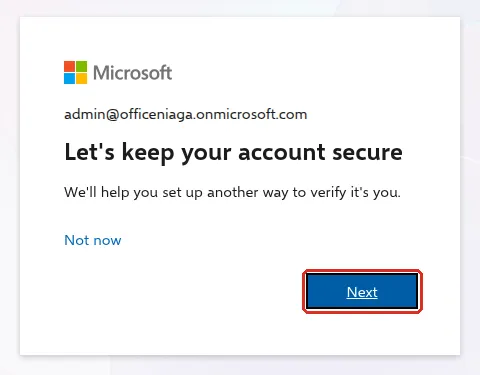
Sign in to Microsoft 365 on your computer. When you see Let’s keep your account secure, select Next and keep the page open. If you select Not now instead, Microsoft asks again at a later sign-in.
-
On your phone, install Microsoft Authenticator from the App Store or Google Play. On the computer, select Next.
-
Open the app. The first time, it asks you to allow notifications and accept Microsoft’s privacy statement, and on Android it also asks you to Turn off battery optimization so sign-in requests reach you. Allow all of them. Then tap Add work or school account and choose Scan a QR code. If the app already has accounts, tap + at the top and choose Work or school account first.
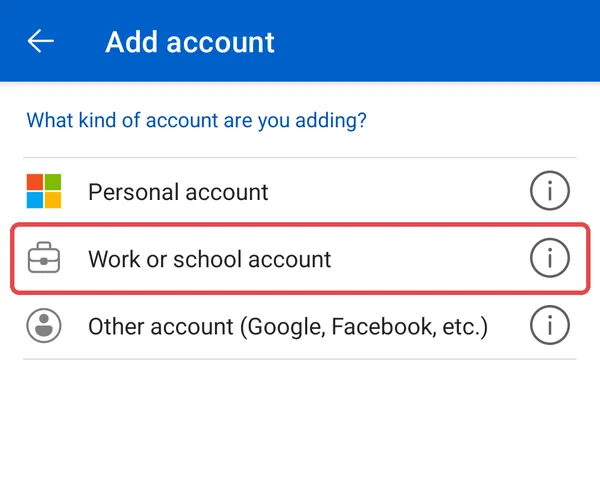
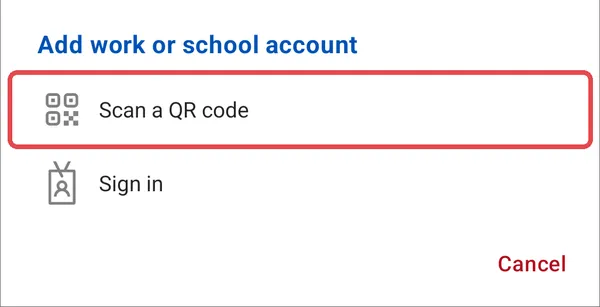
Choose Scan a QR code, not Sign in. For a new account, Sign in only tells you to go to aka.ms/mfasetup in a web browser.
-
On the computer, select Next to show the QR code, then scan it with the app.
-
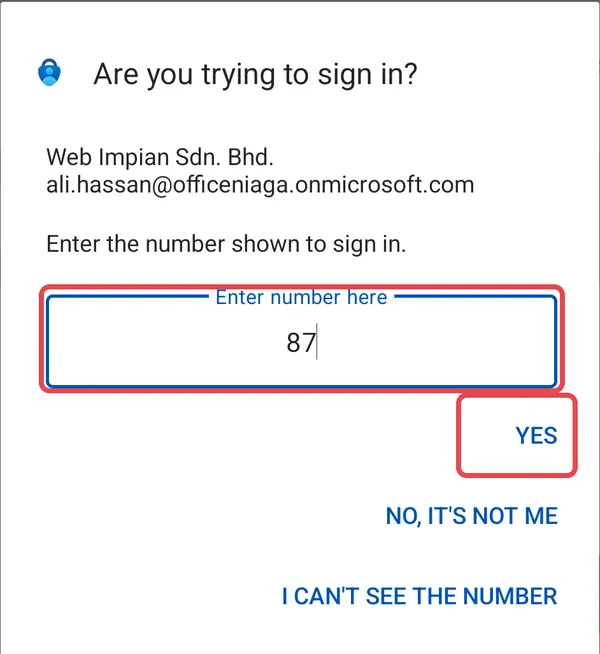
On the computer, select Next. Microsoft sends a test to your phone. In Are you trying to sign in?, type the number shown on the computer and tap Yes (or Approve). The phone then asks for your screen lock, fingerprint or face to confirm.
-
If Microsoft asks for a phone number as a backup, enter your mobile number and the code it sends by SMS.
-
When you see Success, select Done.
If you cannot scan the code, select Can’t scan the QR image on the computer and type the code into the app with Enter code manually.
Set it up with only your phone
Section titled “Set it up with only your phone”If you do not have a computer to hand, you can do the whole setup on your phone. Follow these steps:
-
Install Microsoft Authenticator from Google Play or the App Store and open it once, so it can ask for its permissions.
-
In your phone’s browser, go to aka.ms/mfasetup and sign in with your work account. On Let’s keep your account secure, tap Next.
-
On Install Microsoft Authenticator, tap Next.
-
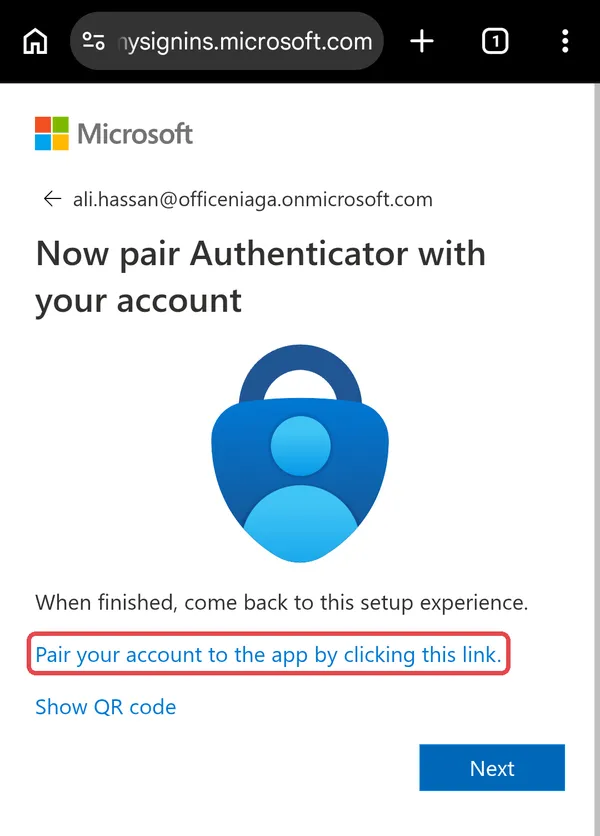
On Now pair Authenticator with your account, tap Pair your account to the app by clicking this link. Authenticator opens and adds your account by itself.
-
Go back to the browser and tap Next. Approve the test in Authenticator by typing the number shown in the browser.
If the browser shows We’re sorry, we ran into a problem, open Security info again. The app is often added already, and Microsoft asks you to approve a sign-in with it.
Add it later from Security info
Section titled “Add it later from Security info”If you skipped it, or want to add a second phone, use your Security info page.
-
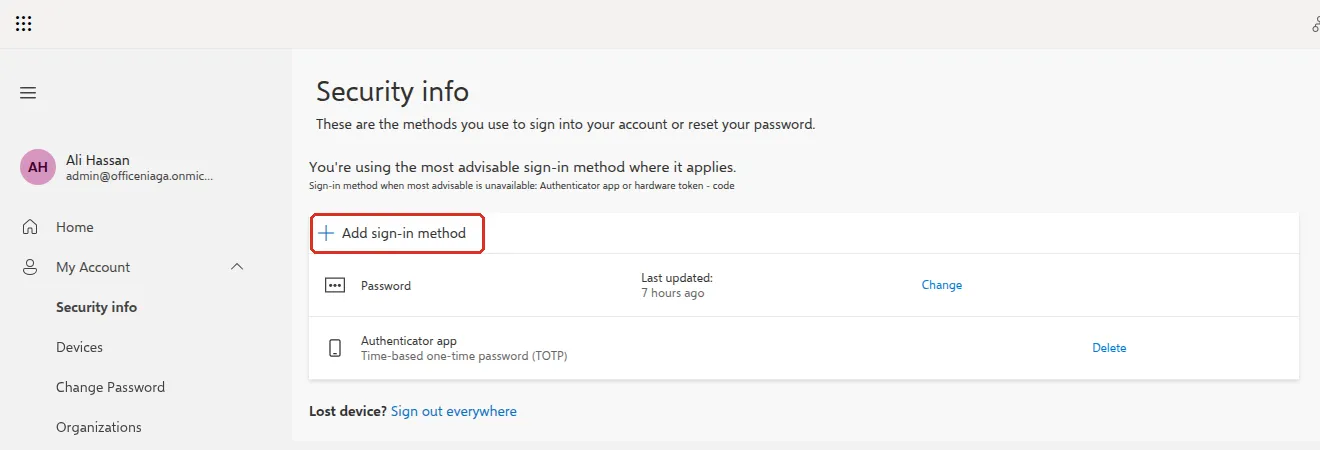
Go to mysignins.microsoft.com/security-info and sign in. The Security info page lists the methods you already have.
-
Select Add sign-in method.
-
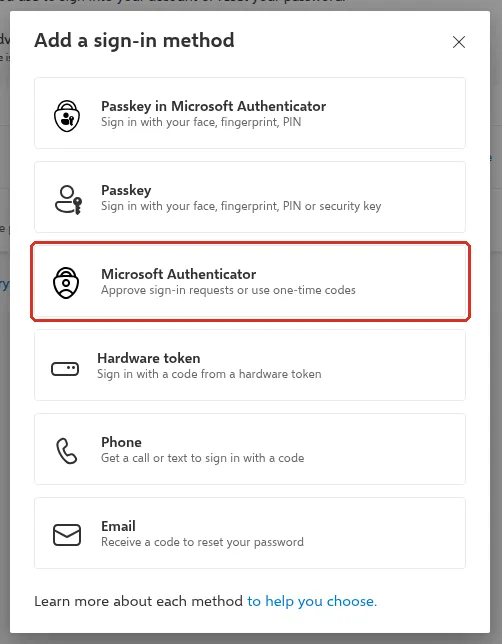
In Add a sign-in method, select Microsoft Authenticator. There is no separate Add button; selecting the option moves you on.
-
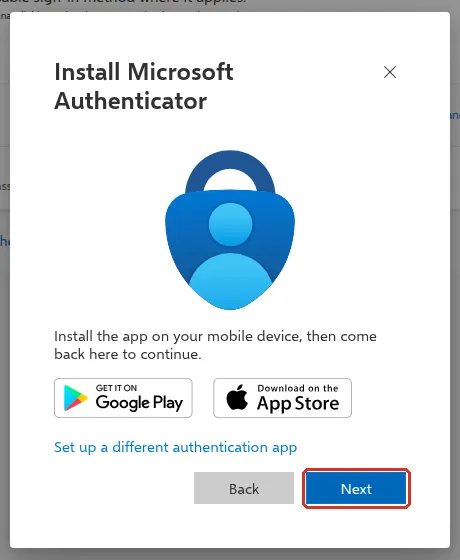
On Install Microsoft Authenticator, install the app on your phone if you have not already, then select Next.
-
Follow steps 3 to 5 above to scan the QR code and approve the test.
On this page you can also see your sign-in methods and select Delete next to one you no longer use, for example an old phone. Lost device? Sign out everywhere at the bottom signs you out on every device.
Signing in day to day
Section titled “Signing in day to day”When you sign in on a new device or browser, the screen shows a two-digit number. Open the notification on your phone, type that number into Authenticator and approve. If you sign in on the same phone inside Outlook or Teams, the app may ask a simple yes or no instead.
If no notification arrives, open Authenticator and swipe down on the list of accounts. The app then checks for waiting sign-in requests.
Keep the app updated: Microsoft stops accepting old versions of Authenticator.
Still stuck
Section titled “Still stuck”WhatsApp our support team at +60 16-916 3324.
Common issues
I got a new phone. How do I move Authenticator?
While you still have the old phone, sign in at mysignins.microsoft.com/security-info, add Microsoft Authenticator on the new phone, then delete the old phone from the list. If the old phone is already gone, ask your admin to let you register again.
I lost my phone and cannot sign in.
Your admin has to help. Ask them to reset your sign-in methods or reset your password so you can register the app again. If you have no admin, contact Office Niaga.
I received an approval request I did not start.
Do not approve it, and do not type any number. Someone may know your password. Change your password straight away and tell your admin.
Was this article helpful?
Thanks for your feedback.
Sorry this didn't help. WhatsApp us and we'll sort it out with you.