
Ask an AI about this page
 ChatGPT
 Claude
 Perplexity
 Google AI Mode
 Microsoft Copilot
 Grok
Grok Mistral Le Chat
Set up email in Mozilla Thunderbird
Add your Office Niaga Mail account to Thunderbird with IMAP, server mail.officeniaga.com, port 993 for incoming mail and port 465 for outgoing mail. These steps use Thunderbird 156 on Windows.
Keep your full email address and password ready.
-
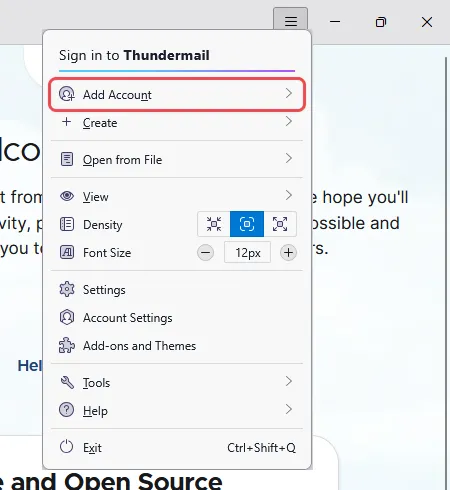
Open Thunderbird. Click the ≡ menu at the top right, then Add Account.
If this is the first time you open Thunderbird, the account setup screen opens by itself. Go to step 3.
-
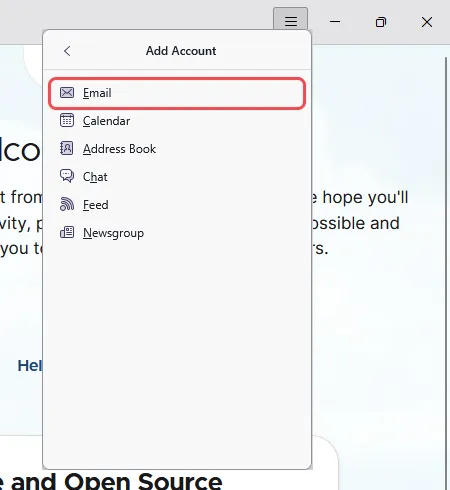
Click Email.
-
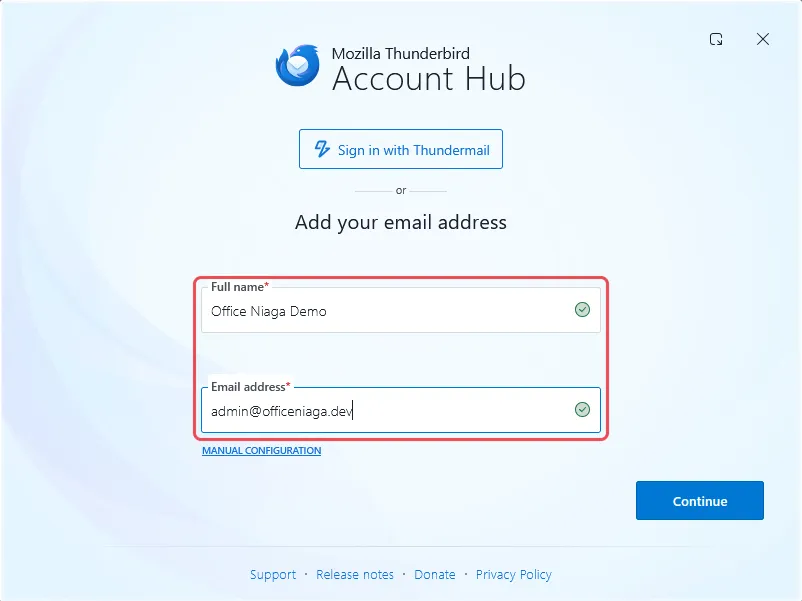
Enter your Full name and your full Email address, then click Continue.
-
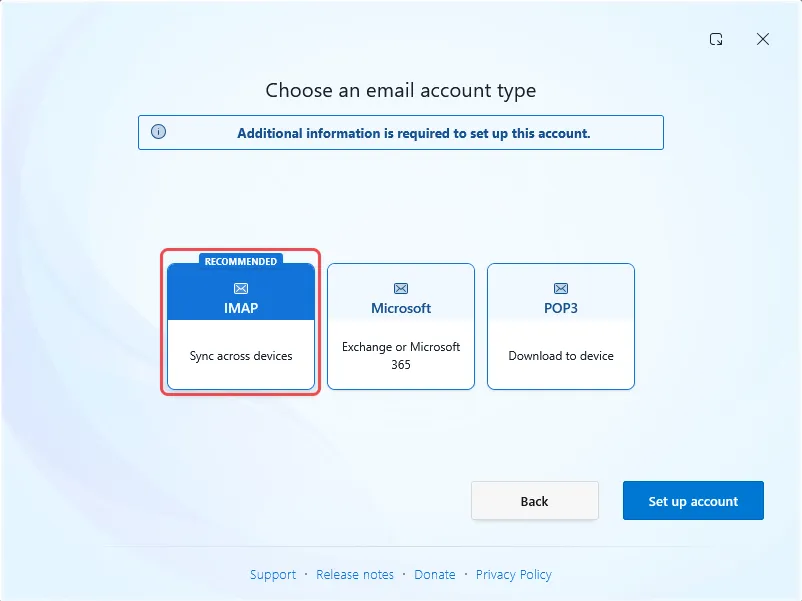
Choose IMAP, then click Set up account.
-
Check the incoming server settings:
- Hostname:
mail.officeniaga.com - Username: your full email address
- Authentication method: Normal password
- Connection security: SSL/TLS
- Port: 993
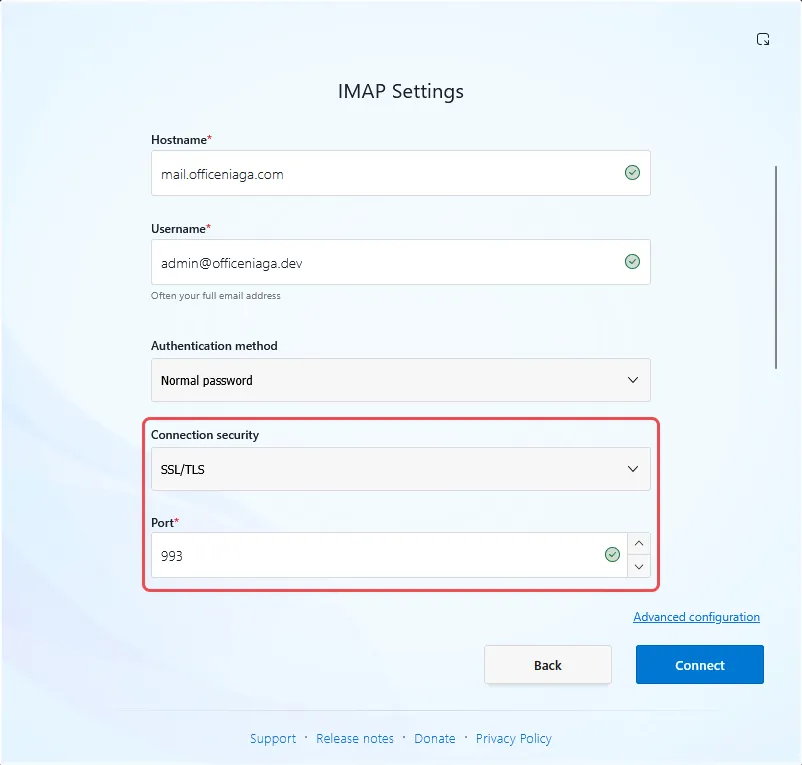
- Hostname:
-
Scroll down and check the outgoing server settings:
- Hostname:
mail.officeniaga.com - Same username as incoming server: ticked
- Authentication method: Normal password
- Connection security: SSL/TLS
- Port: 465
Click Connect. If Thunderbird shows Review updated settings, check that the values are still the same and click Connect again.
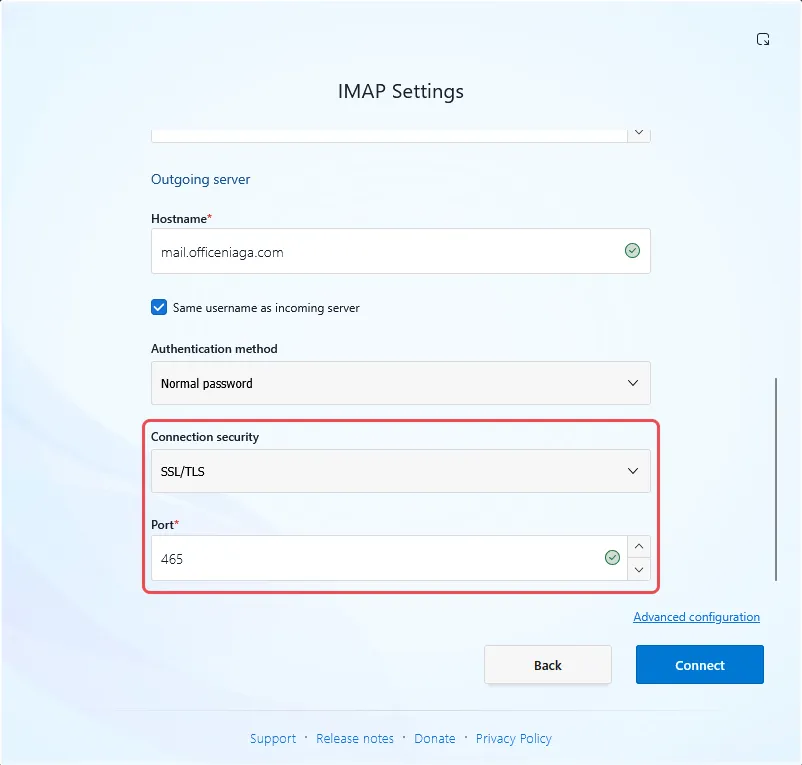
- Hostname:
-
Enter your Password, keep Remember password ticked, and click Continue.
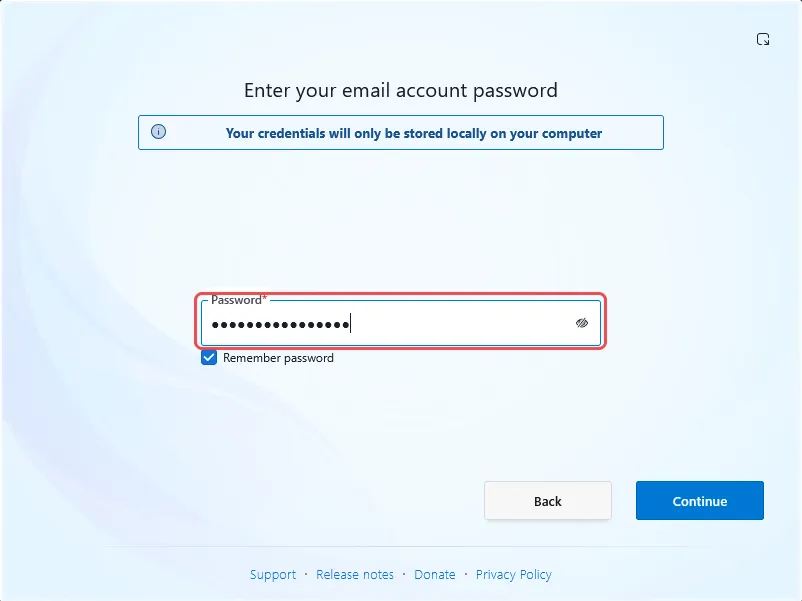
-
Click Finish.
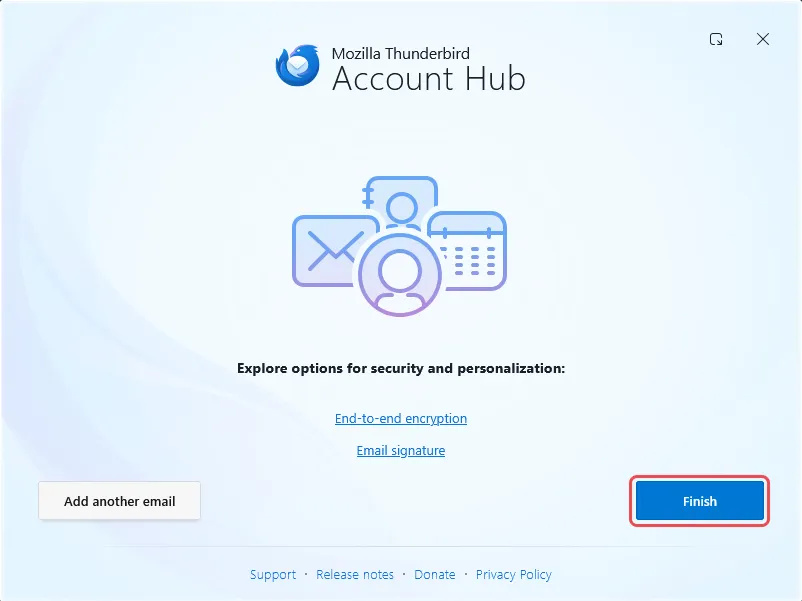
-
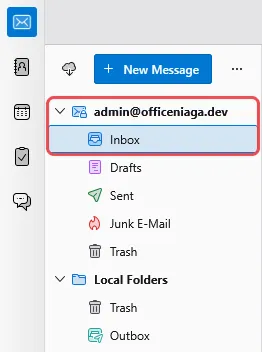
Your account appears in the folder list on the left. Click Inbox to see your email.
Still stuck
Section titled “Still stuck”WhatsApp our support team at +60 16-916 3324.
Common issues
Thunderbird says it cannot find the settings.
On the first screen, click MANUAL CONFIGURATION under the email address, then enter the settings yourself: server mail.officeniaga.com, incoming port 993 and outgoing port 465, both SSL/TLS, and your full email address as the username.
Thunderbird suggests port 587 for outgoing mail.
Port 587 is closed on our server. Change Connection security to SSL/TLS and Port to 465.
Was this article helpful?
Thanks for your feedback.
Sorry this didn't help. WhatsApp us and we'll sort it out with you.