
Ask an AI about this page
 ChatGPT
 Claude
 Perplexity
 Google AI Mode
 Microsoft Copilot
 Grok
Grok Mistral Le Chat
Set up email in Microsoft Outlook
You can use Outlook on a computer (new Outlook for Windows, classic Outlook, or Outlook for Mac) and on a phone. They all use the same IMAP settings.
New Outlook for Windows
Section titled “New Outlook for Windows”Follow these steps if your Windows computer uses the new Outlook.
-
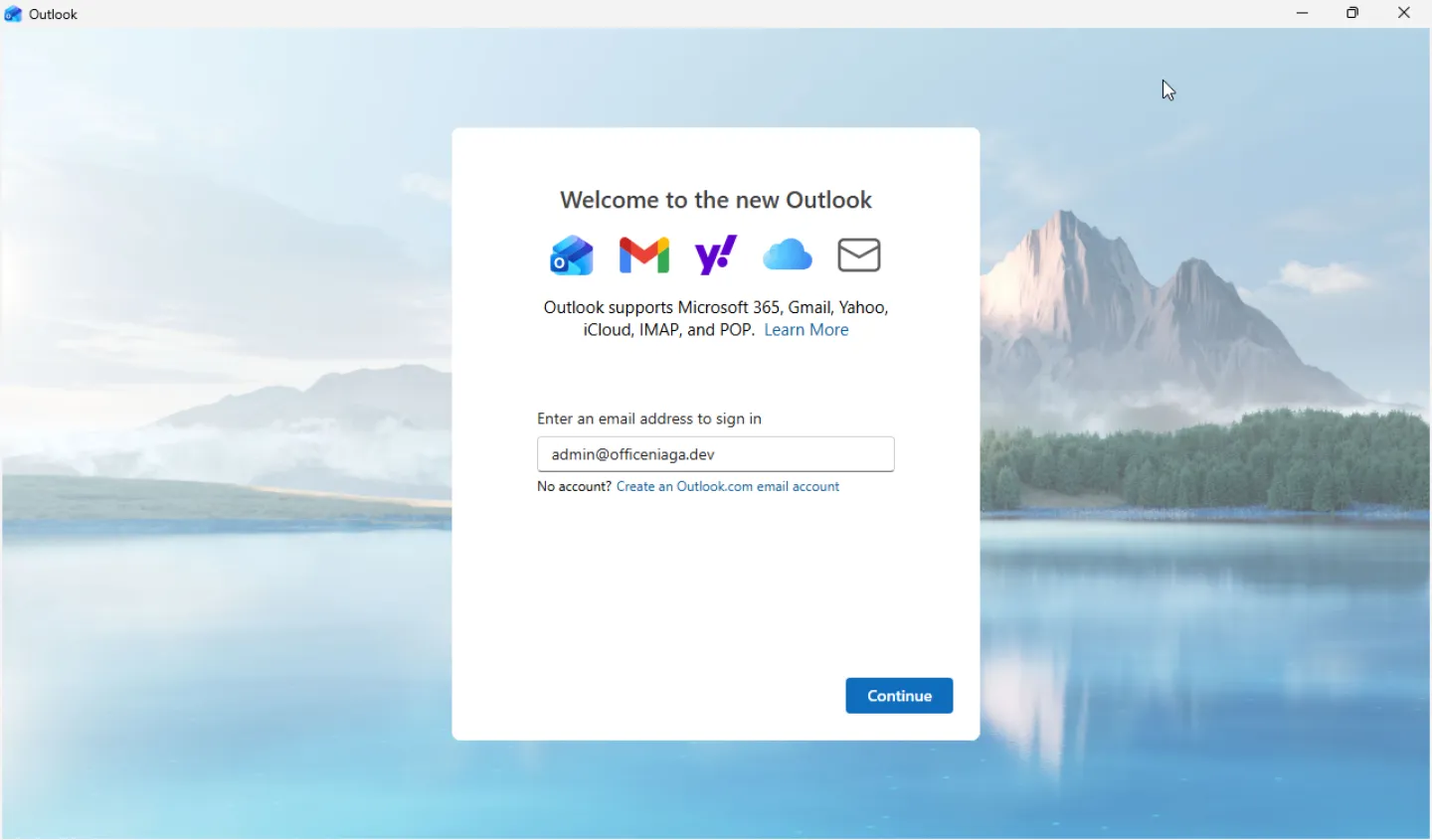
Open Outlook. On the Welcome to the new Outlook screen, enter your full email address, then click Continue.
-
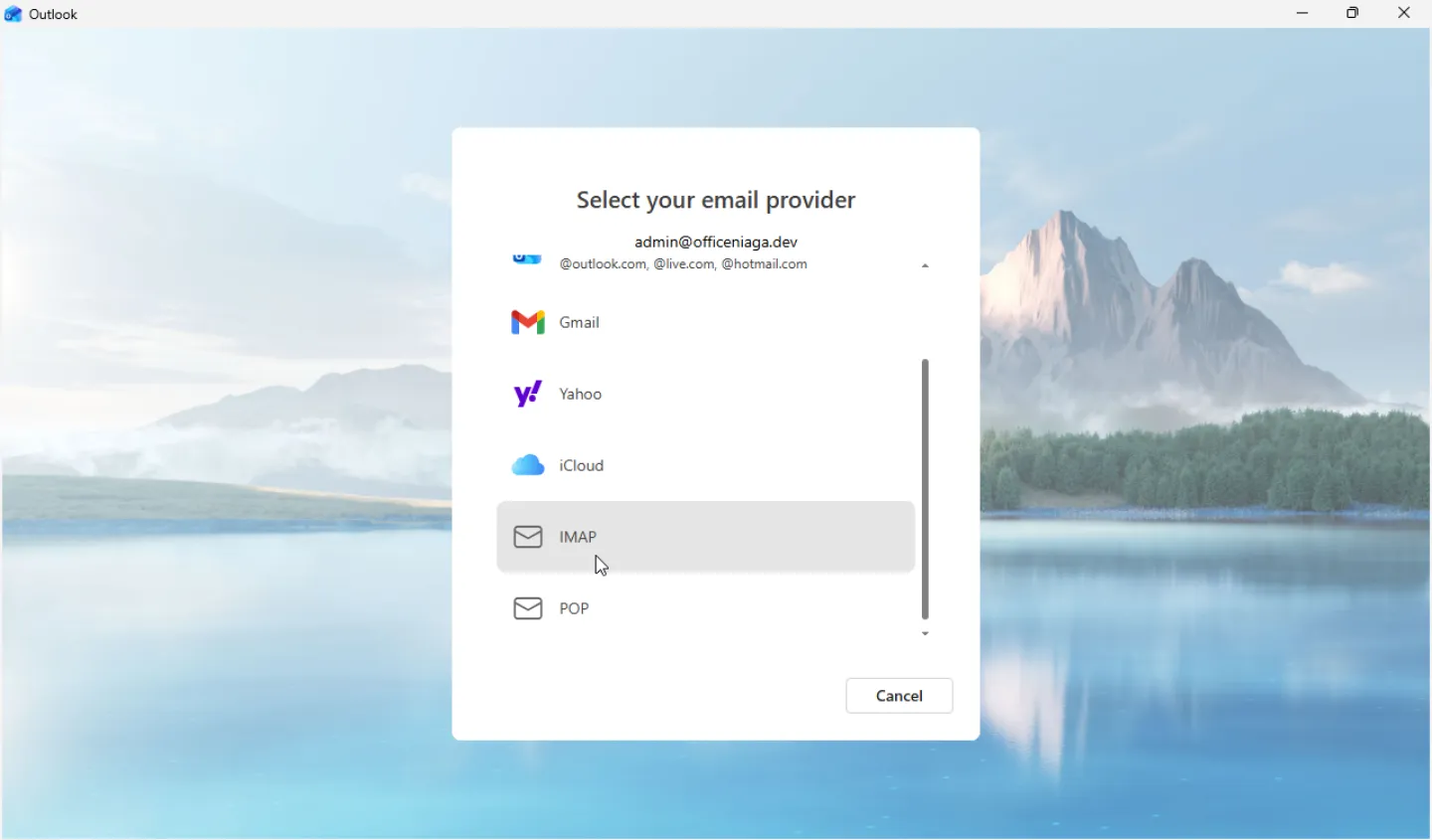
On the Select your email provider screen, scroll down, then choose IMAP.
-
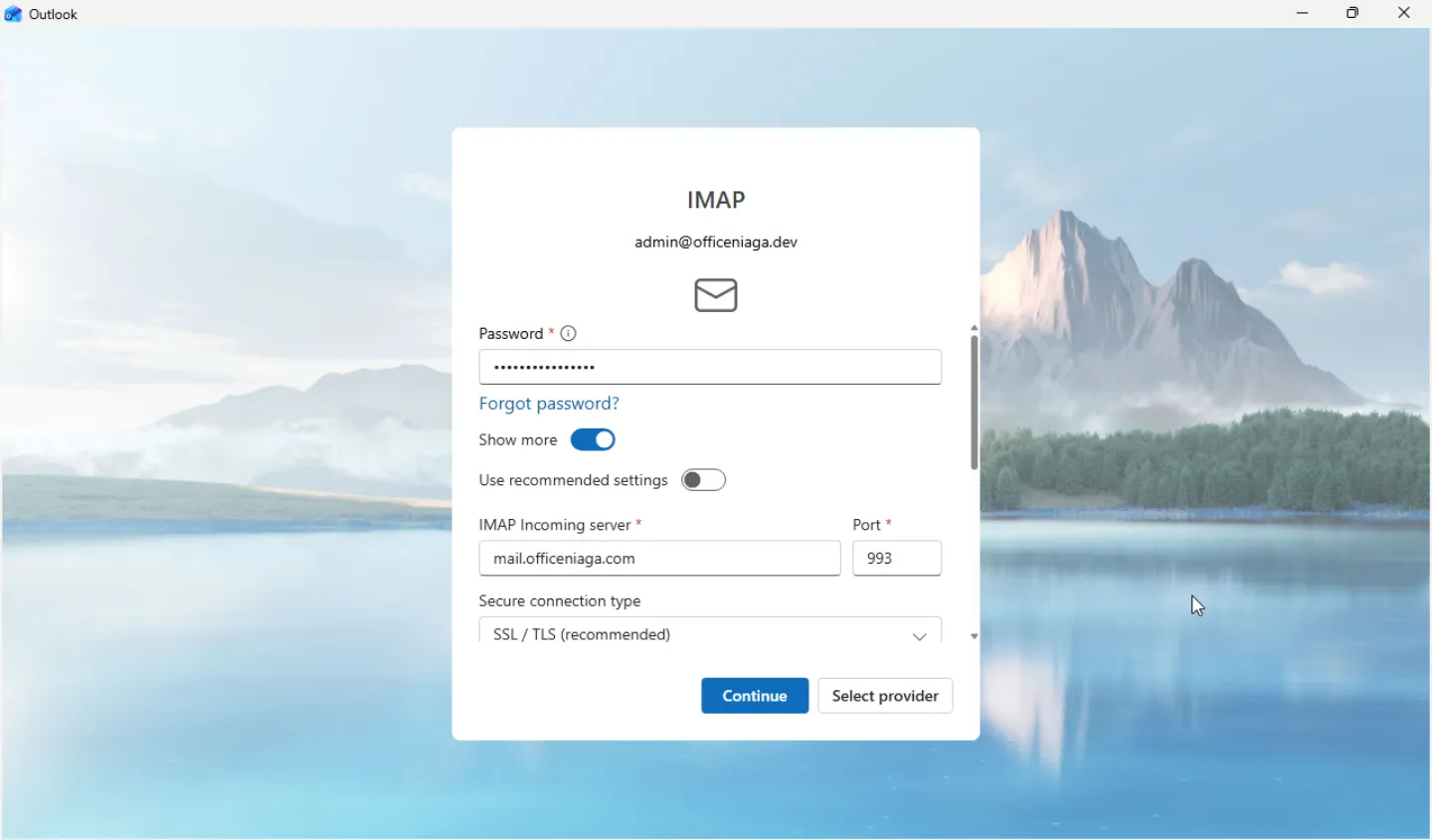
Enter your email password in the Password field, then click Show more.
-
Turn off Use recommended settings. The settings Outlook recommends are not correct for our server.
-
Fill in the incoming mail settings:
- IMAP Incoming server:
mail.officeniaga.com - Port: 993
- Secure connection type: SSL / TLS (recommended)
- IMAP Incoming server:
-
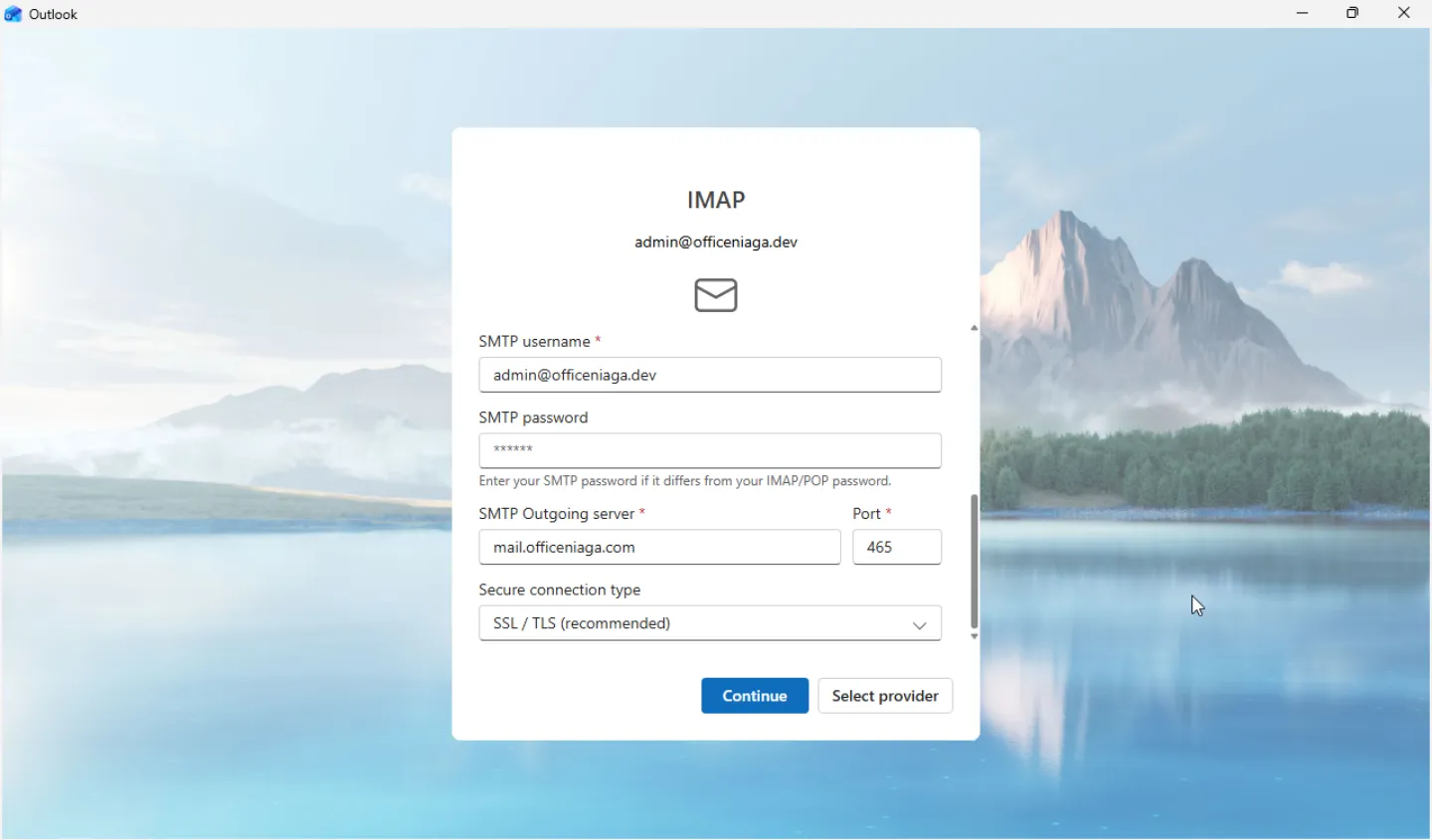
Scroll down to SMTP Configuration, then fill in the outgoing mail settings:
- SMTP username: leave your email address that is already filled in
- SMTP password: leave it empty if the password is the same
- SMTP Outgoing server:
mail.officeniaga.com - Port: 465
- Secure connection type: SSL / TLS (recommended)
Important: Outlook fills in port 587 automatically. Change it to 465, because port 587 is not open on our server.
-
Click Continue.
-
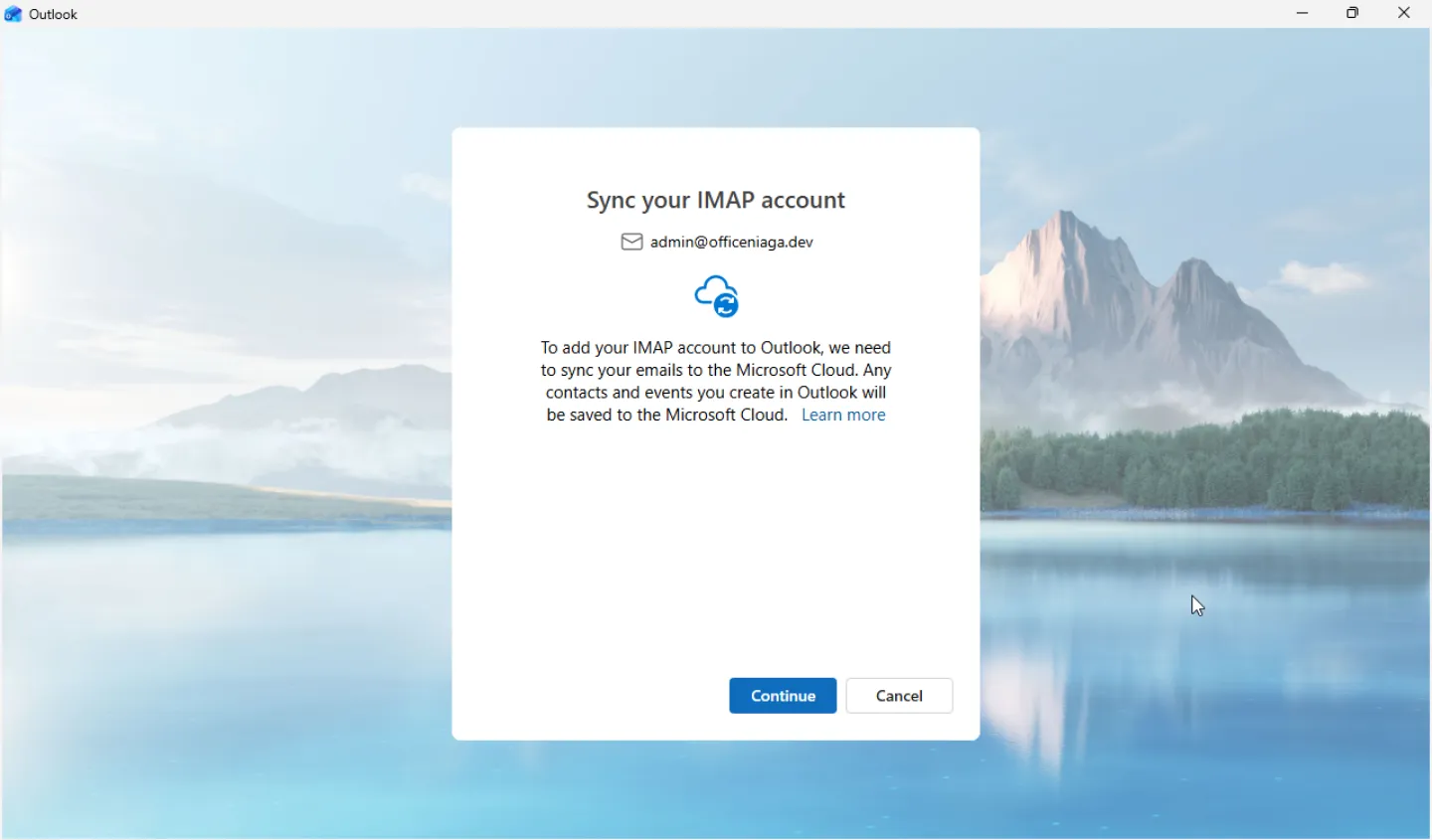
On the Sync your IMAP account screen, click Continue. Outlook syncs a copy of your email to the Microsoft Cloud. Your email also stays on the Office Niaga Mail server.
-
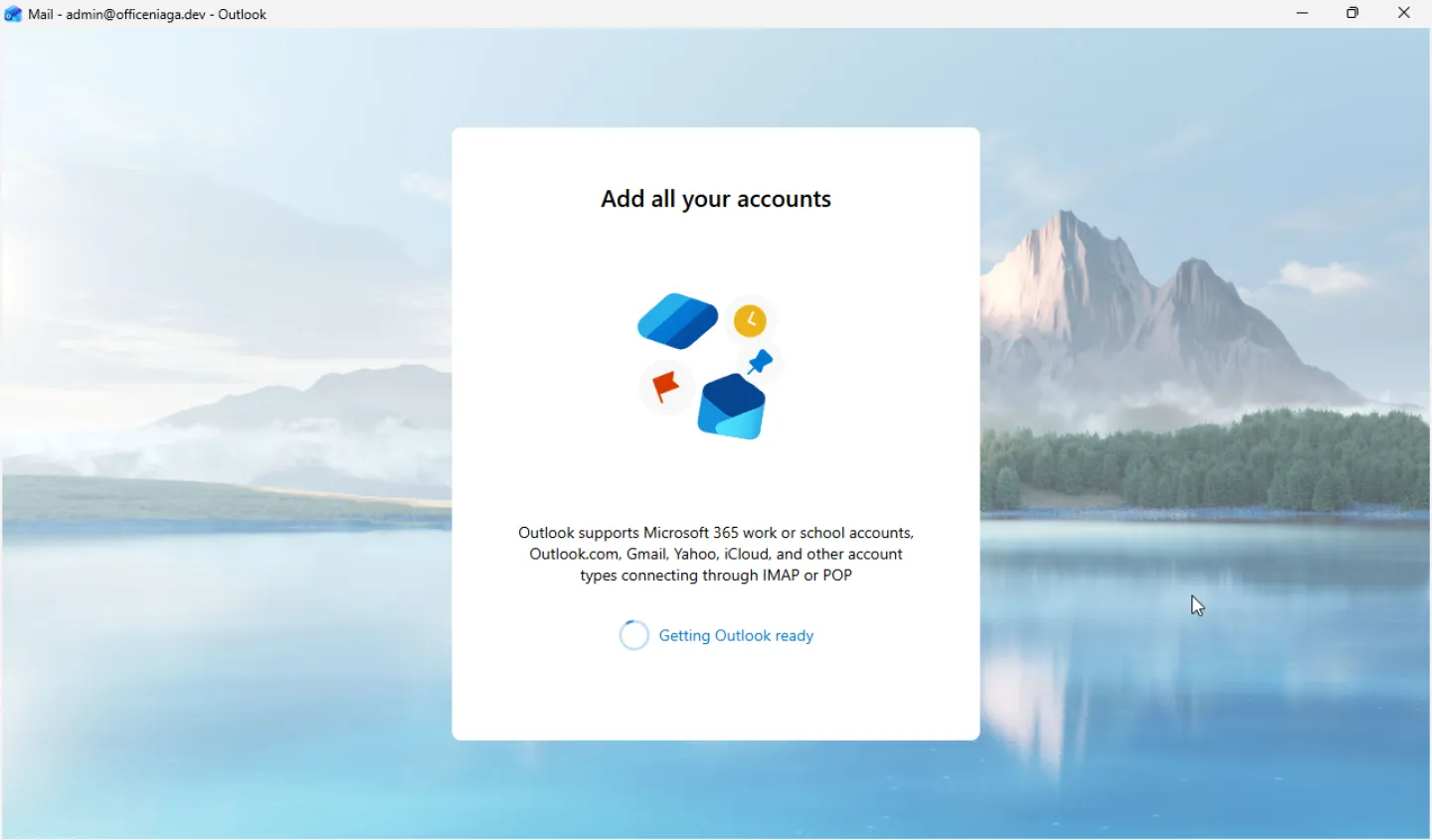
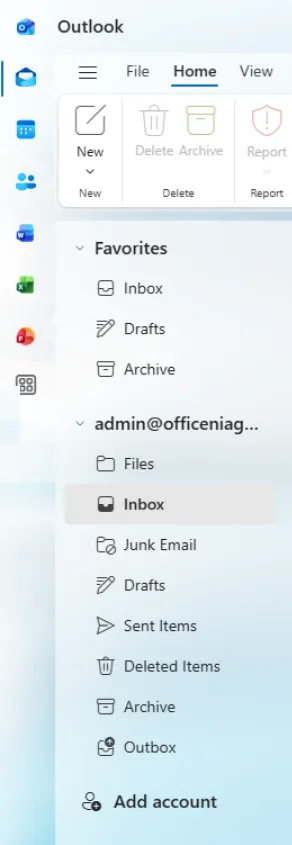
Wait for Outlook to finish. Outlook may show an Add all your accounts screen, then Getting Outlook ready. After that, your mailbox opens.
Check your account settings later
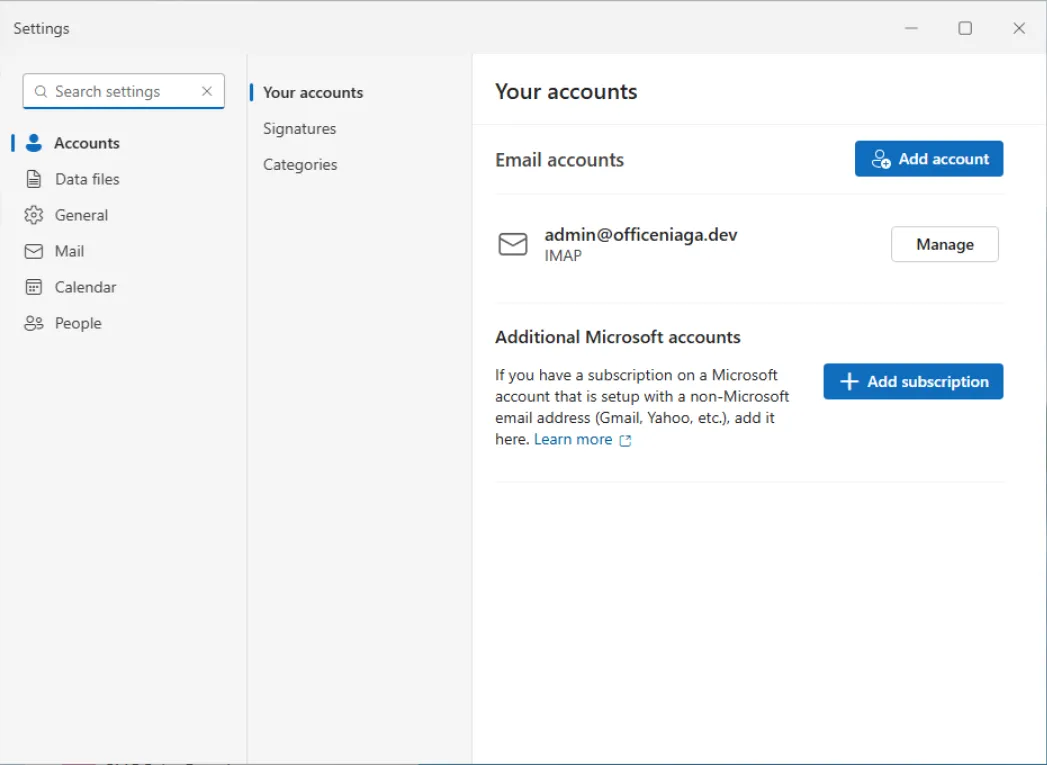
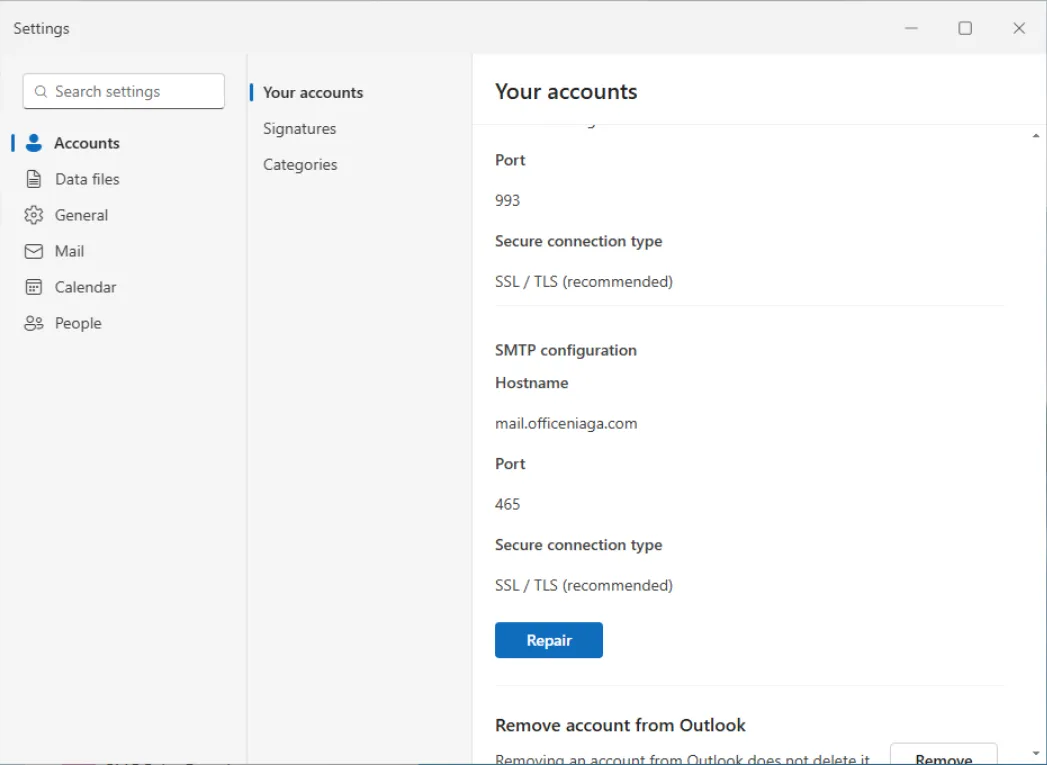
Section titled “Check your account settings later”To see your account’s IMAP and SMTP settings, click the gear icon, then Settings → Accounts → Manage.
Classic Outlook for Windows
Section titled “Classic Outlook for Windows”Classic Outlook is the Outlook that comes with the Microsoft 365 desktop apps. It has a File menu at the top left, and the Try the new Outlook switch at the top right is Off.

Follow these steps to add your Office Niaga Mail account. If Outlook has no account yet, it opens the add account window by itself, so you can start at step 2.
-
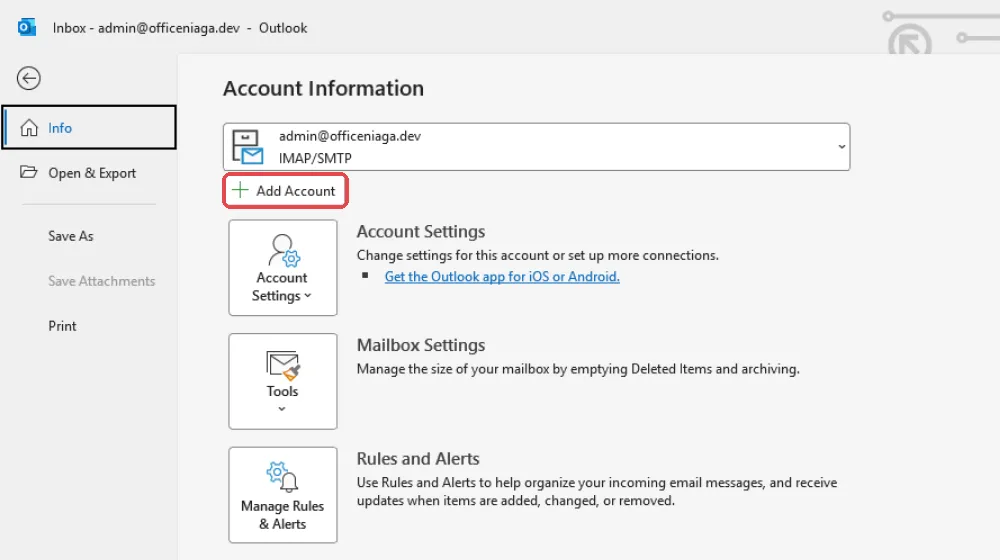
Click File, then Add Account.
-
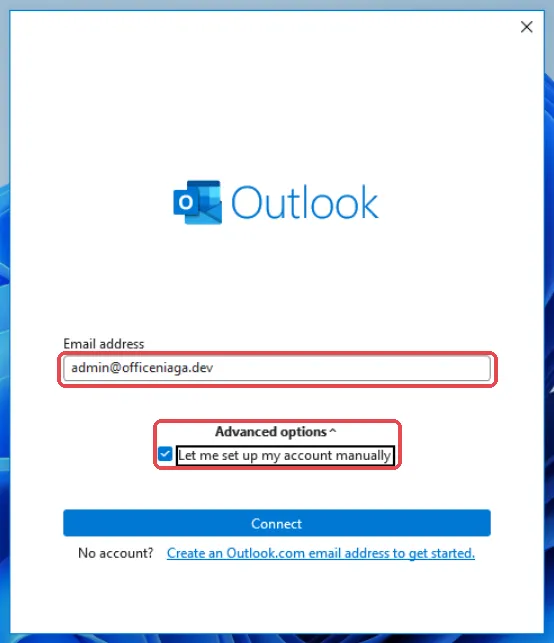
Enter your full email address. Click Advanced options, tick Let me set up my account manually, then click Connect.
-
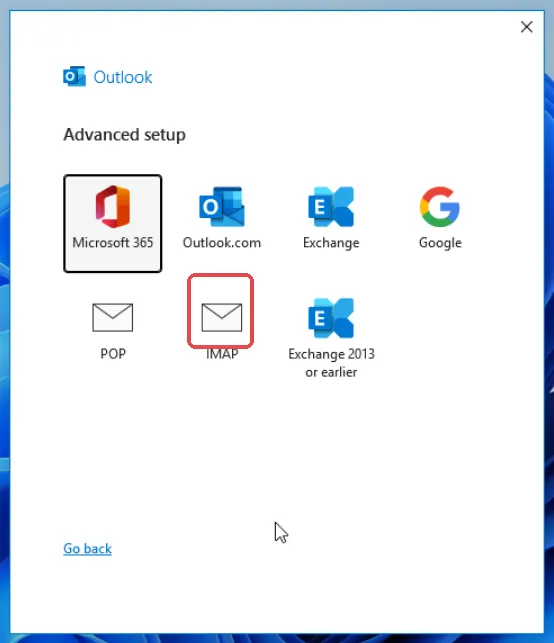
On the Advanced setup screen, choose IMAP.
-
On the IMAP Account Settings screen, fill in the incoming and outgoing mail settings:
- Incoming mail: Server
mail.officeniaga.com, Port 993, Encryption method SSL/TLS - Outgoing mail: Server
mail.officeniaga.com, Port 465, Encryption method SSL/TLS
Leave both Require logon using Secure Password Authentication (SPA) boxes unticked, then click Next.
Important: Use port 465 for outgoing mail. Port 587 is not open on our server.
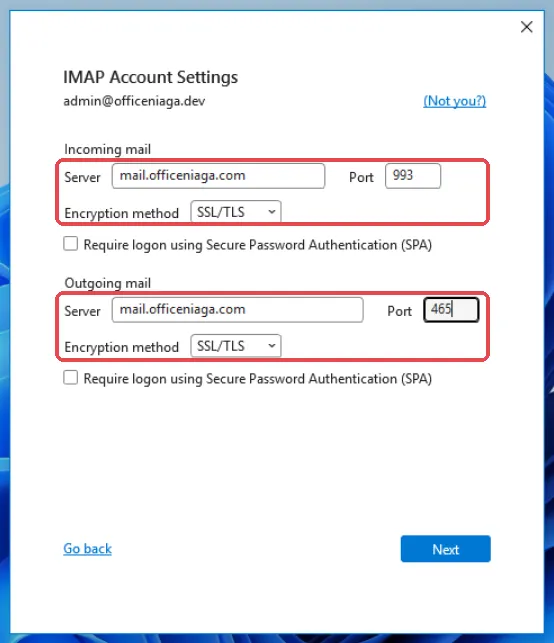
- Incoming mail: Server
-
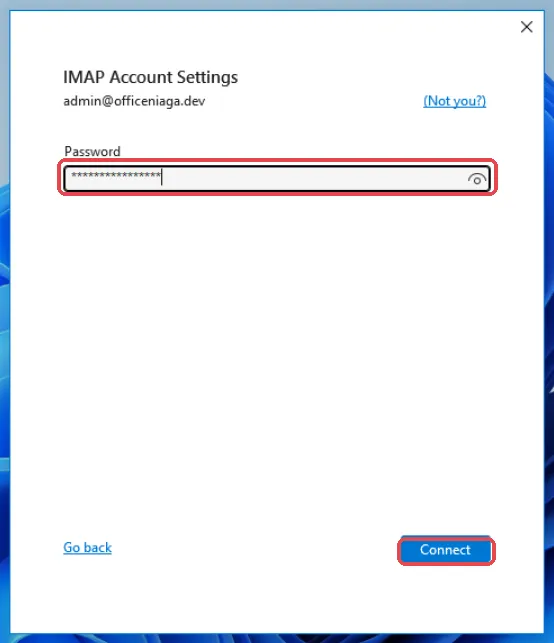
Enter your email password, then click Connect.
-
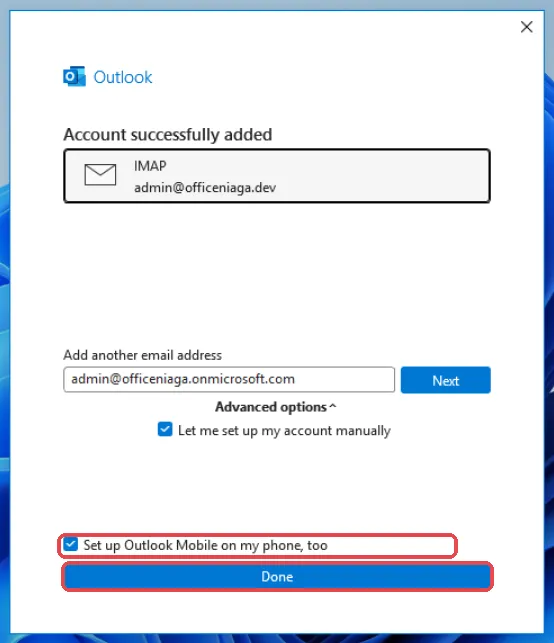
When you see Account successfully added, click Done. Untick Set up Outlook Mobile on my phone, too first if you do not want Outlook to offer the phone app.
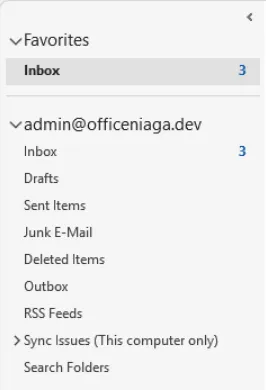
Your mailbox now shows in the folder list. Outlook sends itself a Microsoft Outlook Test Message to check the settings, so you can delete it.
Outlook for Mac uses the same settings. Add the account as IMAP and enter the details above.
Check outgoing server authentication
Section titled “Check outgoing server authentication”Our outgoing server needs authentication. Classic Outlook turns this on for you when you add the account, but you can check it if sending fails.
-
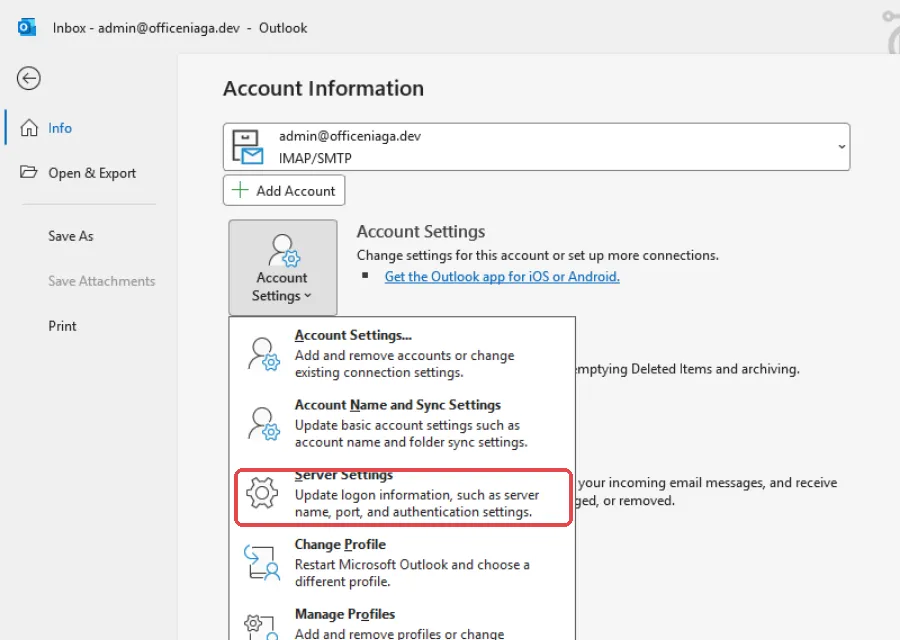
Click File, then Account Settings and Server Settings.
-
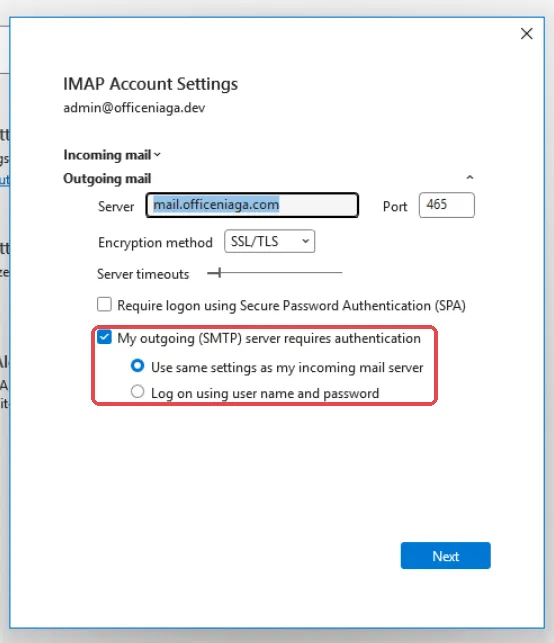
Click Outgoing mail. Make sure My outgoing (SMTP) server requires authentication is ticked, with Use same settings as my incoming mail server selected.
-
Click Next, then Done.
To stop Outlook asking for your password, open the same Server Settings window, click Incoming mail and tick Remember password.
Outlook on a phone
Section titled “Outlook on a phone”The Outlook app for iPhone and Android uses the same server settings as Outlook on a computer.
-
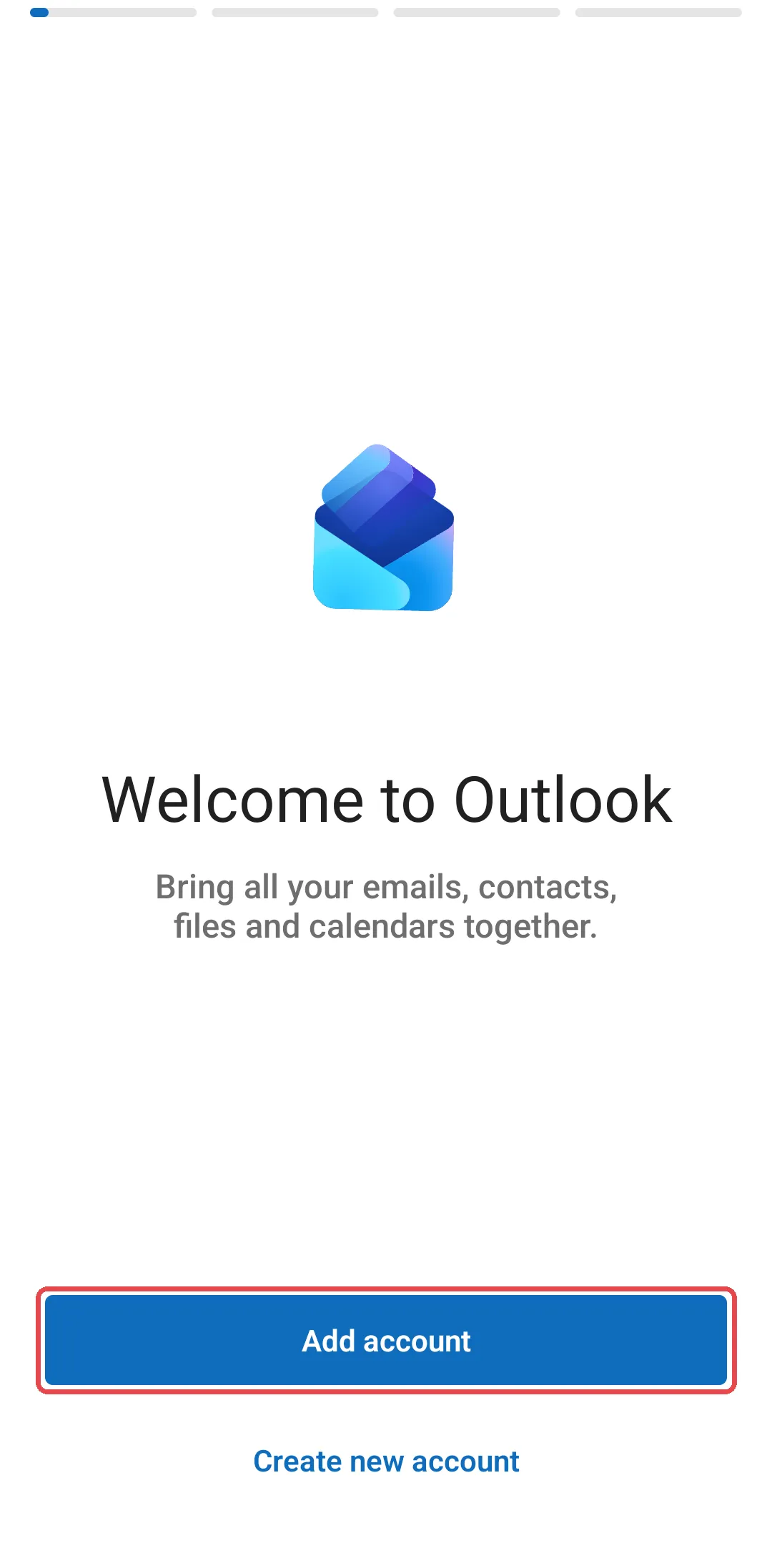
Download the Microsoft Outlook app and open it. Tap Add account.
-
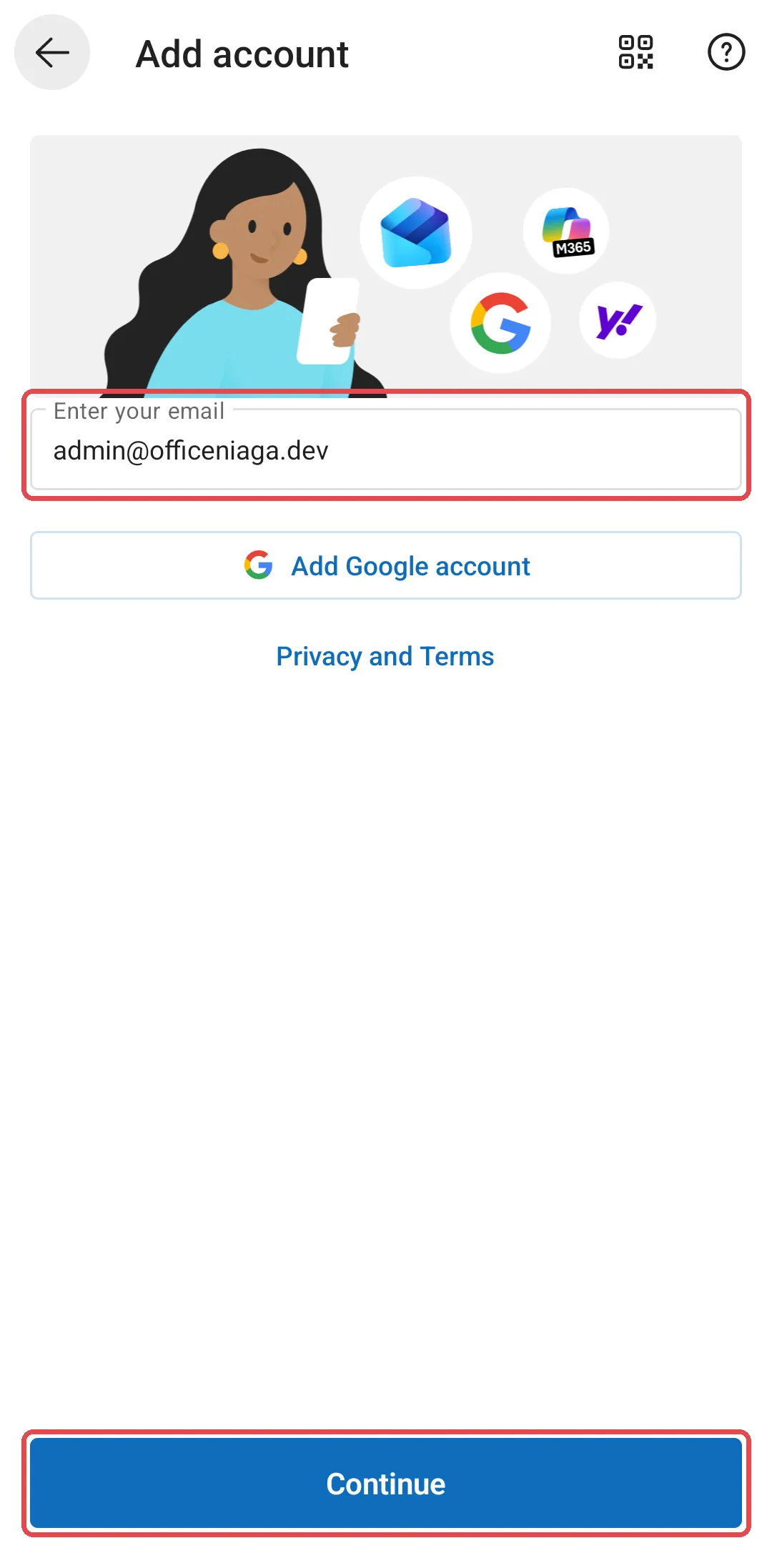
Enter your email address and tap Continue.
-
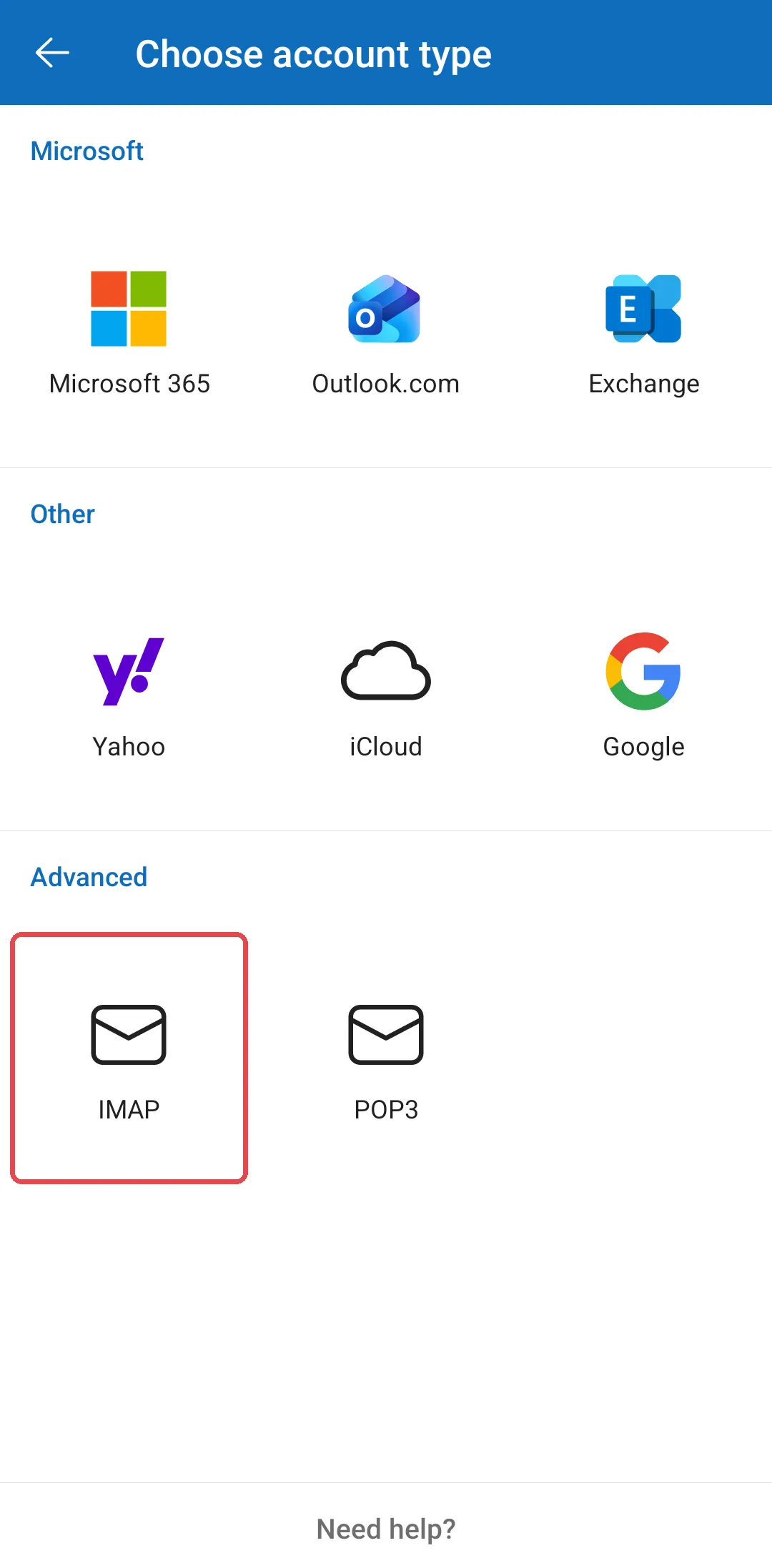
On Choose account type, tap IMAP under Advanced.
-
Turn on Advanced settings at the bottom. Under IMAP Incoming Mail Server and SMTP Outgoing Mail Server, enter
mail.officeniaga.comas the host name. Use port 993 for IMAP and 465 for SMTP, both with security type SSL/TLS. Use your full email address and password as the username and password for both.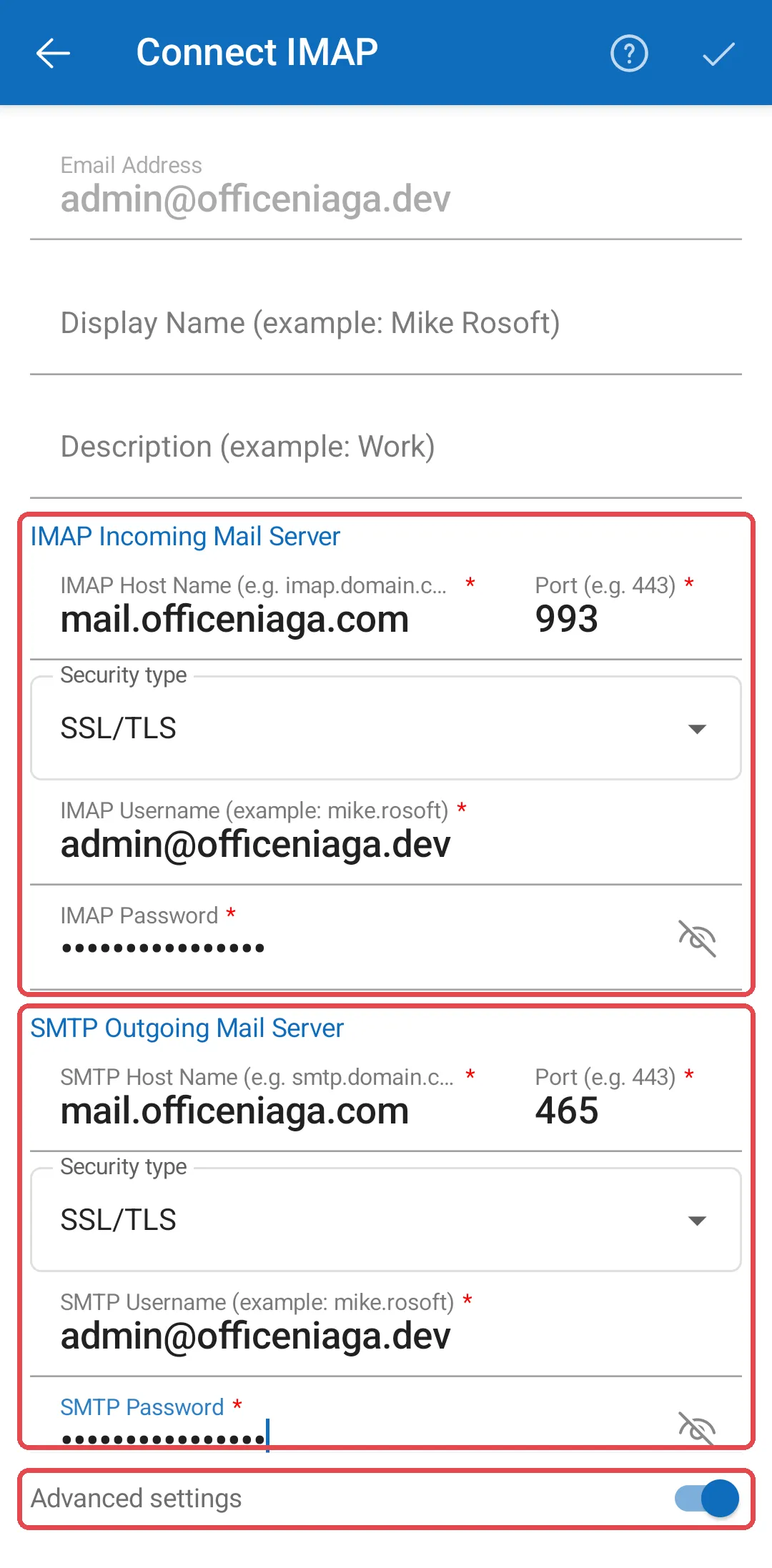
-
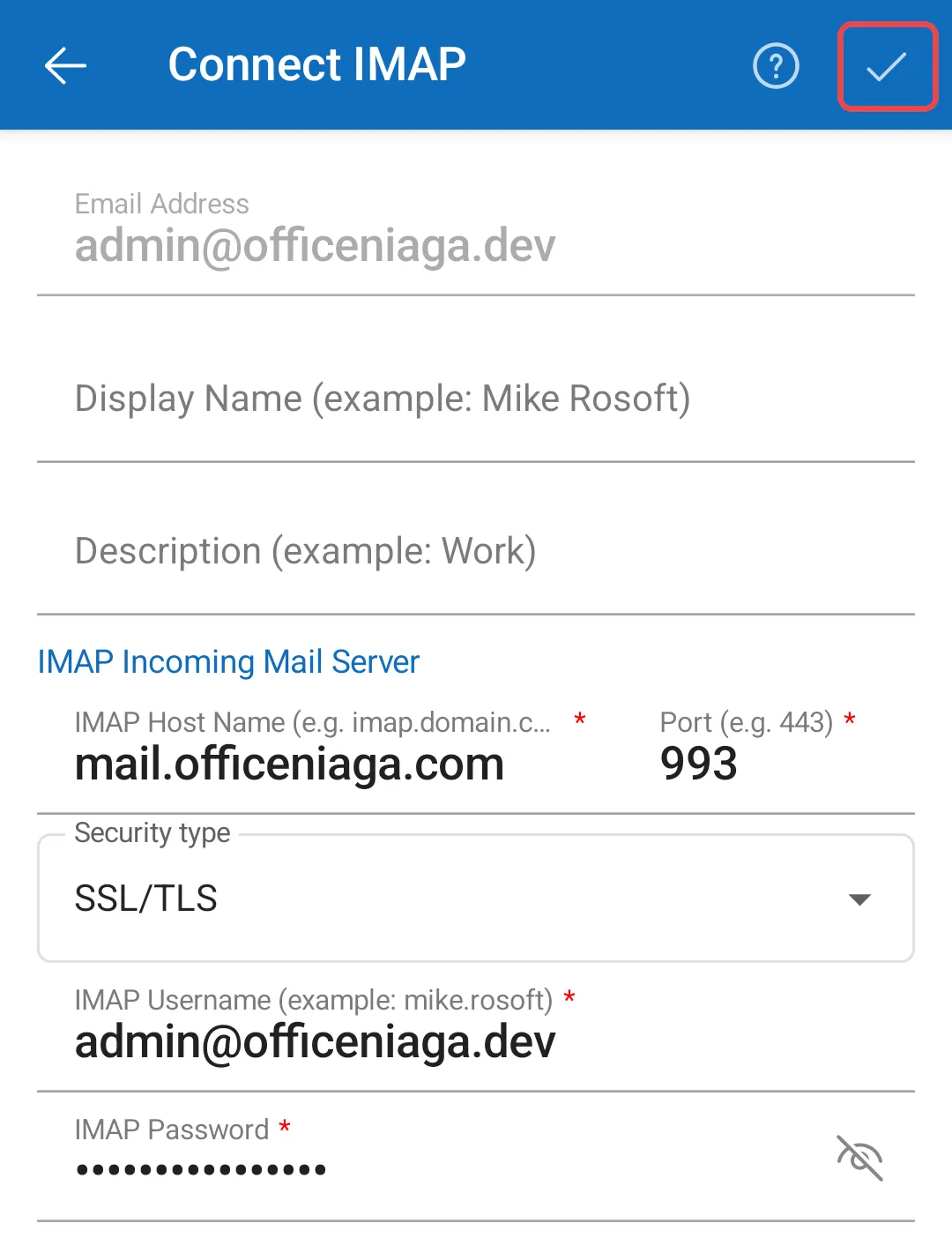
Tap the ✓ at the top right to save the account.
-
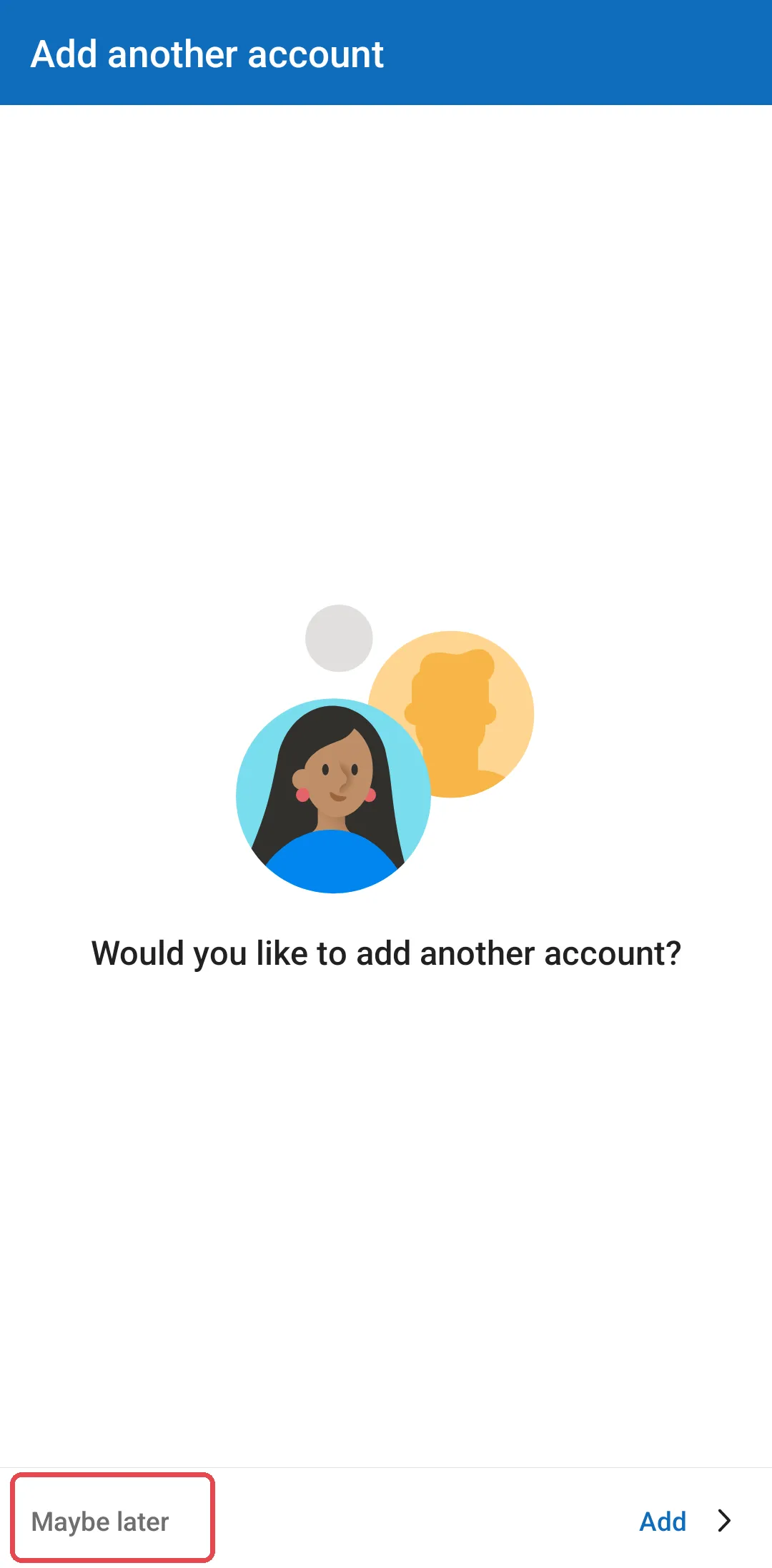
When Outlook asks Would you like to add another account?, tap Maybe later. Your inbox opens.
Still stuck
Section titled “Still stuck”WhatsApp our support team at +60 16-916 3324.
Common issues
Outlook asks for my password every time I send an email.
Click File → Account Settings → Server Settings, click Incoming mail and tick Remember password. Also check the outgoing server settings (see the section Check outgoing server authentication).
Outlook cannot find the settings automatically.
Choose manual setup and enter the details from Email server settings. Make sure the outgoing server uses port 465, not 587.
Was this article helpful?
Thanks for your feedback.
Sorry this didn't help. WhatsApp us and we'll sort it out with you.