
 ChatGPT
 Claude
 Perplexity
 Google AI Mode
 Microsoft Copilot
 Grok
Grok Mistral Le Chat
在Microsoft Outlook设置电邮
你可以在电脑(新版Outlook for Windows、经典版Outlook或Outlook for Mac)和手机上使用Outlook。它们都用同样的IMAP设置。
新版Outlook for Windows
Section titled “新版Outlook for Windows”如果你的Windows电脑用的是新版Outlook,请按以下步骤操作。
-
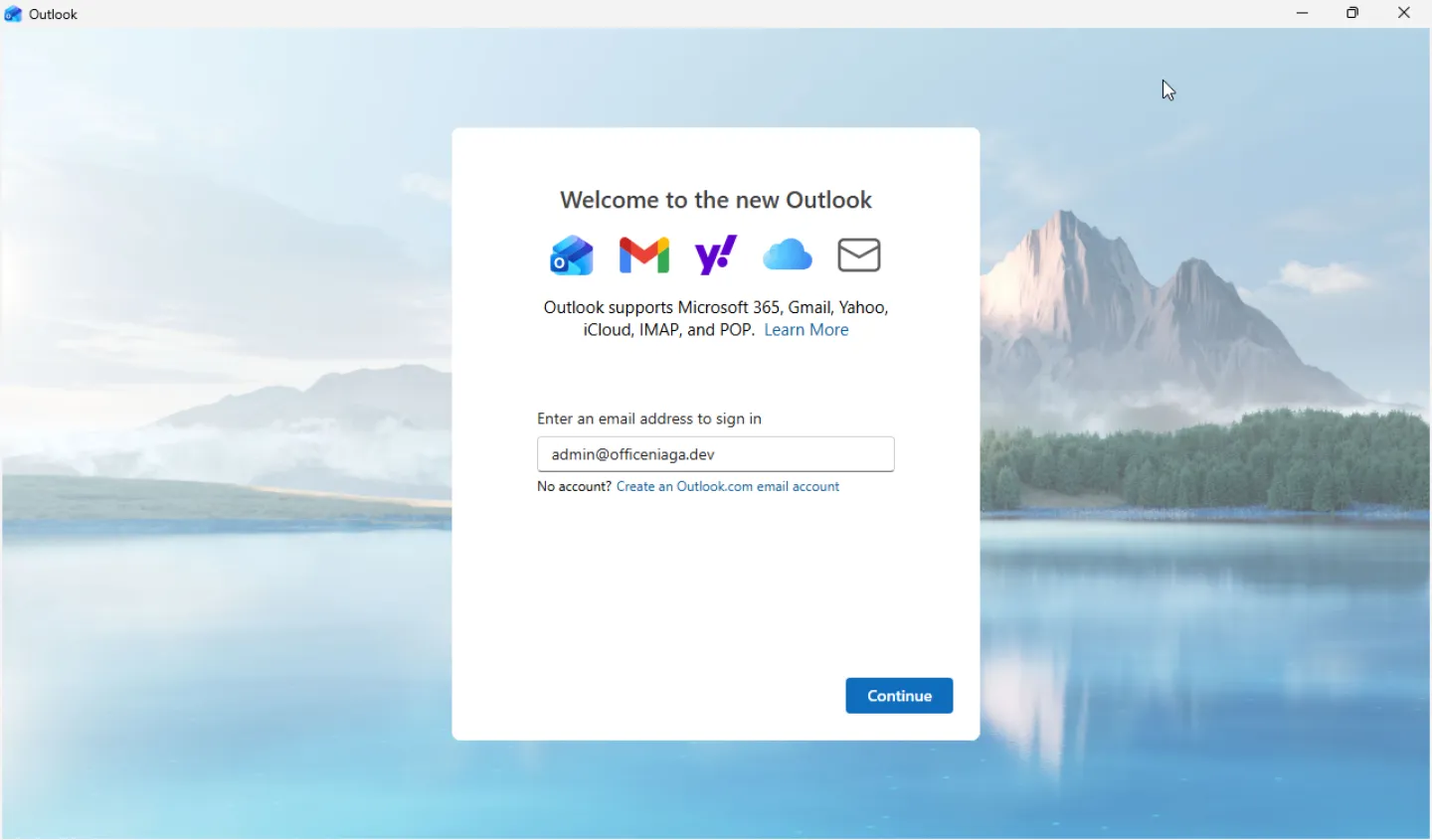
打开Outlook。在Welcome to the new Outlook页面,输入你的完整电邮地址,然后点击Continue。
-
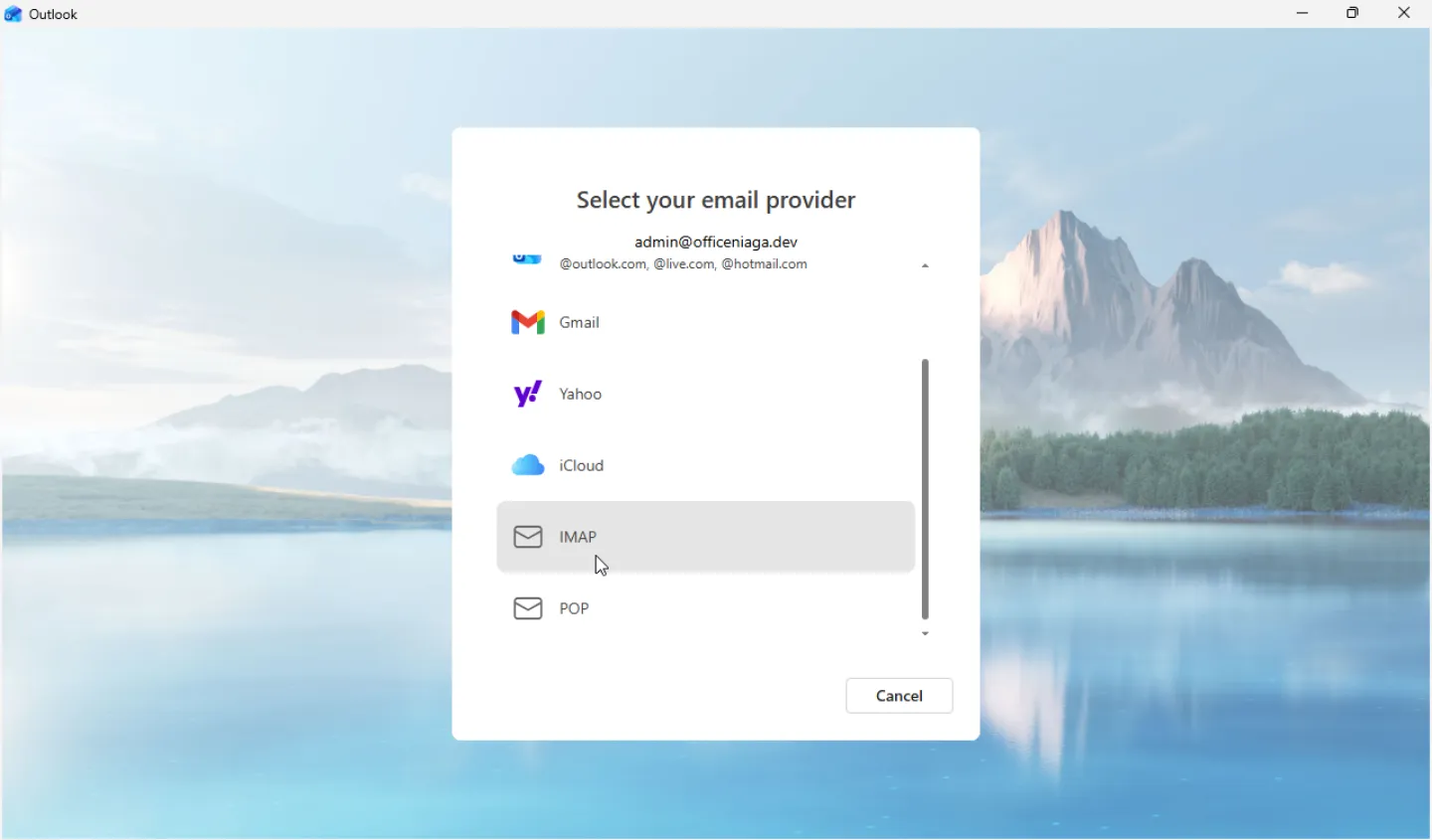
在Select your email provider页面,向下滚动,然后选择IMAP。
-
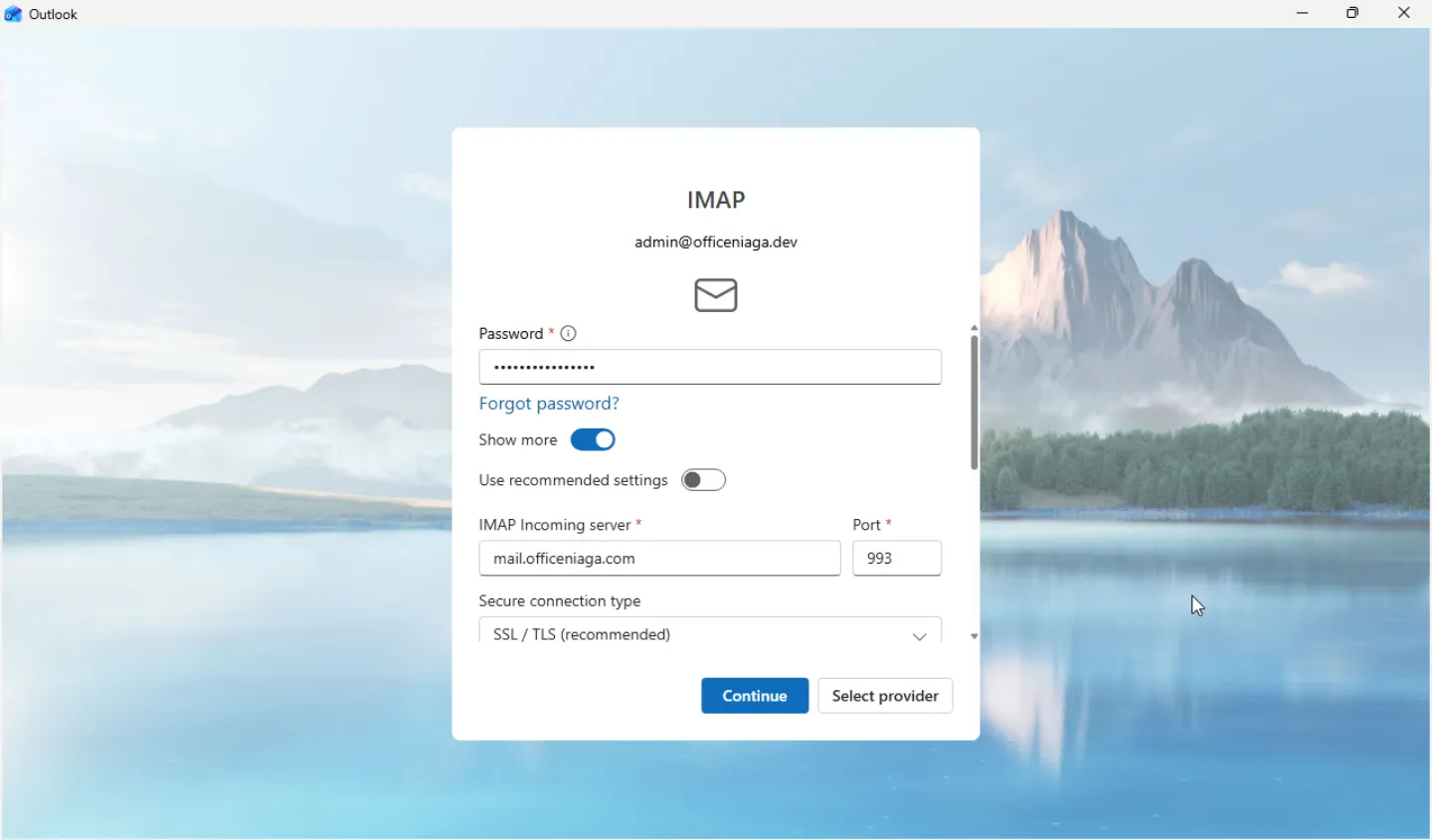
在Password栏输入你的电邮密码,然后点击Show more。
-
关闭Use recommended settings。Outlook建议的设置不适用于我们的服务器。
-
填写收件设置:
- IMAP Incoming server:
mail.officeniaga.com - Port:993
- Secure connection type:SSL / TLS (recommended)
- IMAP Incoming server:
-
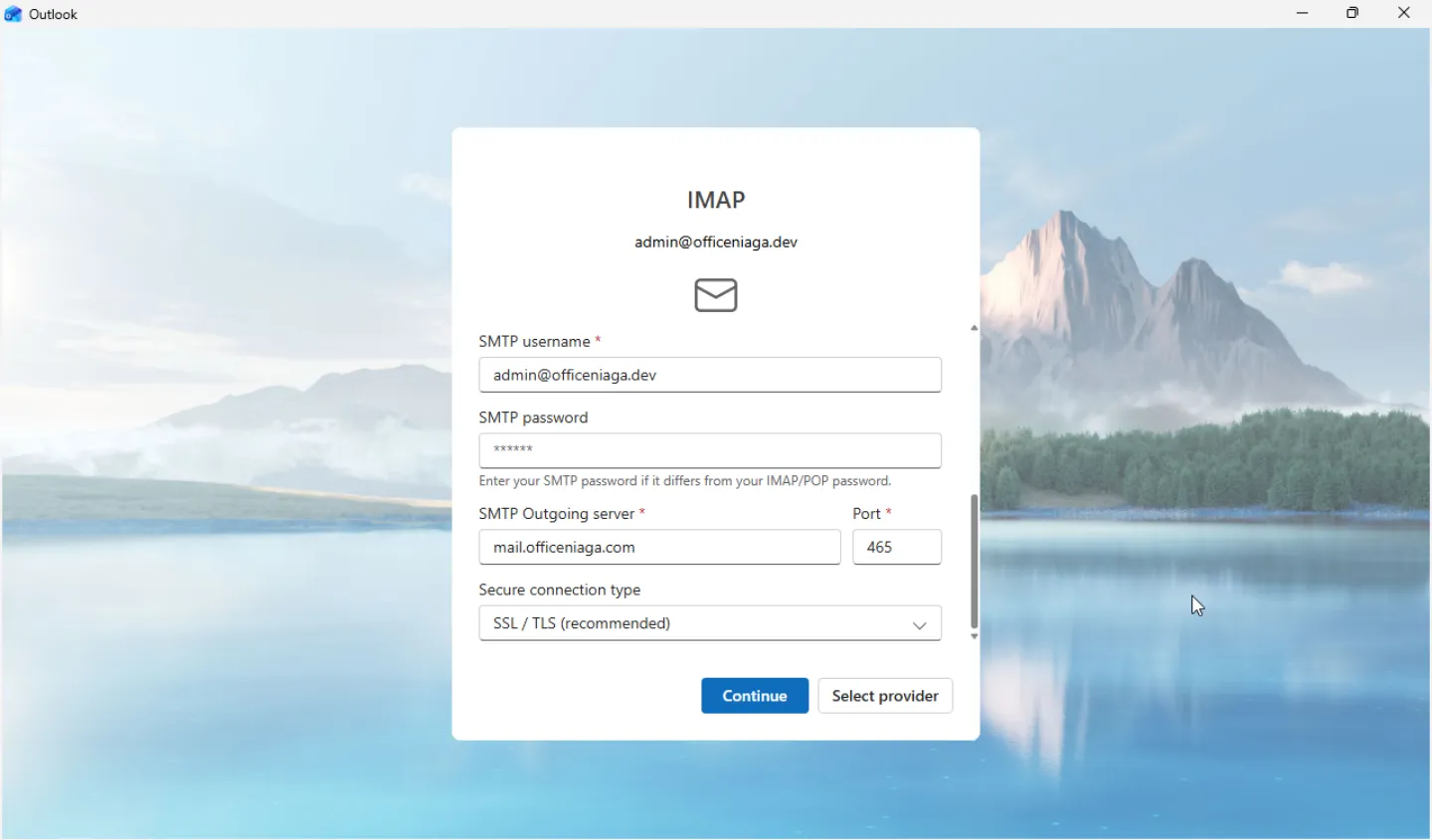
向下滚动到SMTP Configuration,然后填写发件设置:
- SMTP username:保留已自动填入的电邮地址
- SMTP password:如果密码相同,留空即可
- SMTP Outgoing server:
mail.officeniaga.com - Port:465
- Secure connection type:SSL / TLS (recommended)
重要:Outlook会自动填入端口587。请改成465,因为我们的服务器没有开放端口587。
-
点击Continue。
-
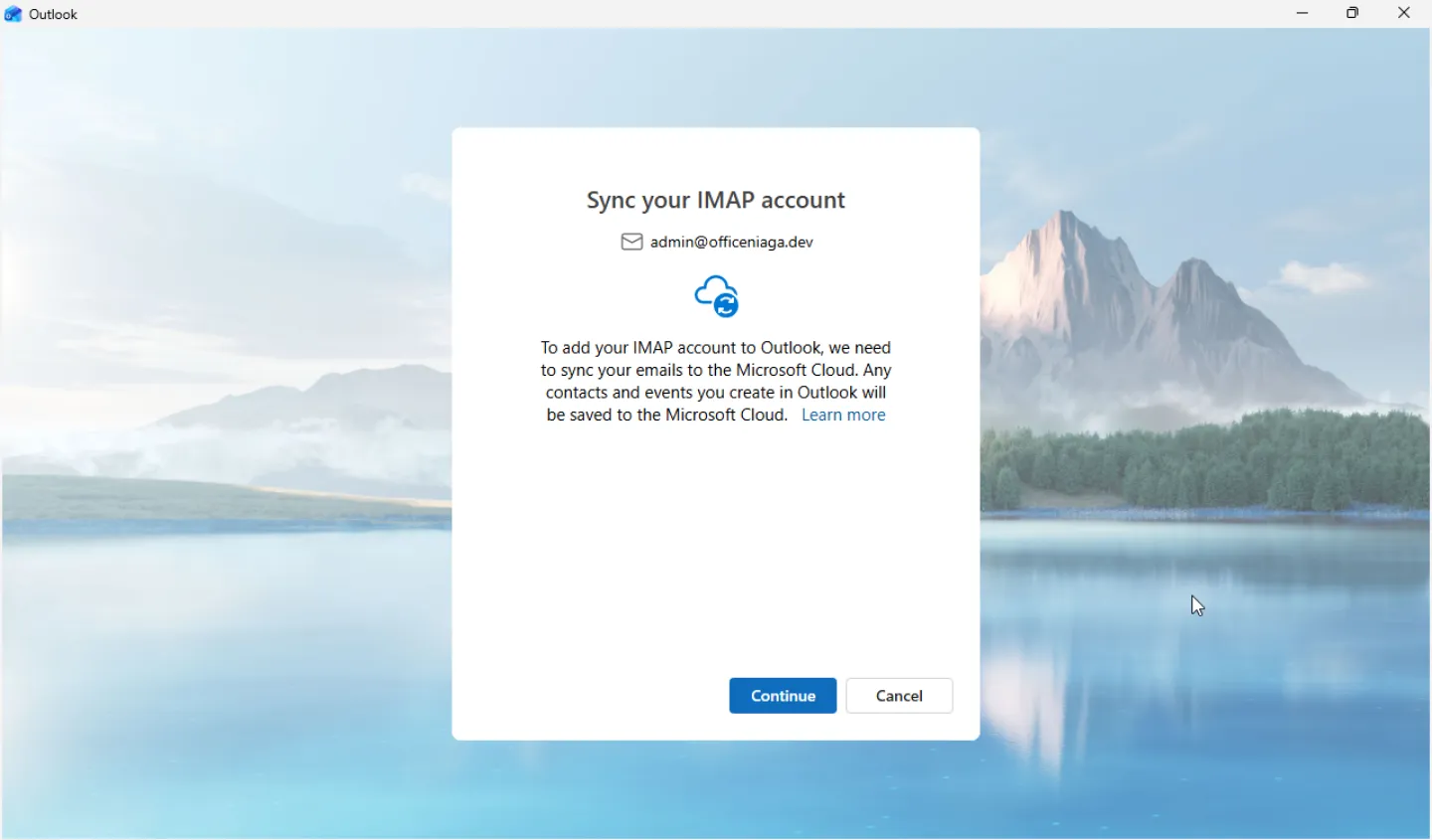
在Sync your IMAP account页面,点击Continue。Outlook会把你的电邮复制一份同步到Microsoft云端。你的电邮也会继续保存在Office Niaga Mail服务器上。
-
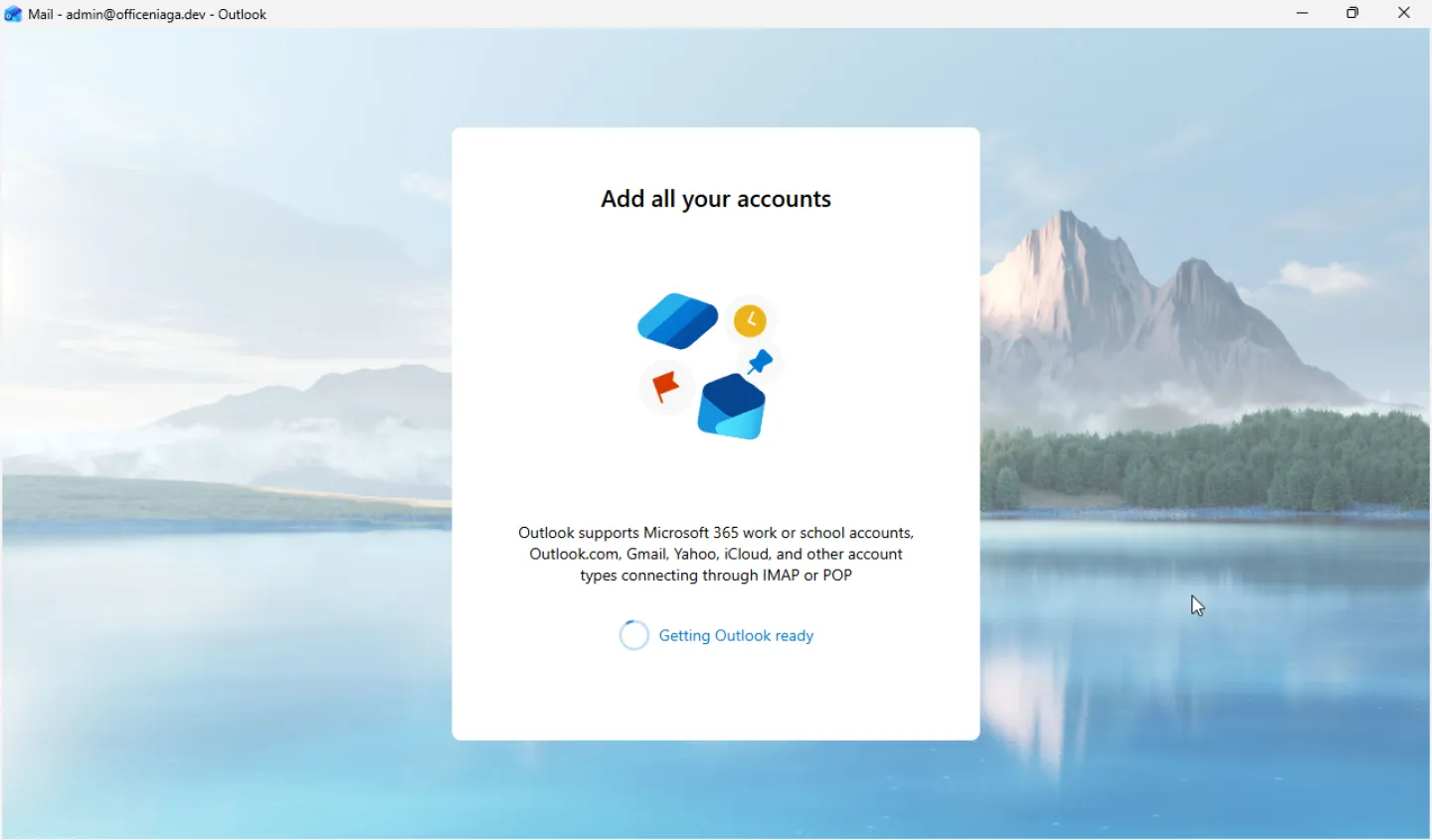
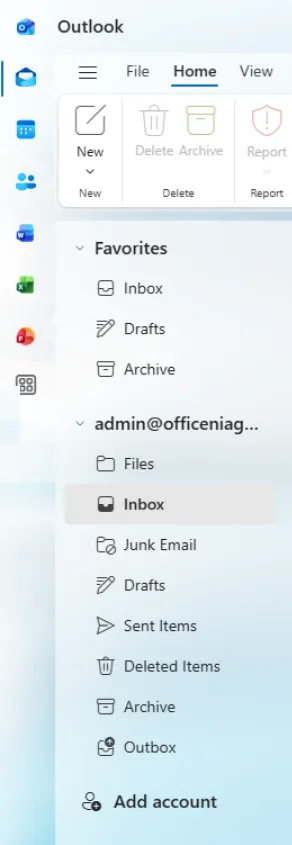
等Outlook完成设置。Outlook可能会显示Add all your accounts页面,然后是Getting Outlook ready。之后,你的邮箱就会打开。
以后查看账号设置
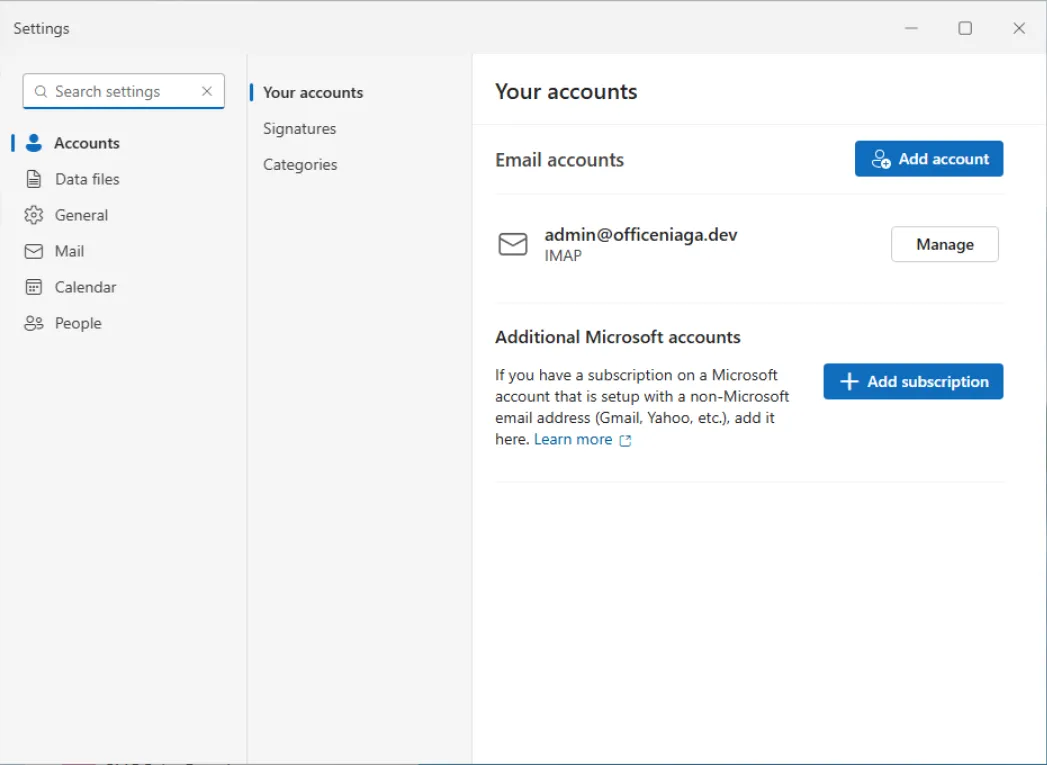
Section titled “以后查看账号设置”要查看账号的IMAP和SMTP设置,请点击齿轮图标,然后点击Settings → Accounts → Manage。
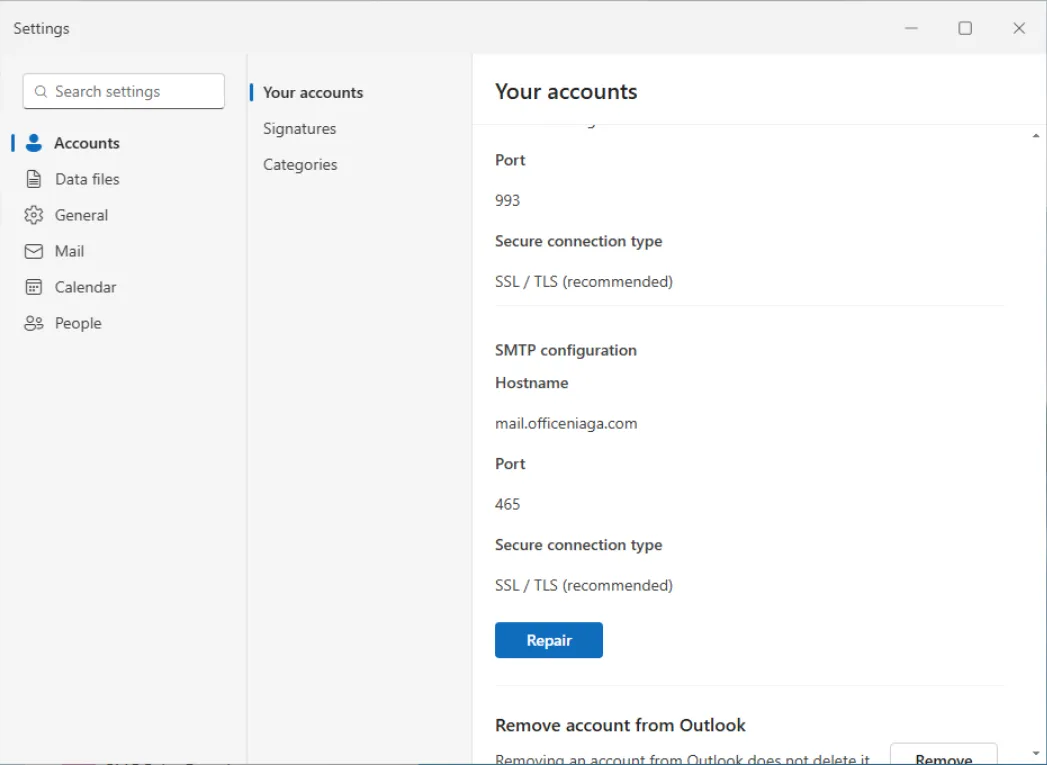
经典版Outlook for Windows
Section titled “经典版Outlook for Windows”经典版Outlook是Microsoft 365电脑App附带的Outlook。它的左上角有File菜单,右上角的Try the new Outlook开关是Off。

按以下步骤添加你的Office Niaga Mail账号。如果Outlook里还没有任何账号,它会自动打开添加账号的窗口,你可以直接从第2步开始。
-
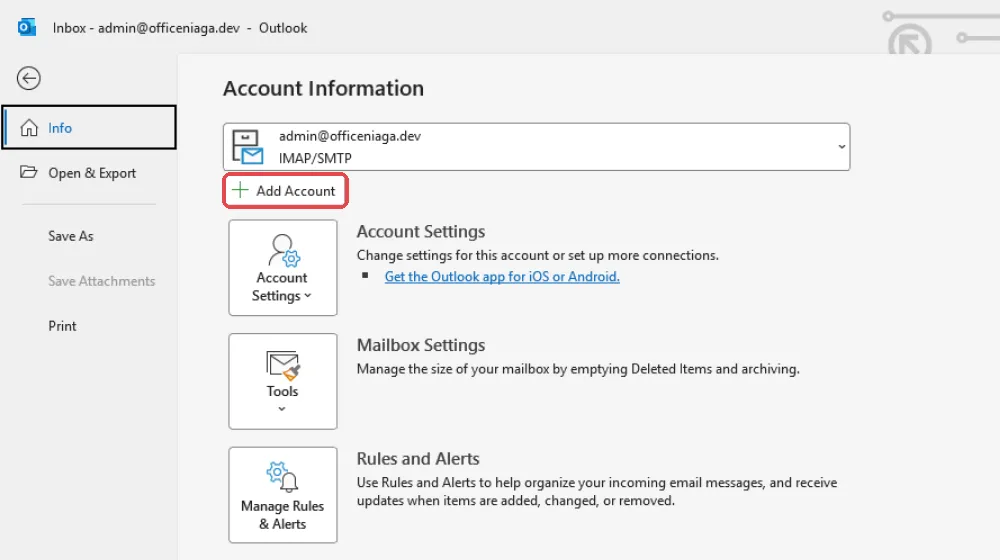
点击File,然后点击Add Account。
-
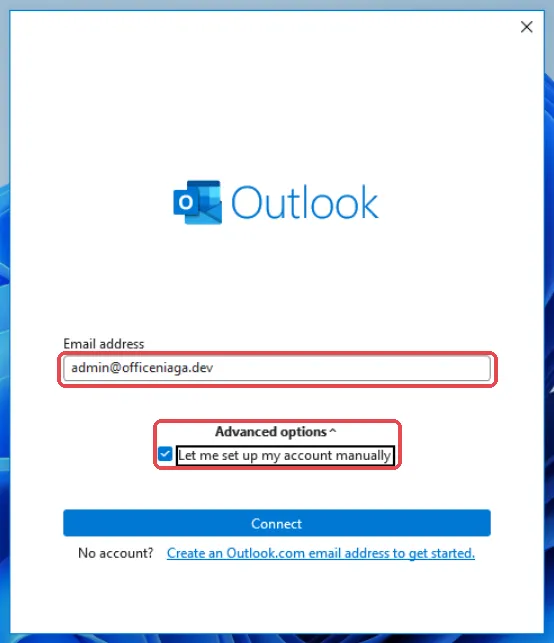
输入你的完整电邮地址。点击Advanced options,勾选Let me set up my account manually,然后点击Connect。
-
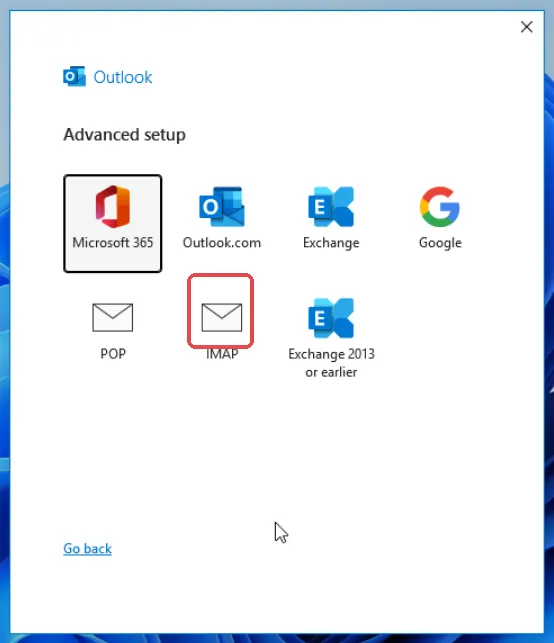
在Advanced setup页面,选择IMAP。
-
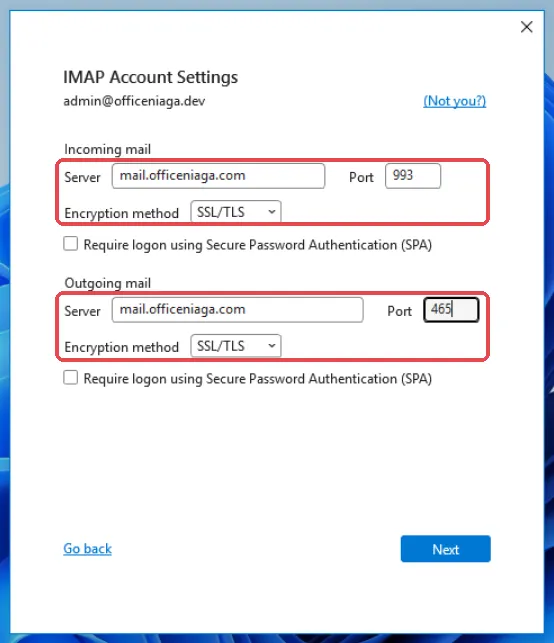
在IMAP Account Settings页面,填写收件和发件设置:
- Incoming mail:Server填
mail.officeniaga.com,Port填993,Encryption method选SSL/TLS - Outgoing mail:Server填
mail.officeniaga.com,Port填465,Encryption method选SSL/TLS
两个Require logon using Secure Password Authentication (SPA)框都不要勾选,然后点击Next。
重要:发件请使用端口465。我们的服务器没有开放端口587。
- Incoming mail:Server填
-
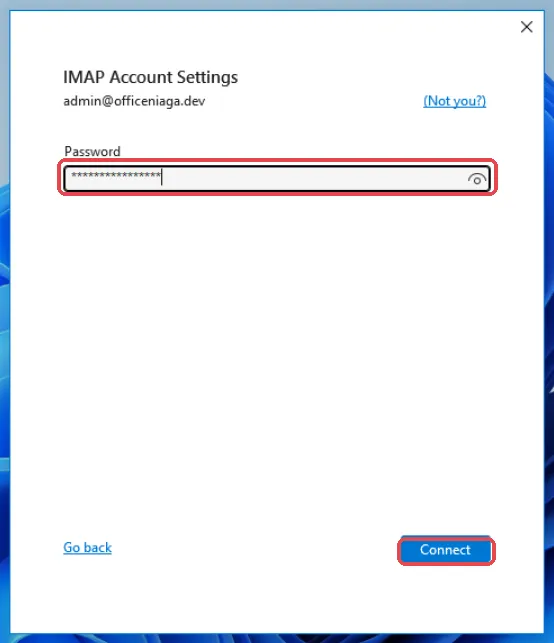
输入你的电邮密码,然后点击Connect。
-
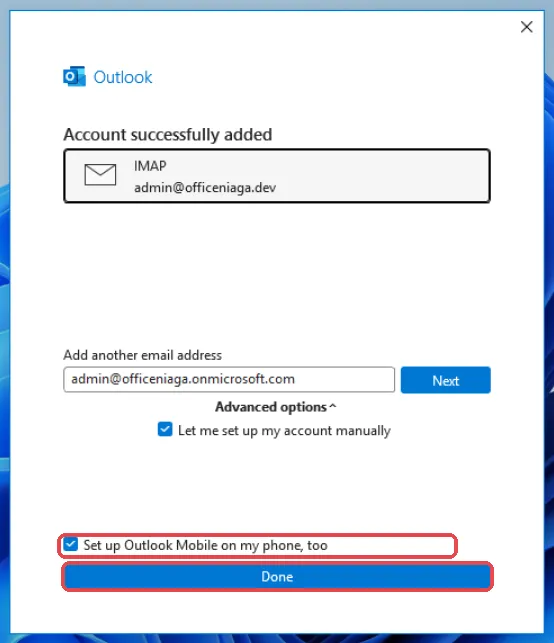
看到Account successfully added时,点击Done。如果你不想Outlook推荐手机App,请先取消勾选Set up Outlook Mobile on my phone, too。
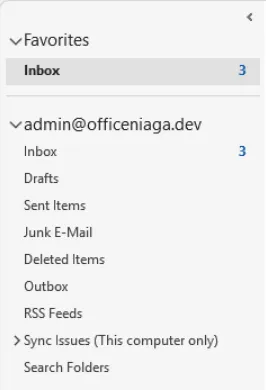
你的邮箱现在会出现在文件夹列表里。Outlook会给自己发一封Microsoft Outlook Test Message来检查设置,你可以把它删除。
Outlook for Mac使用同样的设置。以IMAP添加账号,然后输入以上资料。
检查发件服务器验证
Section titled “检查发件服务器验证”我们的发件服务器需要验证。添加账号时,经典版Outlook会自动帮你开启,但如果发不出电邮,你可以检查一下。
-
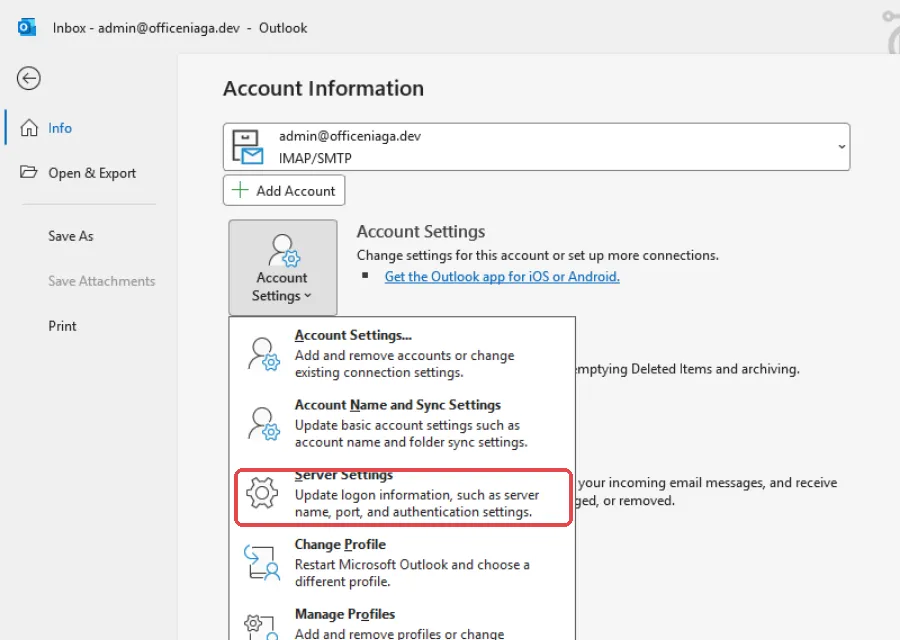
点击File,然后点击Account Settings和Server Settings。
-
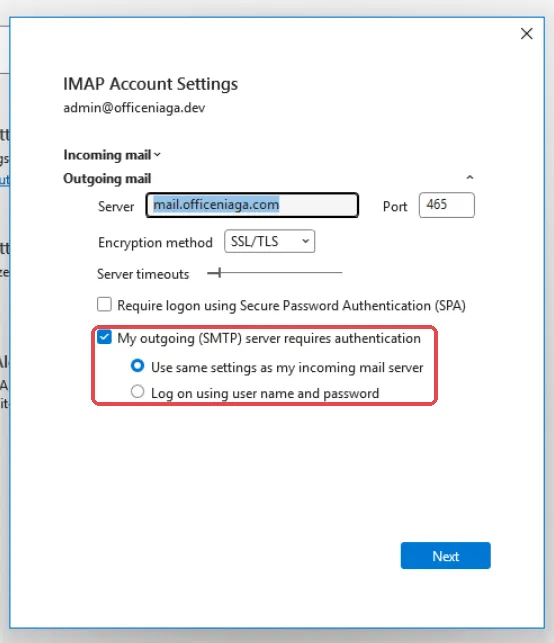
点击Outgoing mail。确认已勾选My outgoing (SMTP) server requires authentication,并选择了Use same settings as my incoming mail server。
-
点击Next,然后点击Done。
如果不想Outlook一直要求你输入密码,请打开同一个Server Settings窗口,点击Incoming mail,然后勾选Remember password。
手机上的Outlook
Section titled “手机上的Outlook”iPhone和Android的Outlook App使用和电脑版Outlook一样的服务器设置。
-
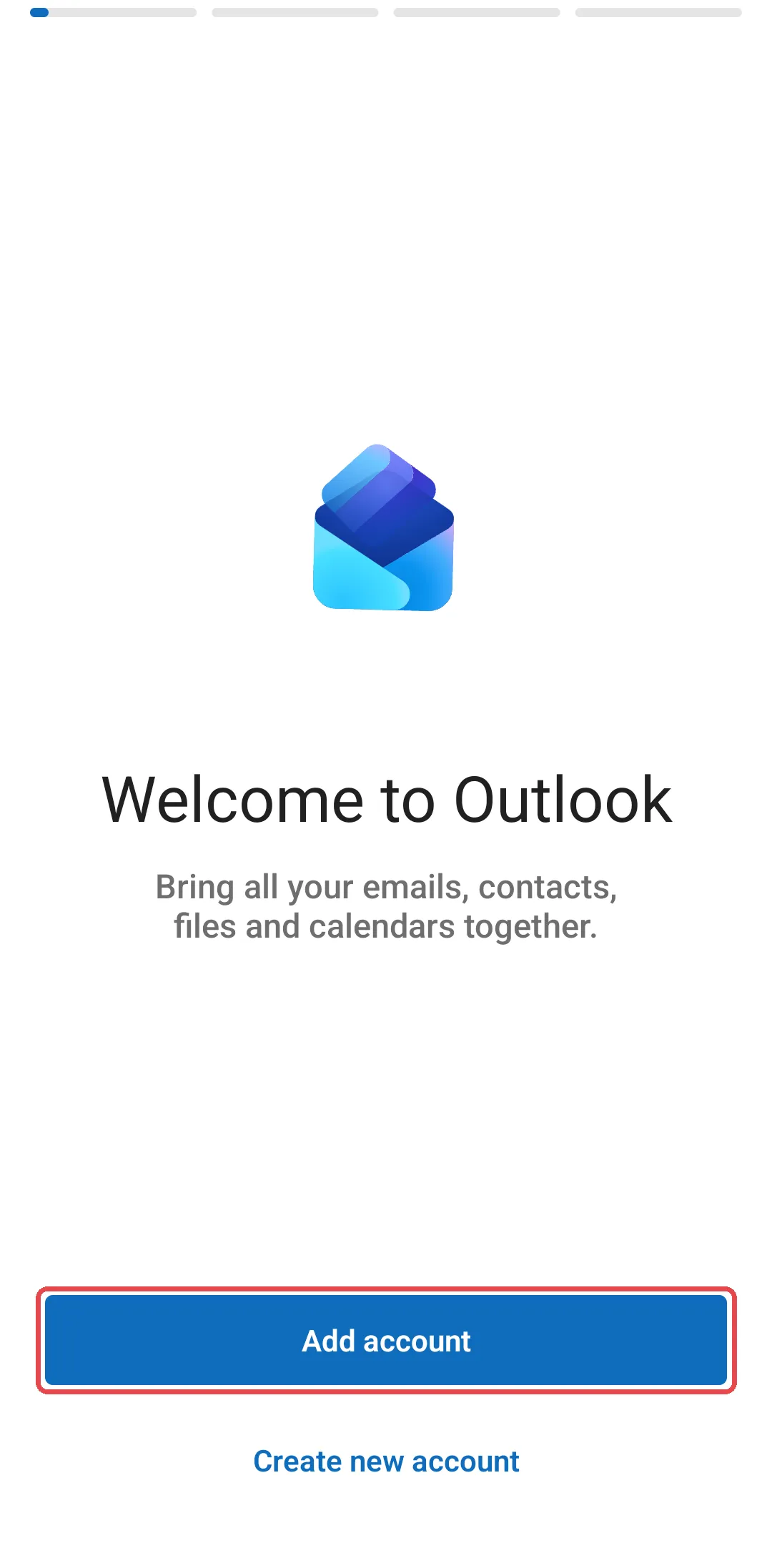
下载Microsoft Outlook App并打开。点击Add account。
-
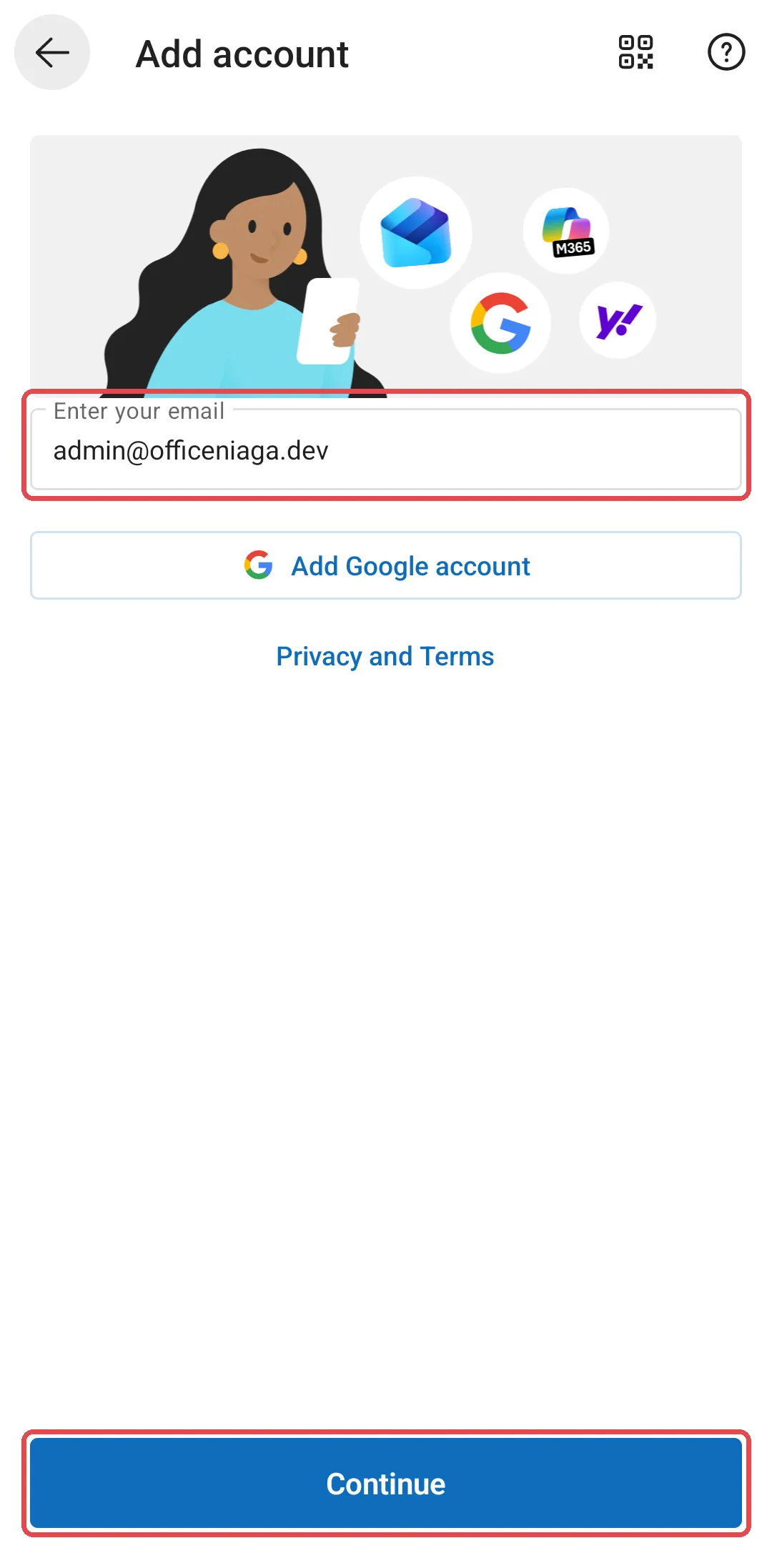
输入你的电邮地址,然后点击Continue。
-
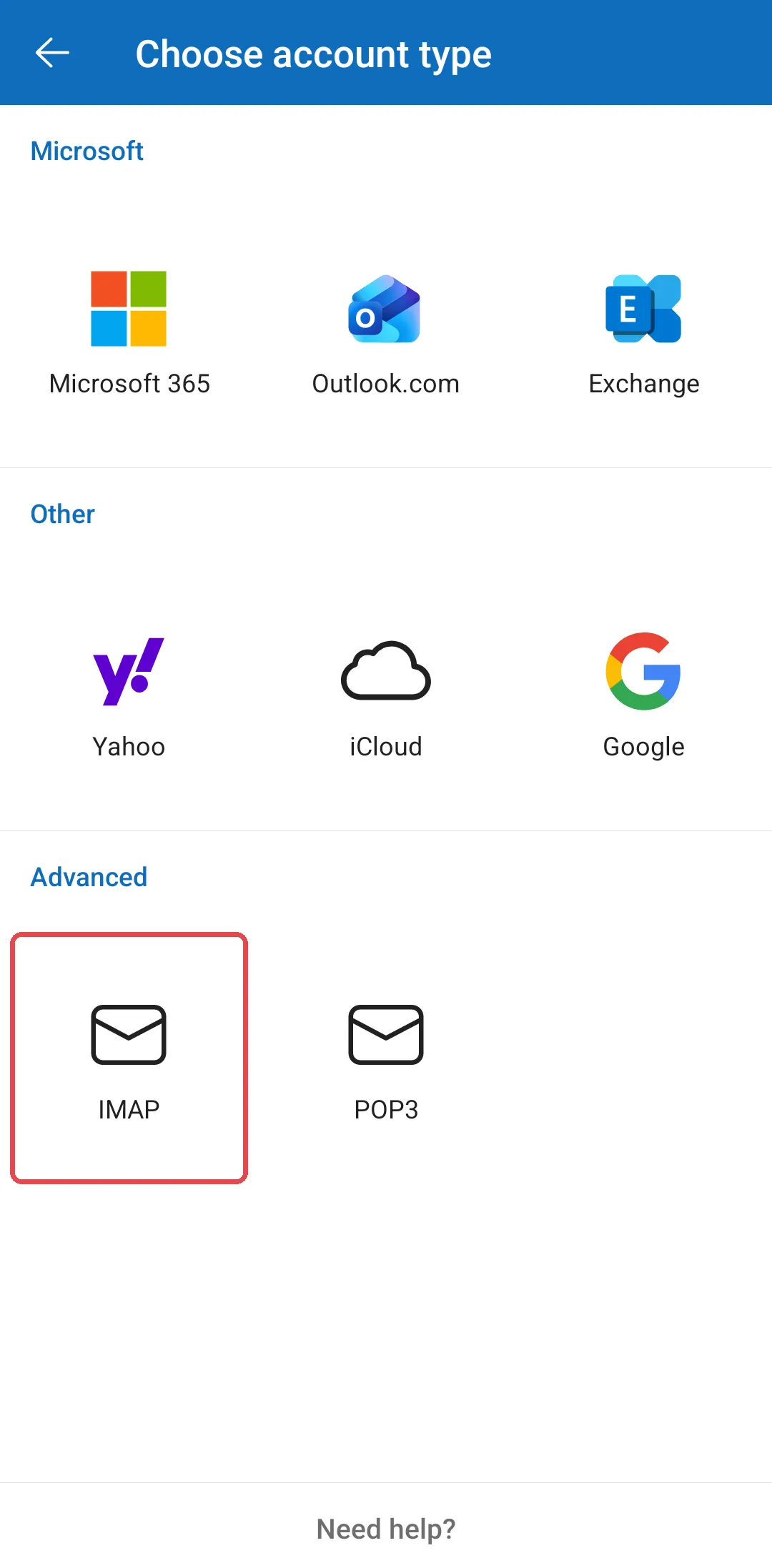
在Choose account type页面,点击Advanced下的IMAP。
-
开启底部的Advanced settings。在IMAP Incoming Mail Server和SMTP Outgoing Mail Server下,主机名称都输入
mail.officeniaga.com。IMAP用端口993,SMTP用端口465,安全类型都选SSL/TLS。两者的用户名和密码都是你的完整电邮地址和密码。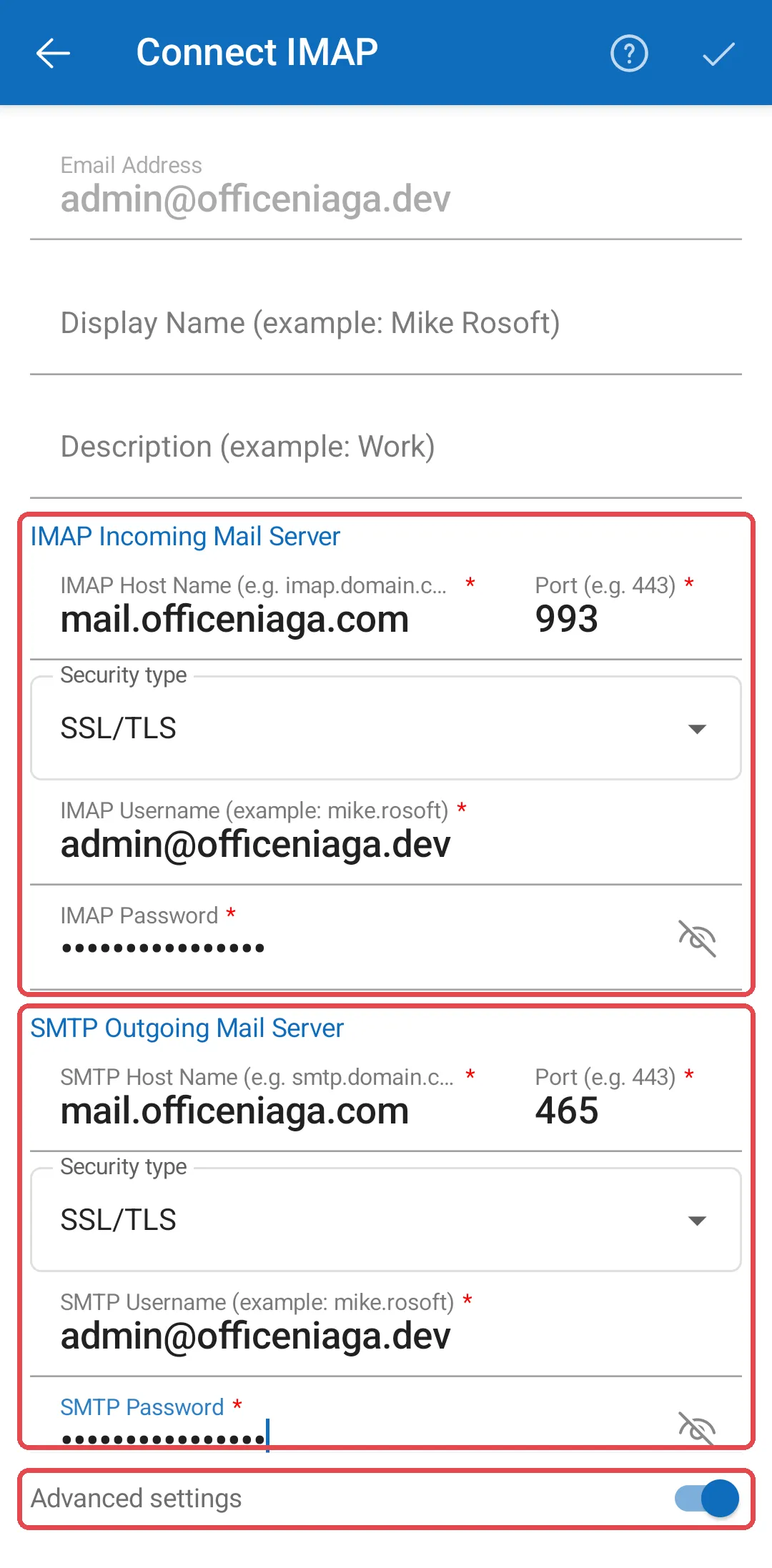
-
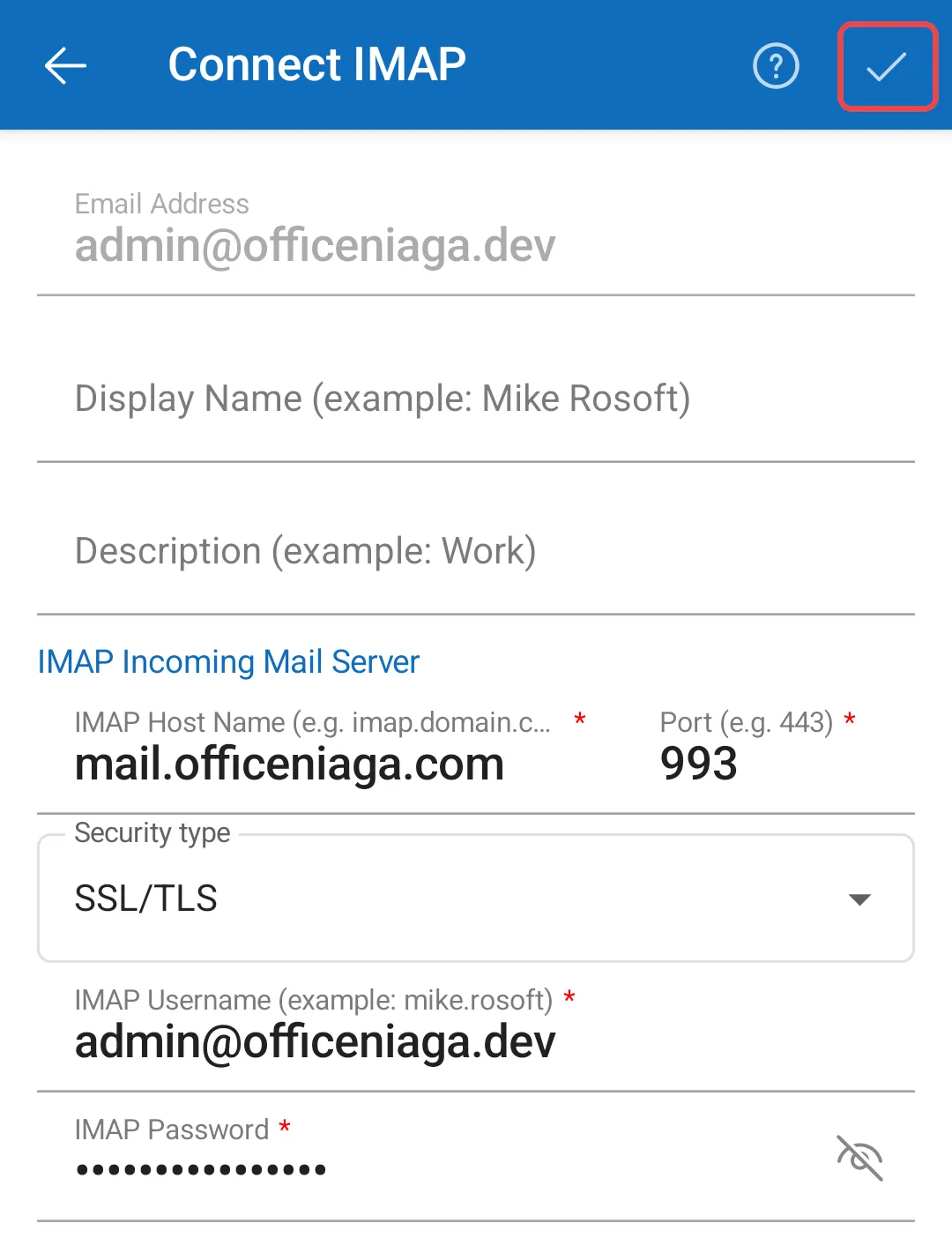
点击右上角的✓保存账号。
-
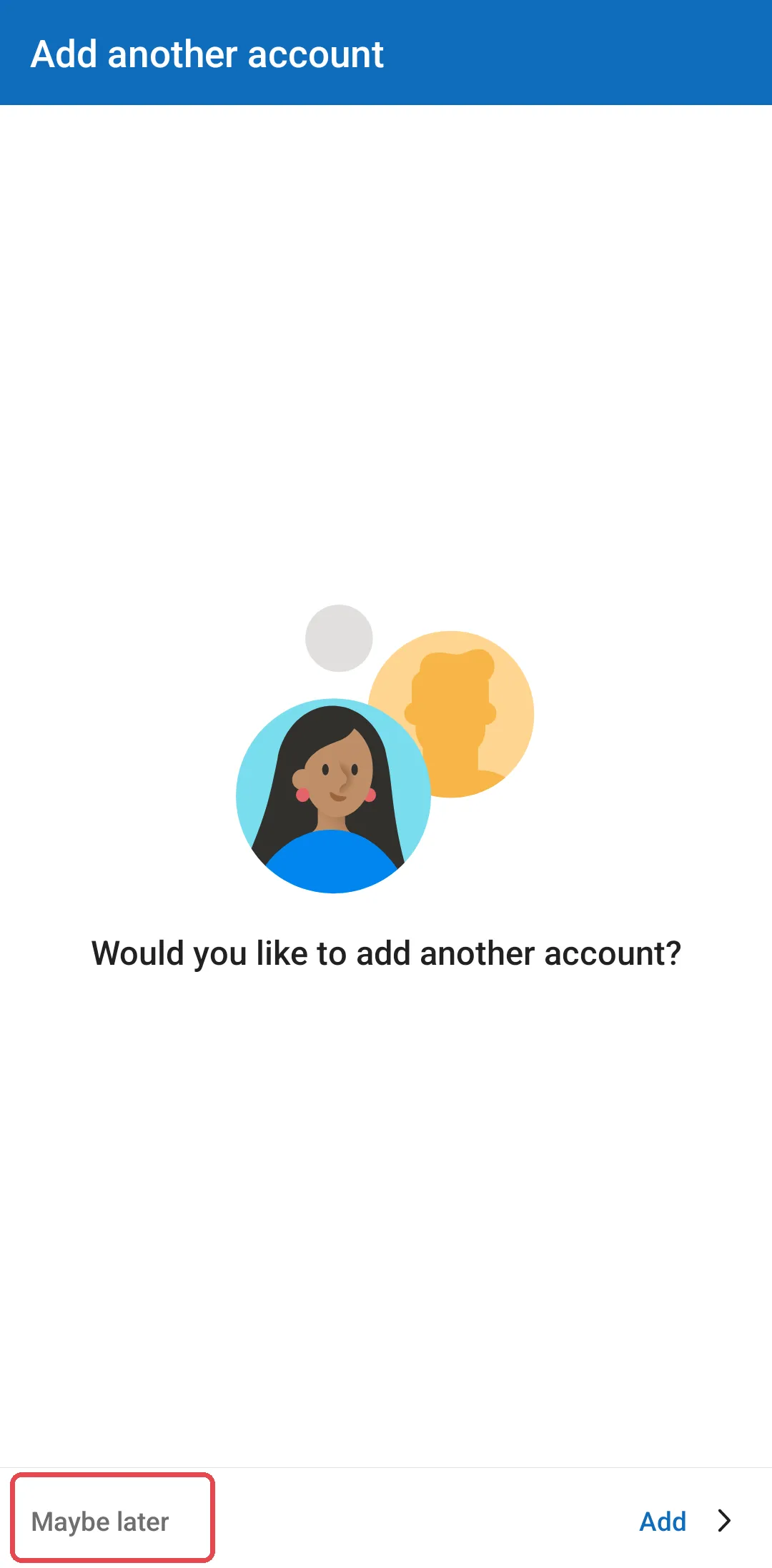
当Outlook问Would you like to add another account?时,点击Maybe later。你的收件箱就会打开。
请通过WhatsApp联系我们的支持团队:+60 16-916 3324。
常见问题
每次发电邮,Outlook都要我输入密码。
点击File → Account Settings → Server Settings,点击Incoming mail,然后勾选Remember password。也请检查发件服务器设置(请看检查发件服务器验证部分)。
Outlook无法自动找到设置。
选择手动设置,然后输入Email server settings里的资料。确认发件服务器使用端口465,而不是587。