
Ask an AI about this page
 ChatGPT
 Claude
 Perplexity
 Google AI Mode
 Microsoft Copilot
 Grok
Grok Mistral Le Chat
Link OneDrive or Dropbox files in webmail
You can connect your OneDrive or Dropbox account to webmail. Then you can put a link to a cloud file in an email. The file stays in the cloud, so it does not use your mailbox space.
Connect OneDrive or Dropbox
Section titled “Connect OneDrive or Dropbox”Do these steps one time for each cloud account.
-
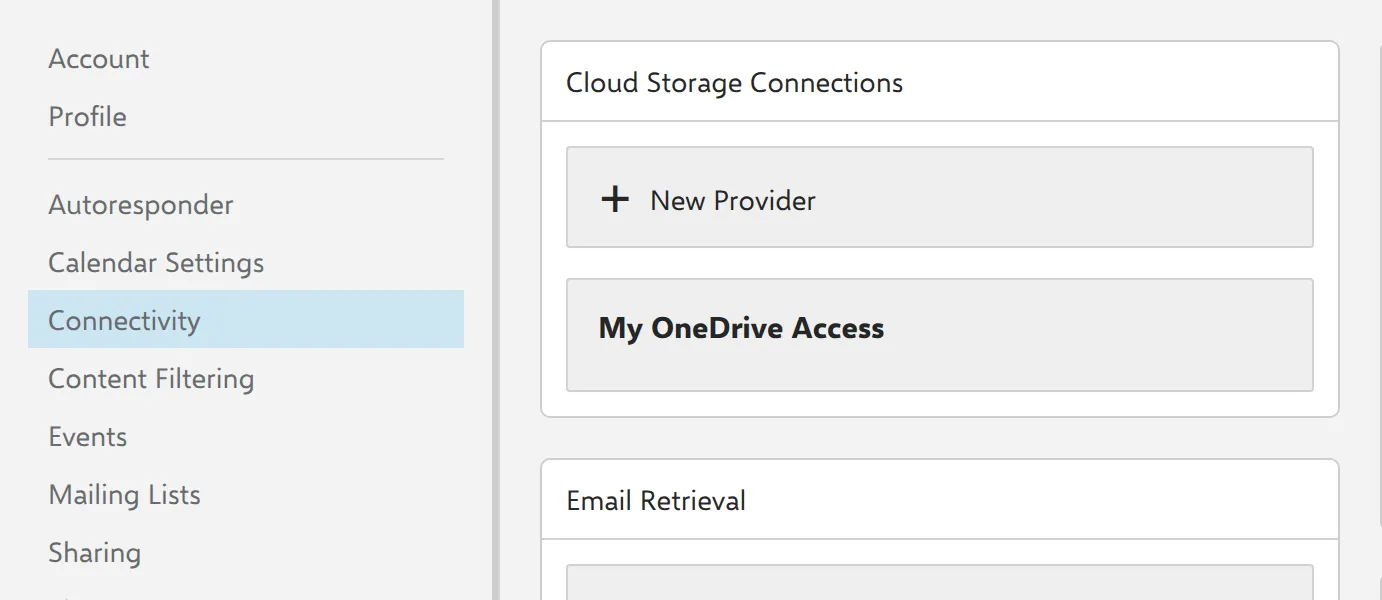
Click Settings, then click Connectivity in the left menu.
-
Under Cloud Storage Connections, click New Provider.
-
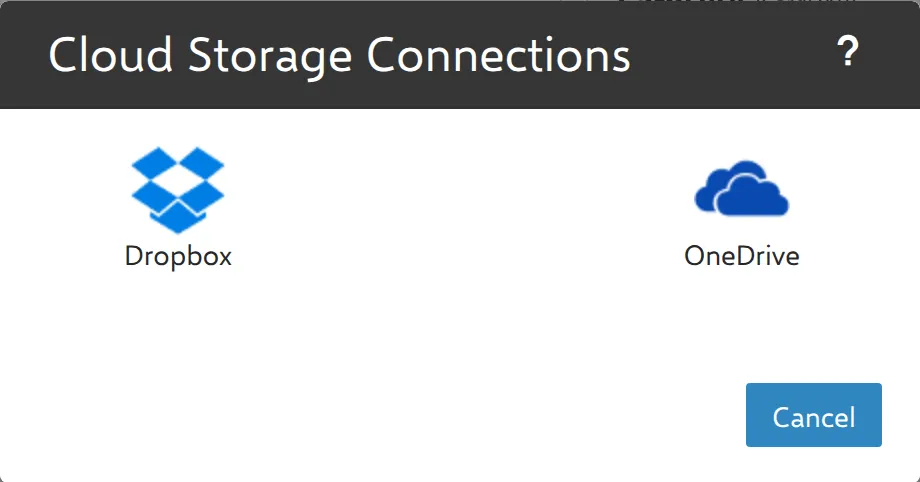
Click OneDrive or Dropbox. A sign-in window opens.
-
Sign in to your OneDrive or Dropbox account.
-
If the window asks for permissions, click Accept. Webmail needs this access to show your files.
-
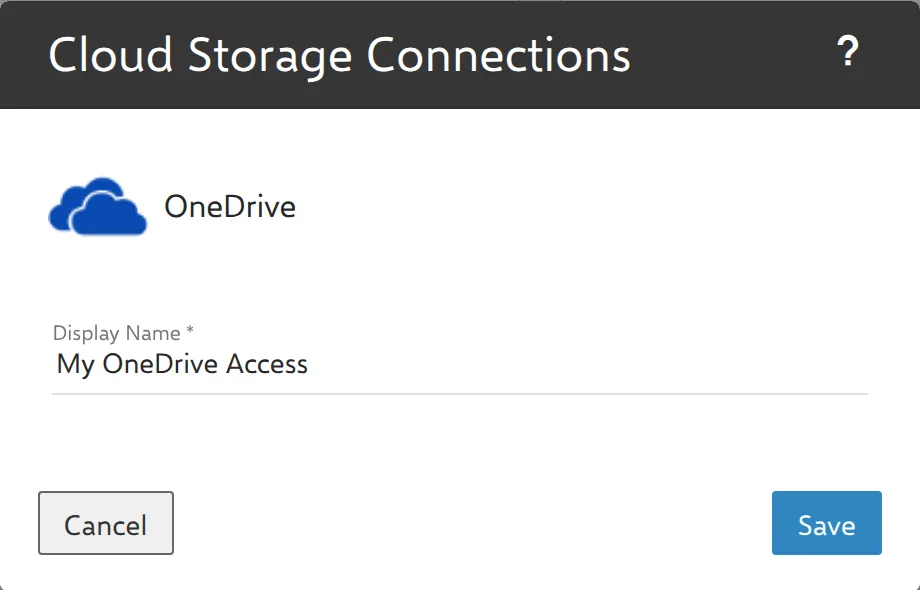
Keep the Display Name, or type a new name. Then click Save.
The connection now shows under Cloud Storage Connections.
Put a link to a cloud file in an email
Section titled “Put a link to a cloud file in an email”Use a link instead of an attachment for a large file.
-
Click New to write an email.
-
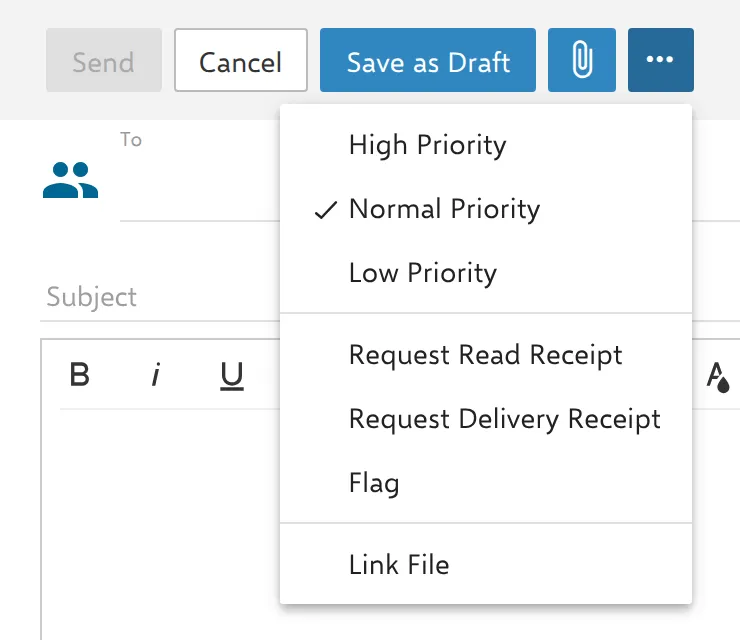
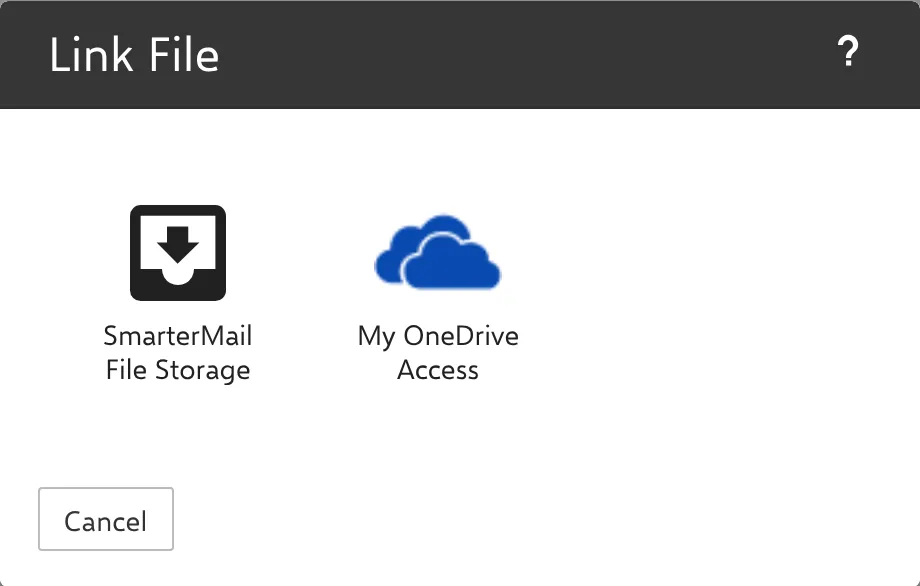
Click the … button next to the paper clip, then click Link File.
-
Click your connection, for example My OneDrive Access.
-
Double-click a folder to open it. Click the file, then click Link.
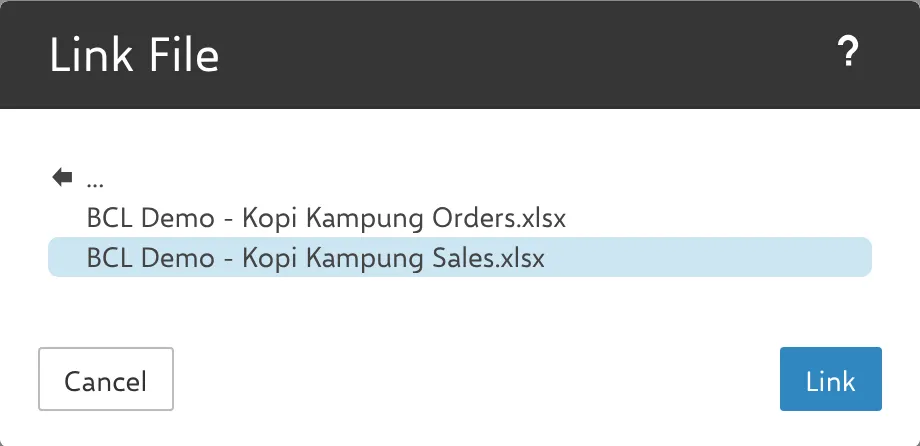
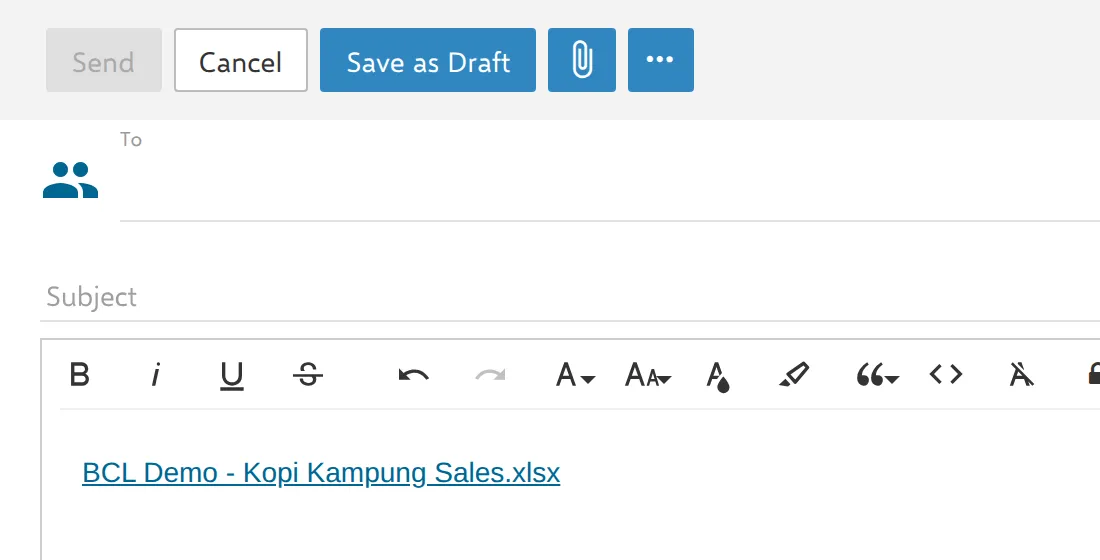
Webmail puts the file name in your email as a link.
Check who can open the link
Section titled “Check who can open the link”The recipient can open the file only if your OneDrive or Dropbox sharing settings allow it. Before you send the email, check the sharing settings of the file in OneDrive or Dropbox. Do not link a file that has passwords or other secrets in it.
To keep files inside webmail, use File Storage. File Storage uses your mailbox space. A cloud link does not.
Still stuck
Section titled “Still stuck”WhatsApp our support team at +60 16-916 3324.
Common issues
Can I connect Google Drive?
Not at this time. Webmail shows only Dropbox and OneDrive. We will update this guide when Google Drive is available.
Does a linked file use my mailbox space?
No. The file stays in OneDrive or Dropbox. The email contains only a link to the file.
The Link File window shows "No Public Files in this Directory". What do I do?
Webmail found no file that it can link in that folder. Open the folder that contains the file. If the file does not show, share the file in OneDrive or Dropbox, then try again.
How do I disconnect OneDrive or Dropbox?
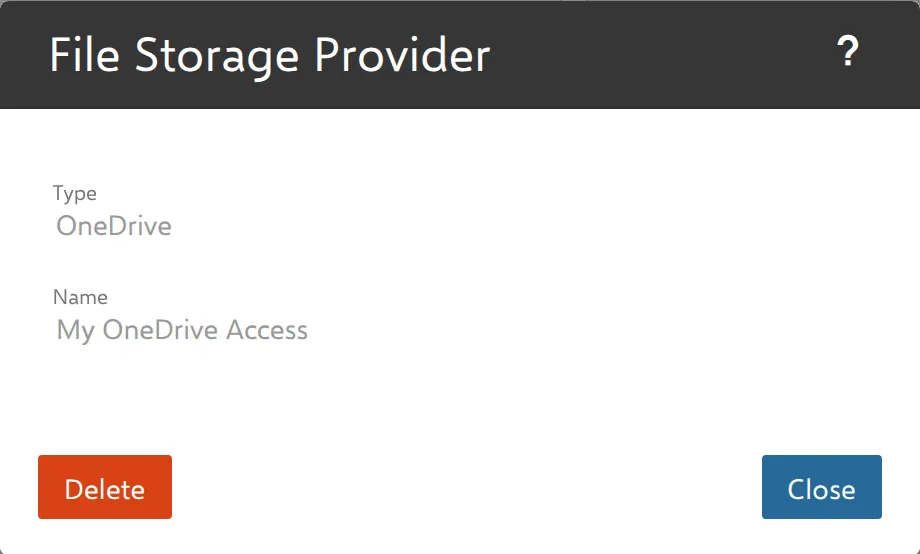
Go to Settings → Connectivity, click the connection under Cloud Storage Connections, then click Delete.
Was this article helpful?
Thanks for your feedback.
Sorry this didn't help. WhatsApp us and we'll sort it out with you.