
Ask an AI about this page
 ChatGPT
 Claude
 Perplexity
 Google AI Mode
 Microsoft Copilot
 Grok
Grok Mistral Le Chat
Transfer your Google Workspace to Office Niaga
You can move your Google Workspace subscription to Office Niaga at any time. This is a reseller transfer, not a migration. Only your billing and support move to us. Your users, emails, files, domain and settings stay the same, and email does not stop.
What to know before you start
Section titled “What to know before you start”Google shows these rules in the transfer screens. Read them before you start:
- No data moves. Your Google Workspace stays the same. Only the reseller changes.
- The authorization expires after 30 days. We must complete the transfer in that time. If it expires, make a new one.
- You can transfer a maximum of 5 times in a year.
- Prepaid time is lost. If you paid Google or another reseller in advance, you lose the rest of that period, with no refund or credit. Transfer near the end of your payment term.
- You must be a super admin of your Google Workspace to do these steps.
Before you start, ask us for our reseller ID on WhatsApp. We also send you a quotation in Ringgit for your plan and number of users.
Step 1: Open Reseller Management
Section titled “Step 1: Open Reseller Management”Start in the Google Admin console with your super admin account:
-
Sign in to admin.google.com.
-
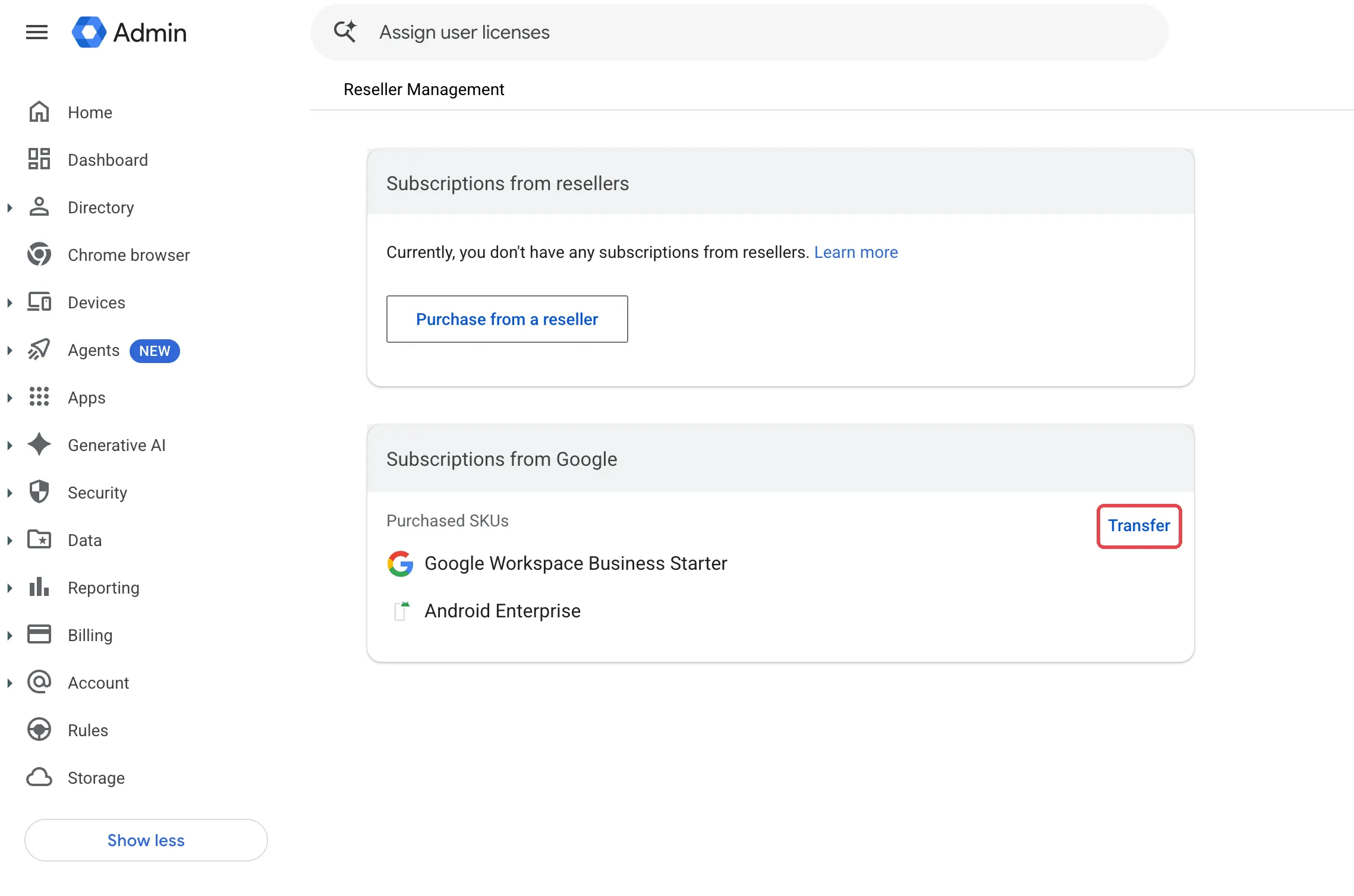
Go to Menu → Billing → Reseller Management.
-
Find the box Subscriptions from Google. It shows your current plan, for example Google Workspace Business Starter.
-
Click Transfer.
Step 2: Type the reseller ID
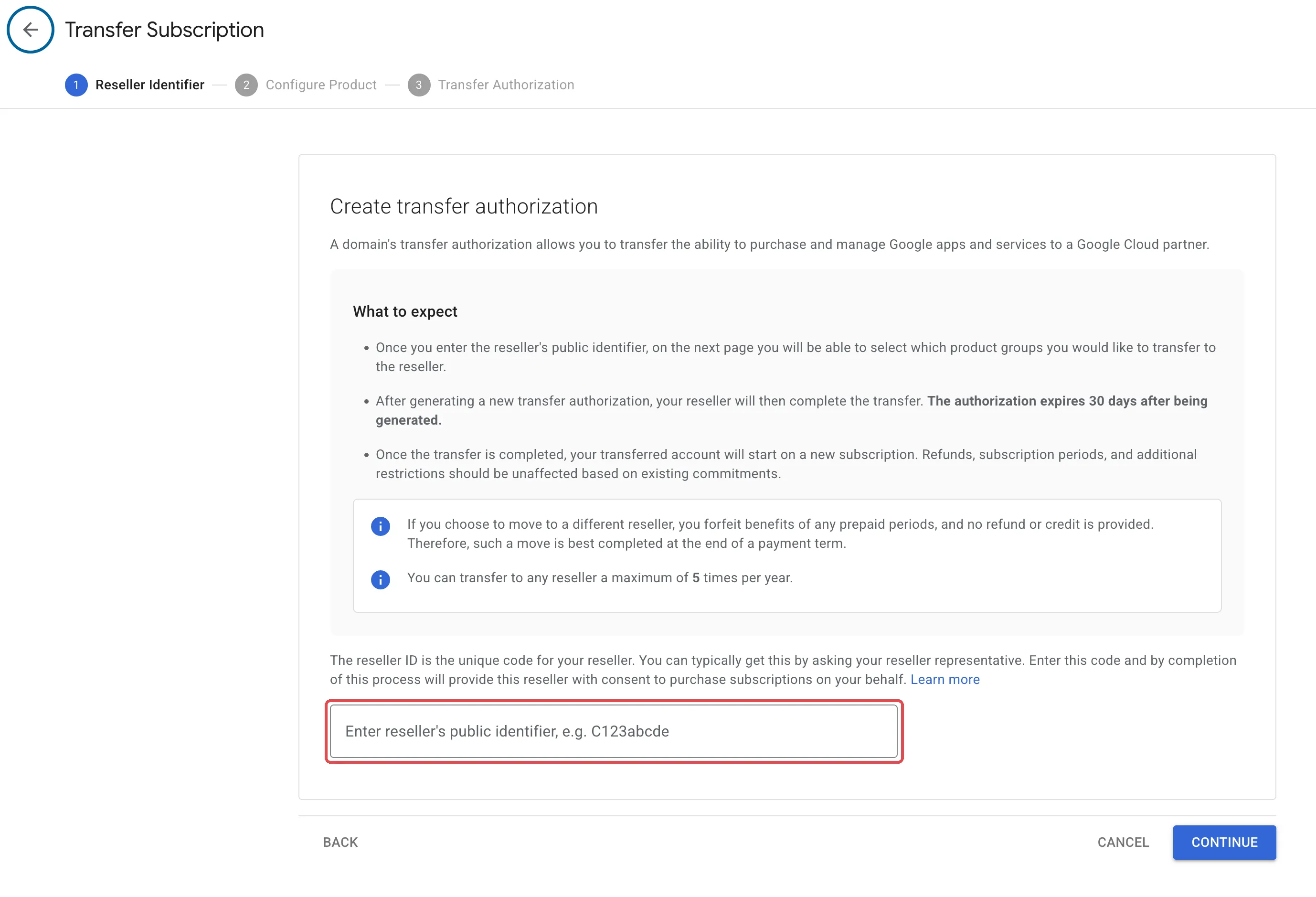
Section titled “Step 2: Type the reseller ID”The page Create transfer authorization opens. Do these steps:
-
Read the box What to expect.
-
In the field Enter reseller’s public identifier, type the reseller ID that we sent you.
-
Click Continue.
Step 3: Choose what to transfer
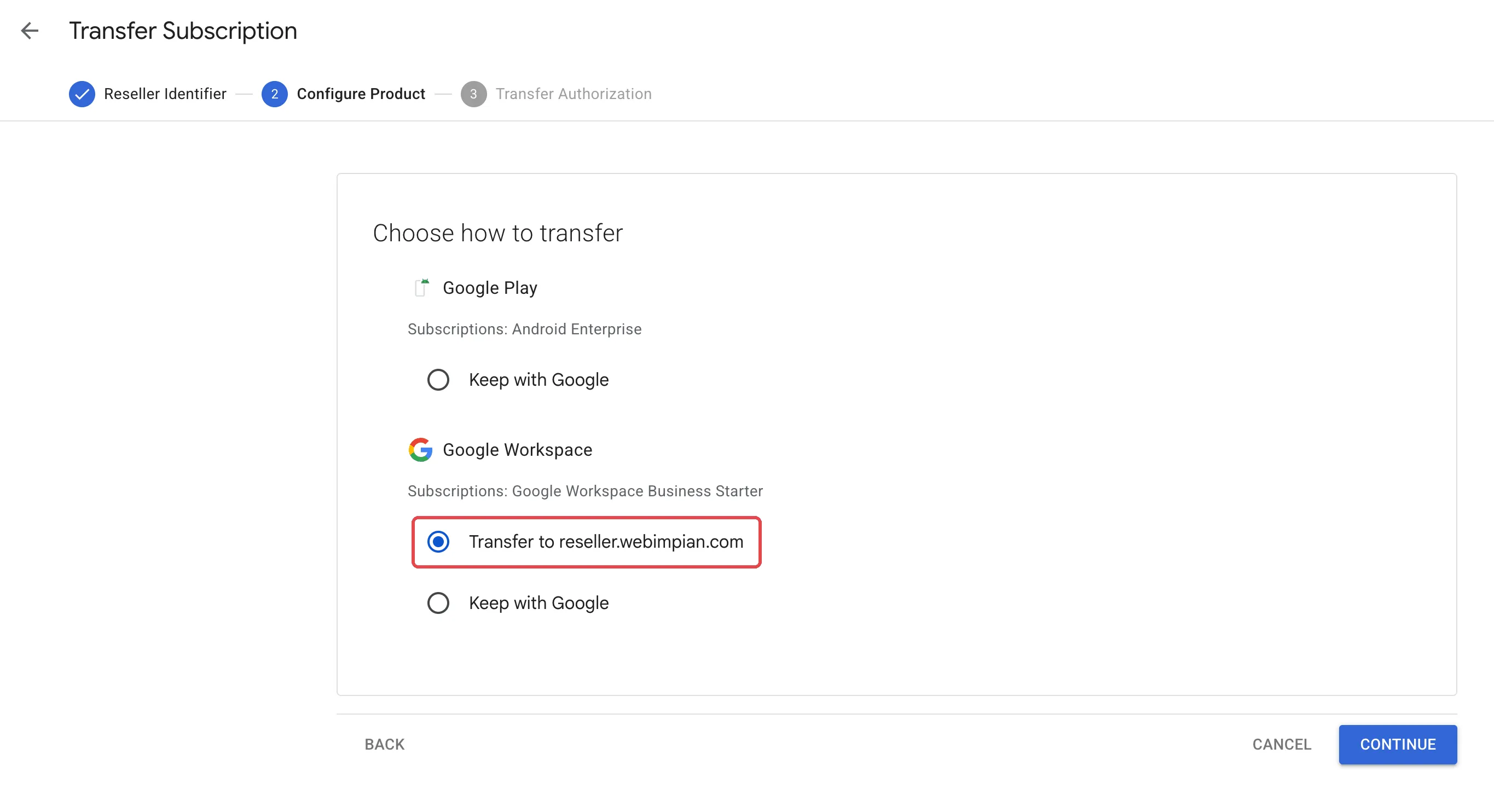
Section titled “Step 3: Choose what to transfer”The page Choose how to transfer shows each Google product group on your account. Select these options:
-
Under Google Workspace, select Transfer to reseller.webimpian.com. This is the Office Niaga reseller account.
-
Under Google Play (Android Enterprise), keep Keep with Google, unless we tell you to transfer it too.
-
Click Continue.
Step 4: Generate the transfer authorization
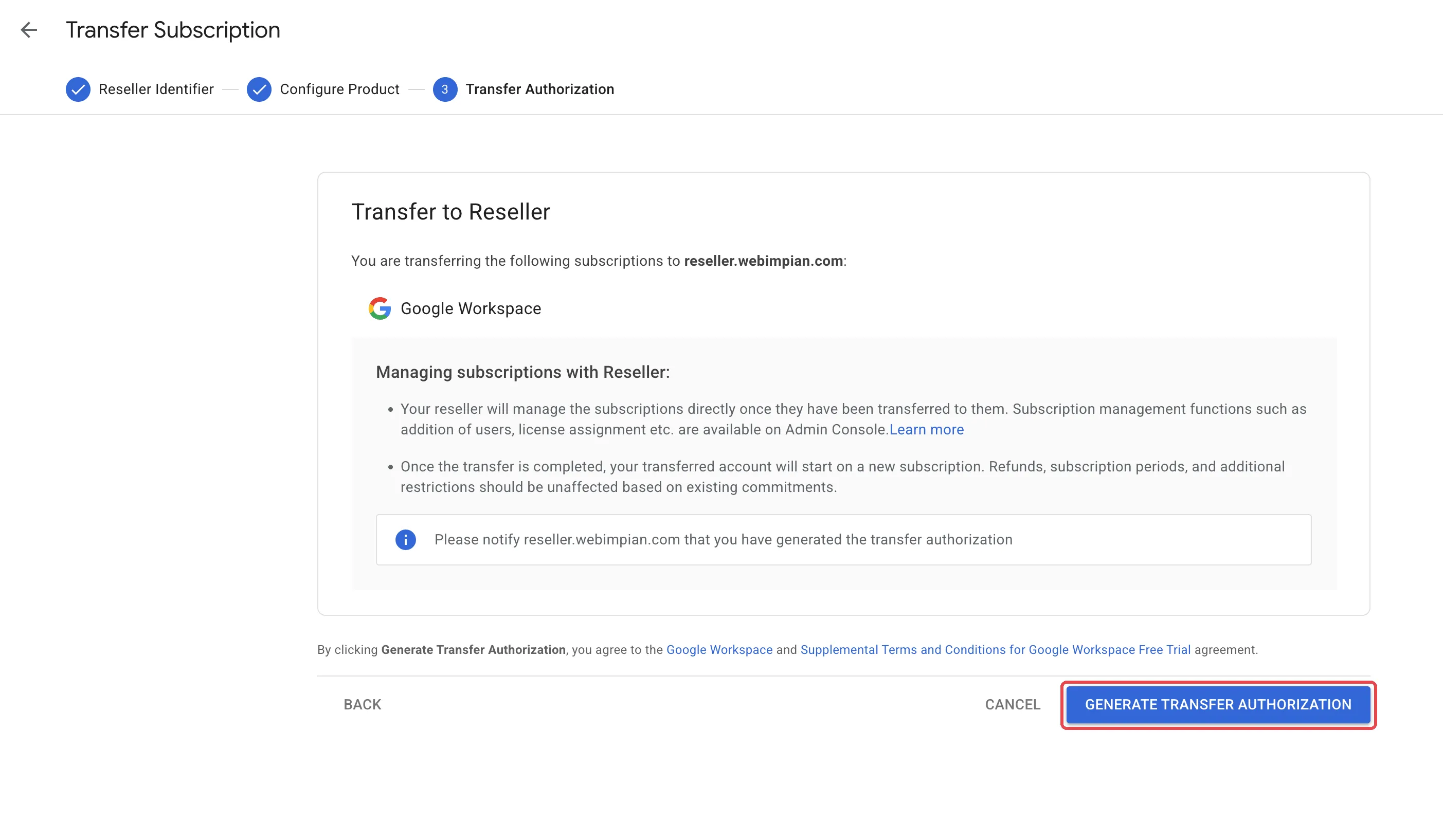
Section titled “Step 4: Generate the transfer authorization”The page Transfer to Reseller shows a summary. Make sure that it says reseller.webimpian.com, then do these steps:
-
Read Managing subscriptions with Reseller.
-
Click Generate Transfer Authorization.
-
Tell us on WhatsApp that you generated the authorization. Include your domain name.
After you tell us
Section titled “After you tell us”We complete the transfer in our reseller console within the 30 days. When it is complete, we tell you, and these things change:
- Your next invoice comes from Web Impian Sdn. Bhd., in Ringgit Malaysia, with SST.
- To add licences or change your plan, you ask us. See Add licences, upgrade or renew.
- Your admin console, users and data stay the same. You stay the owner.
Still stuck
Section titled “Still stuck”WhatsApp our support team at +60 16-916 3324.
Common issues
Does a reseller transfer move or delete my emails and files?
No. A transfer changes only who bills and supports your Google Workspace. Your users, emails, files and settings stay in place, and email does not stop.
Where do I get the Office Niaga reseller ID?
Ask us on WhatsApp. We send you our reseller ID before you start the transfer.
My transfer authorization expired. What do I do?
The authorization expires 30 days after you make it. Make a new one with the same steps, then tell us.
When is the best time to transfer?
Near the end of your current payment term. If you transfer earlier, you lose the prepaid period, and Google gives no refund or credit.
Was this article helpful?
Thanks for your feedback.
Sorry this didn't help. WhatsApp us and we'll sort it out with you.