
Ask an AI about this page
 ChatGPT
 Claude
 Perplexity
 Google AI Mode
 Microsoft Copilot
 Grok
Grok Mistral Le Chat
Set up shared drives for each department
This setup gives each department its own space in Google Drive. Staff see only the files of their own department. Partners or managers see all departments. The files belong to the company, so they stay when someone leaves.
The example in this guide is a firm with 3 departments: Audit, Tax and Accounts. Change the names to match your departments.
What you need
Section titled “What you need”Before you start, make sure that you have these 3 things.
- A Google Workspace admin account.
- 1 user account for each staff member. Do not let staff share one login. See add a user.
- Shared drives on your plan. All Business plans include them. See use shared drives for team files.
How the setup works
Section titled “How the setup works”You make 1 Google Group and 1 shared drive for each department. Then you add the group, not the people, to the shared drive.
| Department | Group | Shared drive | Group access |
|---|---|---|---|
| Audit | audit-team@yourfirm.com | Audit | Content manager |
| Tax | tax-team@yourfirm.com | Tax | Content manager |
| Accounts | accounts-team@yourfirm.com | Accounts | Content manager |
| Partners | partners@yourfirm.com | All 3 drives | Manager |
When a person joins, moves or leaves, you change only their group. You do not need to change the shared drives. Groups are free and do not use a user licence.
Step 1: Make a group for each department
Section titled “Step 1: Make a group for each department”Do these steps in the Admin console. Do them again for each department and for the partners.
-
Go to admin.google.com and sign in as an admin.
-
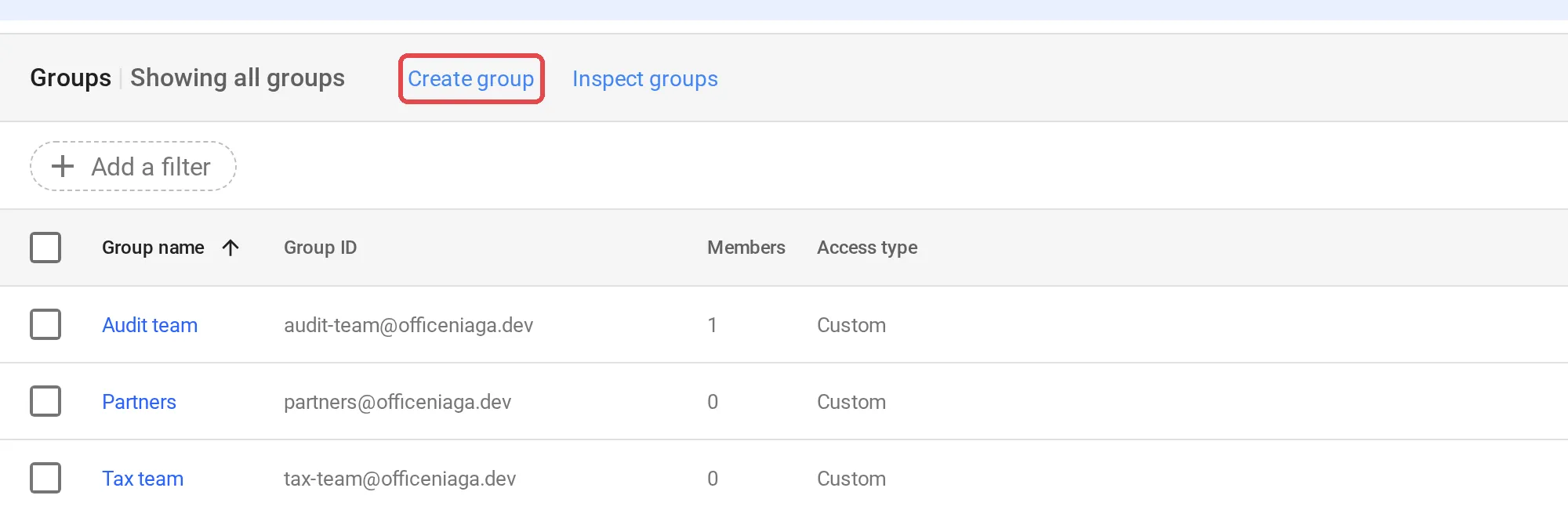
Open Directory → Groups and click Create group.
-
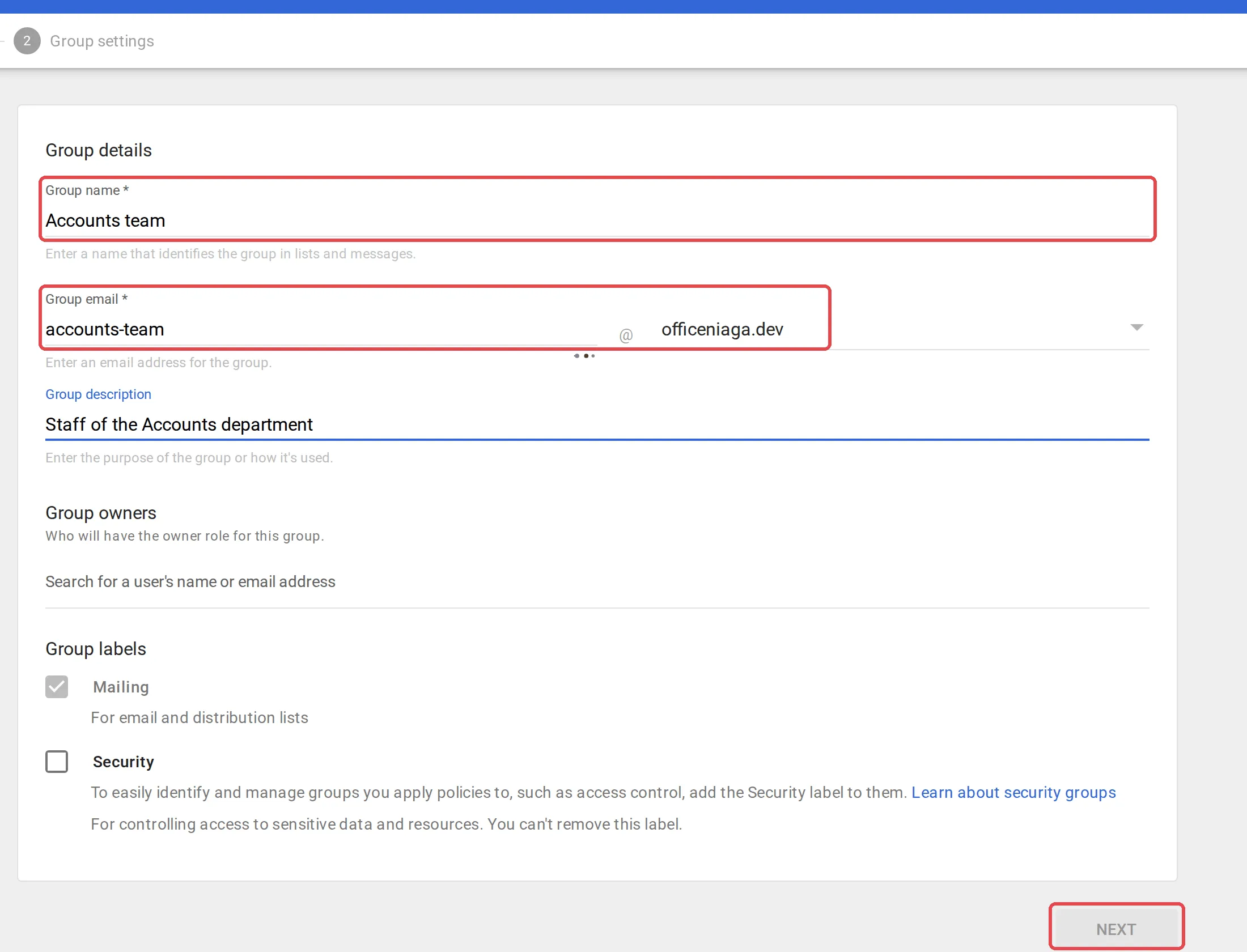
Enter a Group name, for example “Audit team”, and a Group email, for example audit-team@yourfirm.com. Then click Next.
-
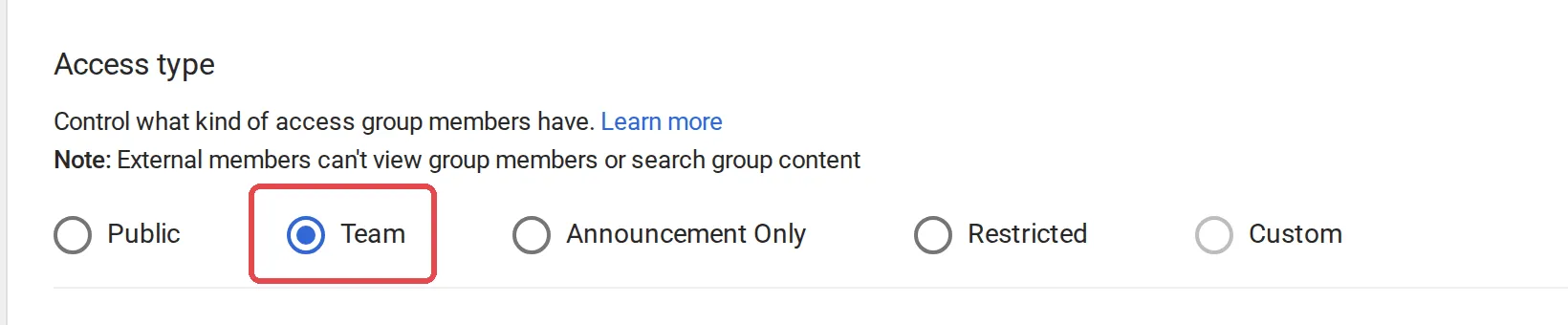
For Access type, select Team.
-
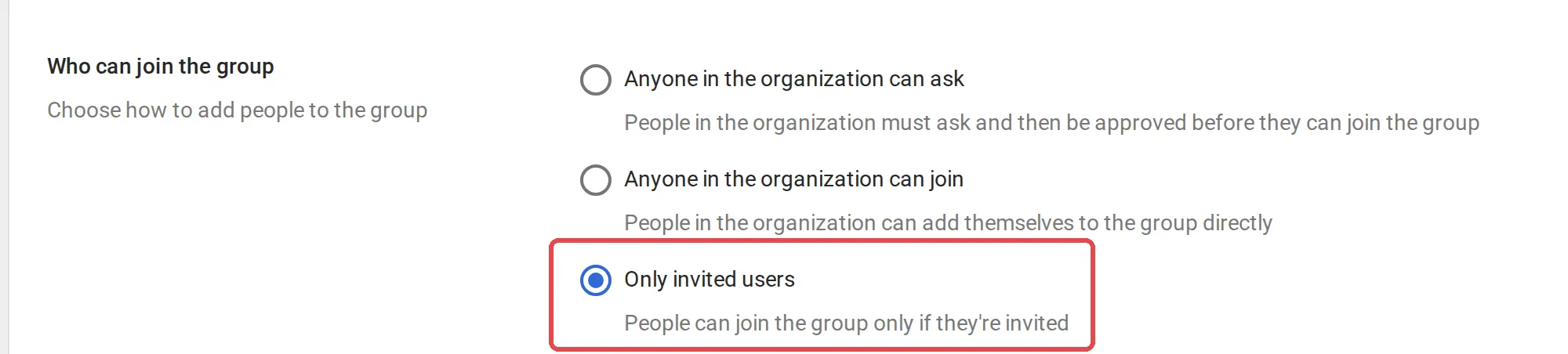
Under Who can join the group, select Only invited users. The access type then changes to Custom. This is normal.
-
Click Create Group.
-
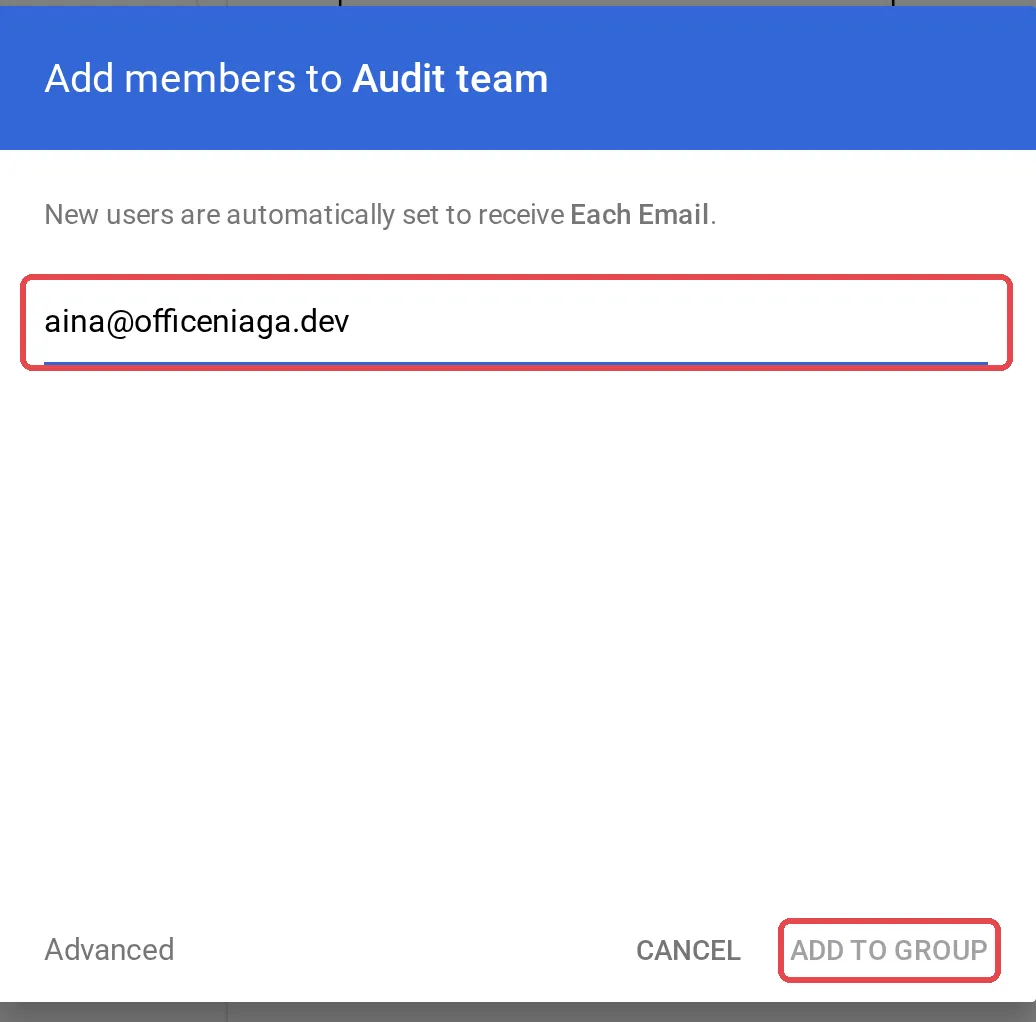
Open the new group and click Add members. Enter the email of each staff member of that department, then click Add to group.
For more about groups, see create a shared inbox like info@.
Step 2: Make a shared drive for each department
Section titled “Step 2: Make a shared drive for each department”Do these steps in Google Drive. Do them again for each department.
-
Open Google Drive and click Shared drives on the left.
-
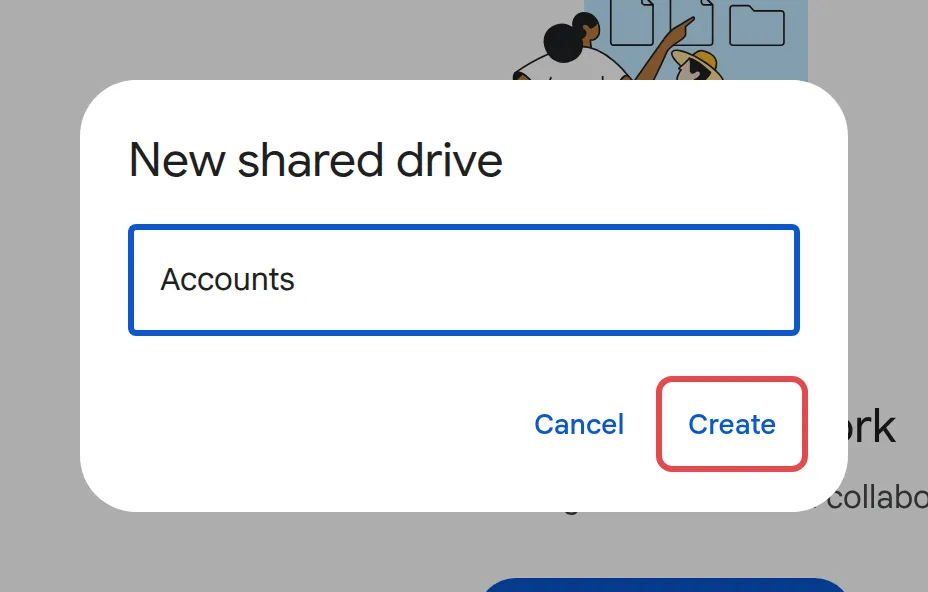
Click New.
-
Enter the department name, for example “Audit”, and click Create.
Step 3: Add the groups to each shared drive
Section titled “Step 3: Add the groups to each shared drive”Add the department group and the partners group to each shared drive.
-
Open the shared drive and click Manage members.
-
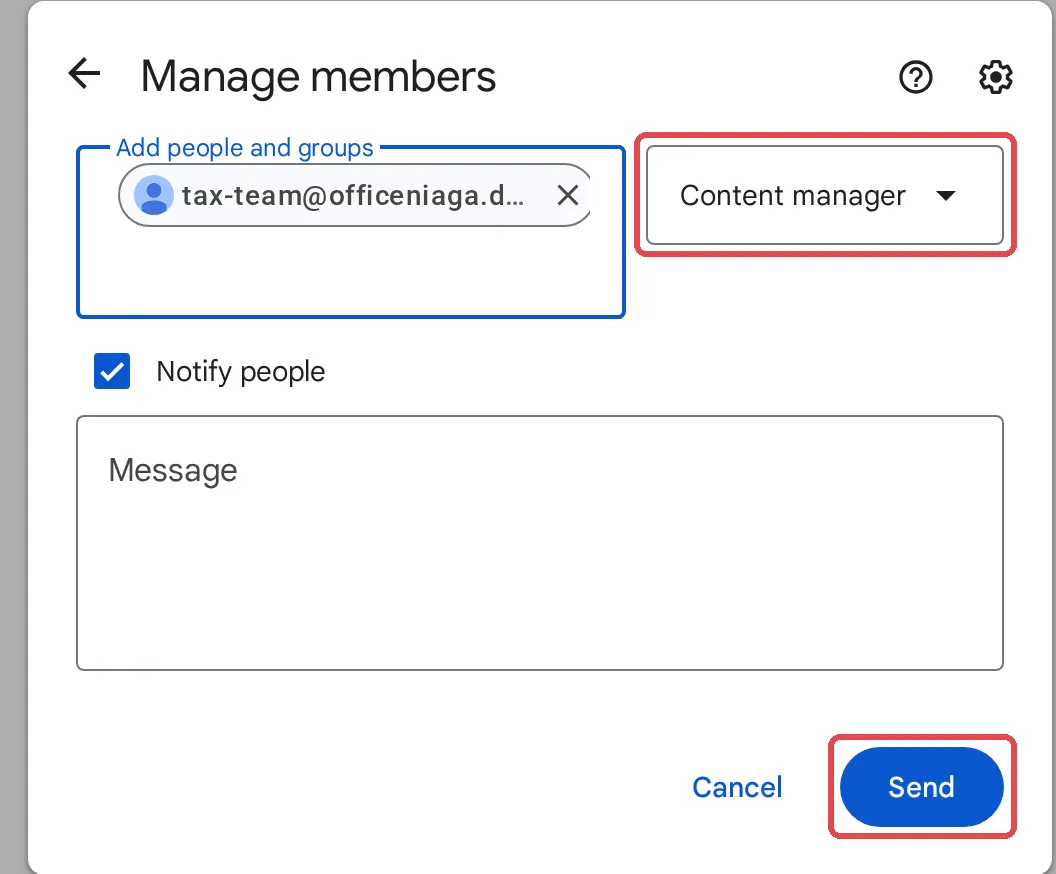
Enter the department group email, for example audit-team@yourfirm.com.
-
Select Content manager, then click Send.
-
Click Manage members again. Enter partners@yourfirm.com, select Manager, then click Send.
When you finish, the shared drive has these members:
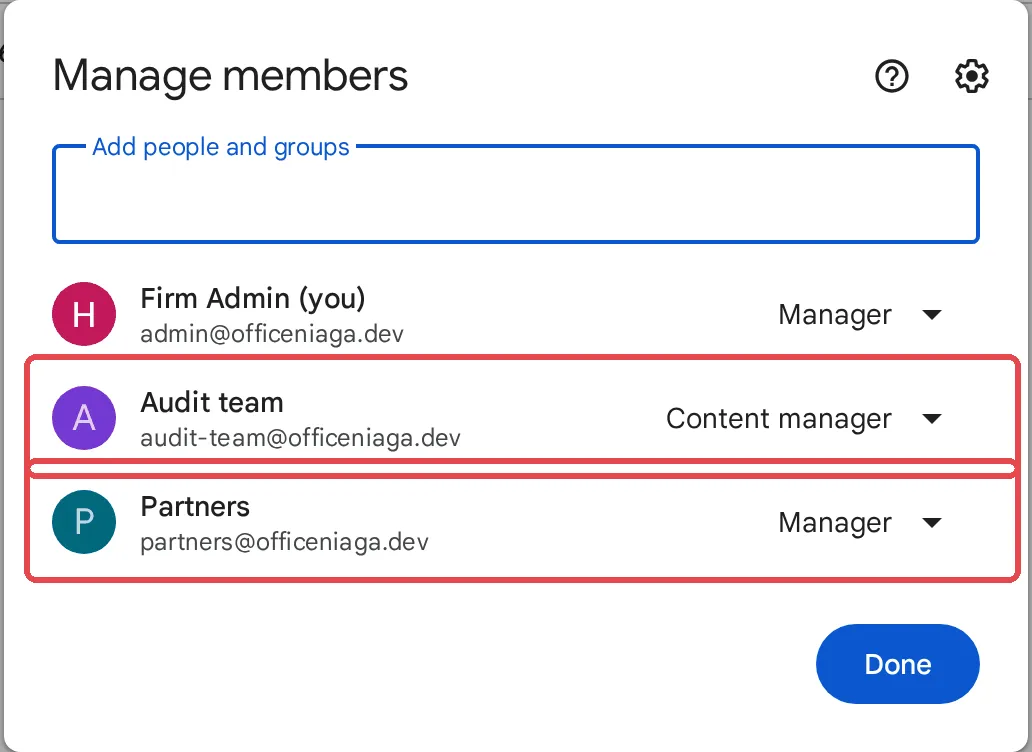
Content manager lets staff add, edit, move and delete files. If you want to prevent deleted files, select Contributor instead. Contributors can add and edit files, but they cannot delete them. Keep Manager for the partners or for 1 or 2 admins.
Step 4: Check the setup
Section titled “Step 4: Check the setup”Before you tell staff to use the drives, check the access with one person from each department.
- Ask the person to open Google Drive and click Shared drives.
- Make sure that they see only the drive of their department.
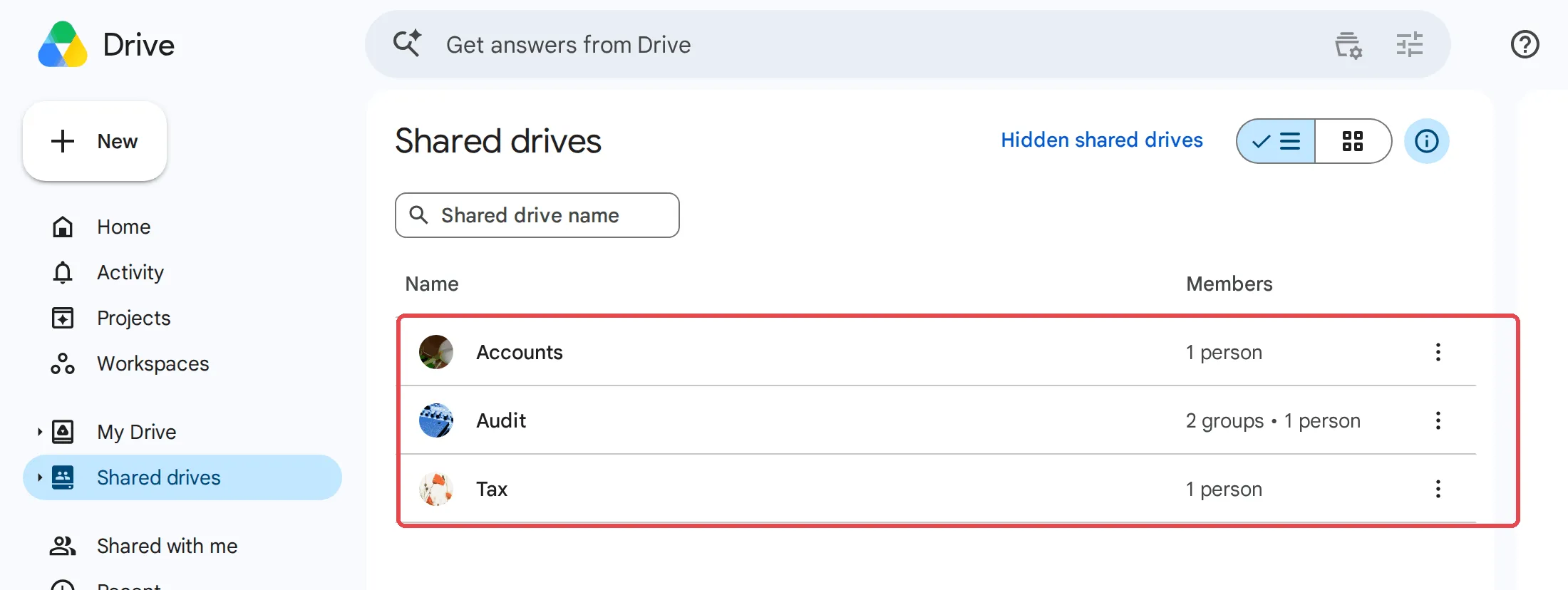
- Ask a partner to do the same. A partner must see all 3 drives.
The partner’s list looks like this:
Then tell staff to save work files in their department’s shared drive, not in My Drive. Files in My Drive belong to the person, not to the company.
When staff join, move or leave
Section titled “When staff join, move or leave”Use the groups to change access. This is the advantage of this setup.
- A new staff member joins: Add them to their department’s group.
- A staff member moves to another department: Remove them from the old group and add them to the new group.
- A staff member leaves: Remove them from the group and follow what to do when staff leave. Their files in the shared drive stay.
See who changed or opened a file
Section titled “See who changed or opened a file”What you can see depends on your plan.
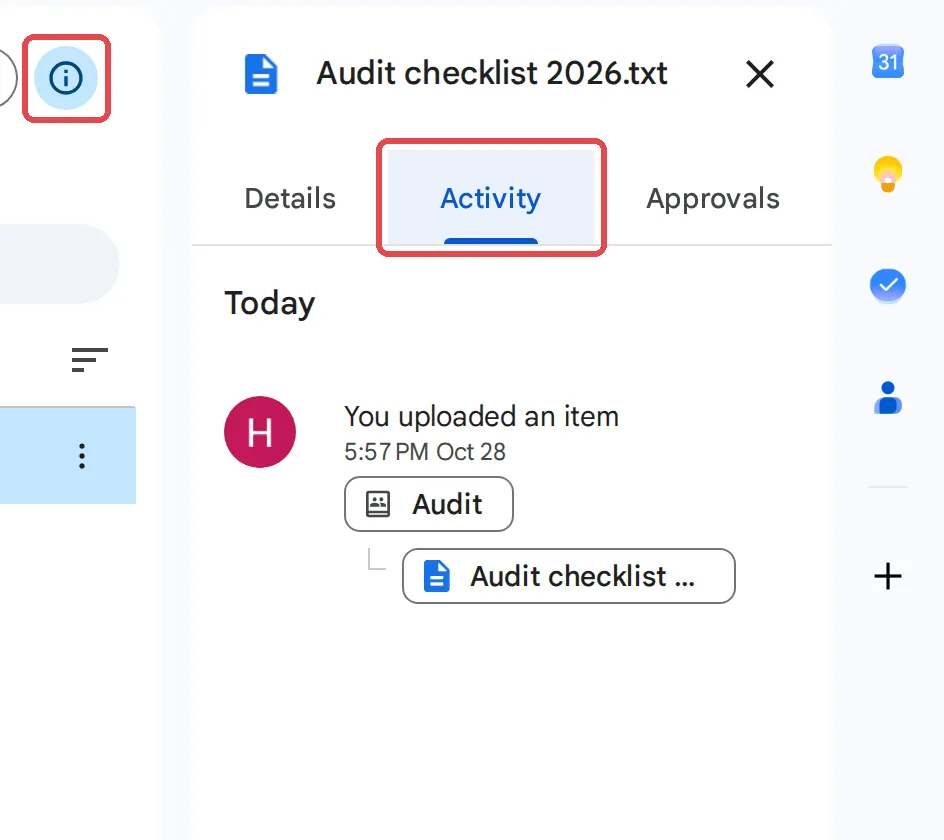
- All plans: In Drive, select a file or folder and click View details (the i icon). The Activity tab shows who added, changed, moved, shared or deleted files.
- Business Standard and higher: In Docs, Sheets or Slides, click Tools → Activity dashboard. It also shows who opened the file and when.
The Activity tab of a file in a shared drive looks like this:
For client documents, such as accounts and tax files, the Activity dashboard is a good reason to select Business Standard. Compare plans on our pricing page.
Still stuck
Section titled “Still stuck”WhatsApp our support team at +60 16-916 3324. We can set up the groups and shared drives for you.
Common issues
Can all staff share one Google Workspace account instead?
Do not do this. With one shared login, everyone sees every file, you cannot limit access by department, you cannot see who changed a file, and you must change the password for everyone when one person leaves. Give each person their own account. See add a user.
A new member cannot see the department's shared drive. What do I do?
Check that the person is in the department's group in Directory → Groups. A change to a group can take a few minutes, sometimes longer, to reach Google Drive. Ask the person to sign out of Drive and sign in again.
Can I see who opened a file?
On Business Standard and higher plans, yes. Open the file in Docs, Sheets or Slides and click Tools → Activity dashboard. On Business Starter, you can see who changed, moved or shared a file in the Drive Activity panel, but not who opened it.
Can staff still share a file with another department?
Yes, if their access level lets them share. On Business Standard and higher, a Manager can turn off sharing with people who are not members of the shared drive. On Business Starter, these settings for each shared drive are not available.
Was this article helpful?
Thanks for your feedback.
Sorry this didn't help. WhatsApp us and we'll sort it out with you.